Tutorial: Creating Self-Contained MCUXpresso SDK Projects

In Tutorial: Getting Started with MCUXpresso SDK – Repositories with VS Code and Tutorial: Getting Started with MCUXpresso SDK – west I showed how to get the MCUXpresso SDK. In this article it is about tweaking and streamlining the project.

The result is a clean, portable and self-contained MCUXpresso SDK project.

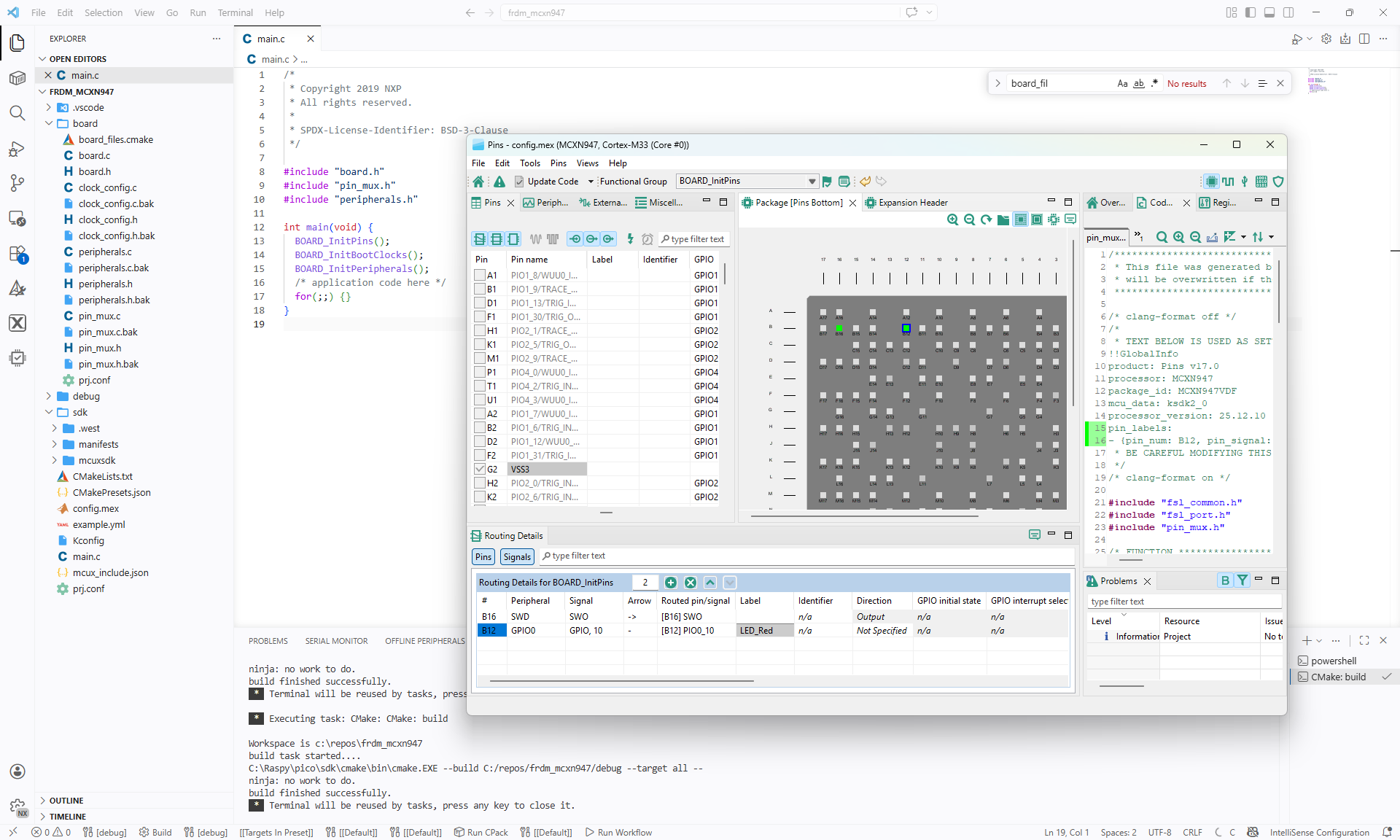
VS Code with streamlined NXP MCUXpresso project
Continue reading

Tutorial: Getting Started with MCUXpresso SDK – Tool Installation

The engineering and development landscape is constantly changing. This includes the embedded tooling and SDKs.

Back in the year 2017 I have used the version 2 (see Tutorial: Using Eclipse with NXP MCUXpresso SDK v2 and Processor Expert). Back then, it was Eclipse with make. Now we are in 2026 and things have changed to VS Code, cmake, ninja, python and west.

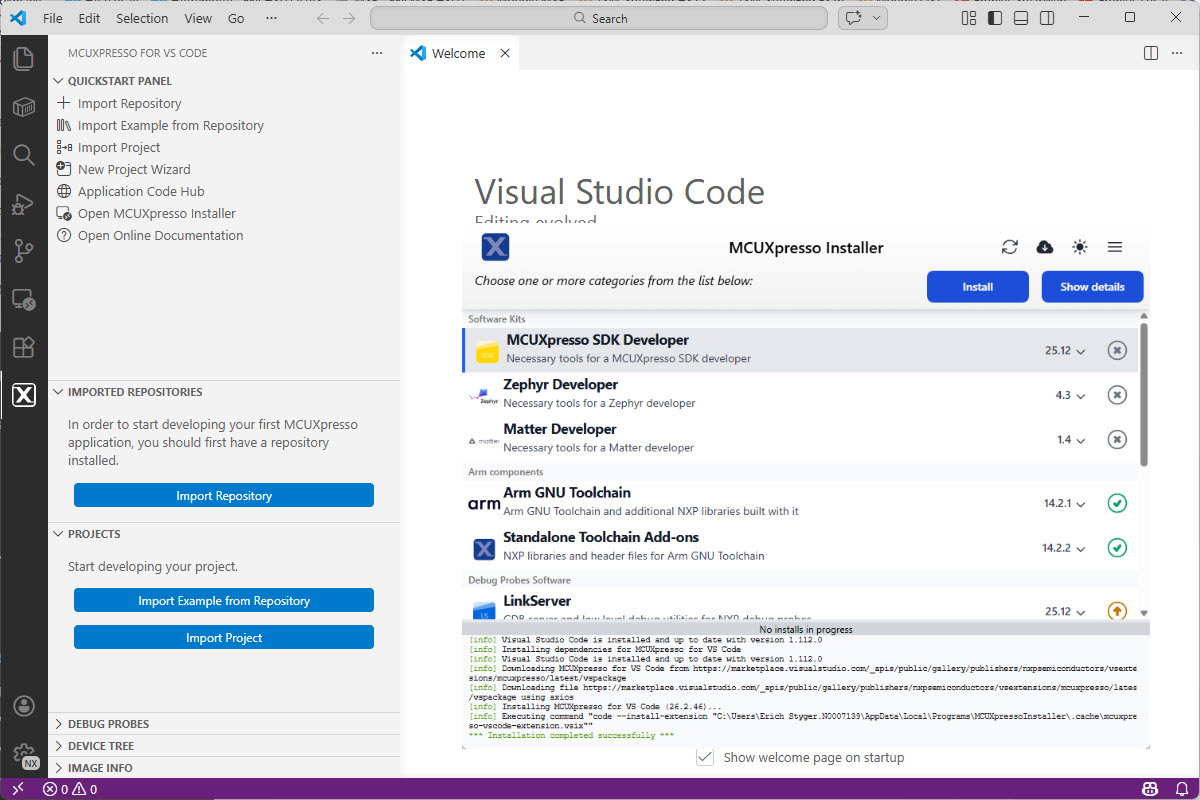
VS Code with MCUXpresso Installer

Luckily, although more and different tools are needed these days, the installation experience has improved significantly. It has shifted from installing multiple different tools to a streamlined installation process.

Continue reading

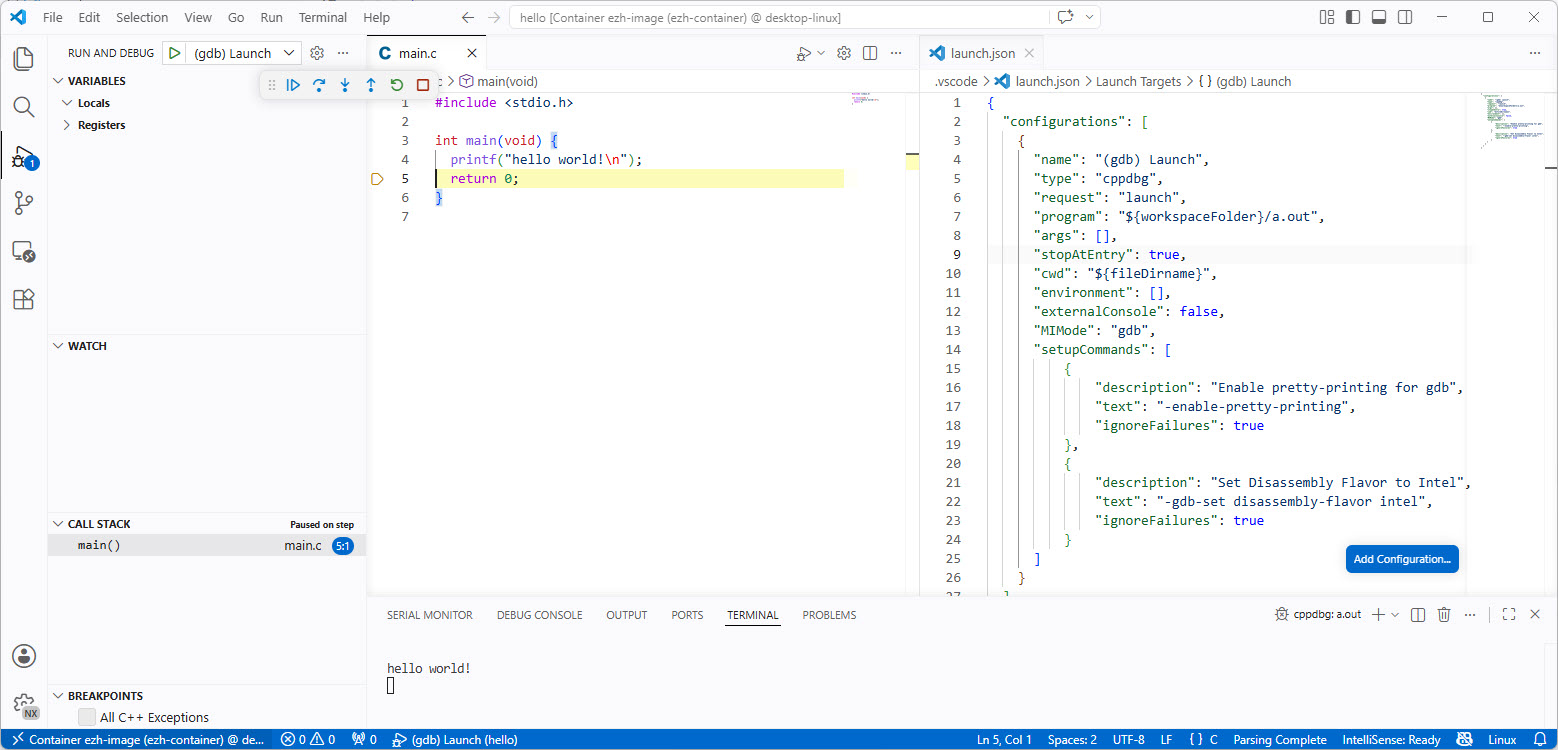
Optimizing Embedded Development with VS Code and DevContainer

Embedded System have a lifetime of 10 or 15 years. During that time the software and tools has to be maintained. This can be very challenging. Who knows if that compiler or tool used is still available in 10 years from now? Additionally installing and configuring the tool chain and environment for a new team member is difficult. Even worse: using a different host operating system for the cross development can produce different results or introduce issues.

VS Code running with DevContainer

One solution for all these problems is to use Docker images and containers. I can pack all the necessary tools and software into a virtual environment and container. But developing inside a container comes with many challenges. In this article I’ll show how Visual Studio Code or VS Code makes working with containers very easy. In this article I show how easy it is to use modern development tools and methodologies for embedded development.

Continue reading

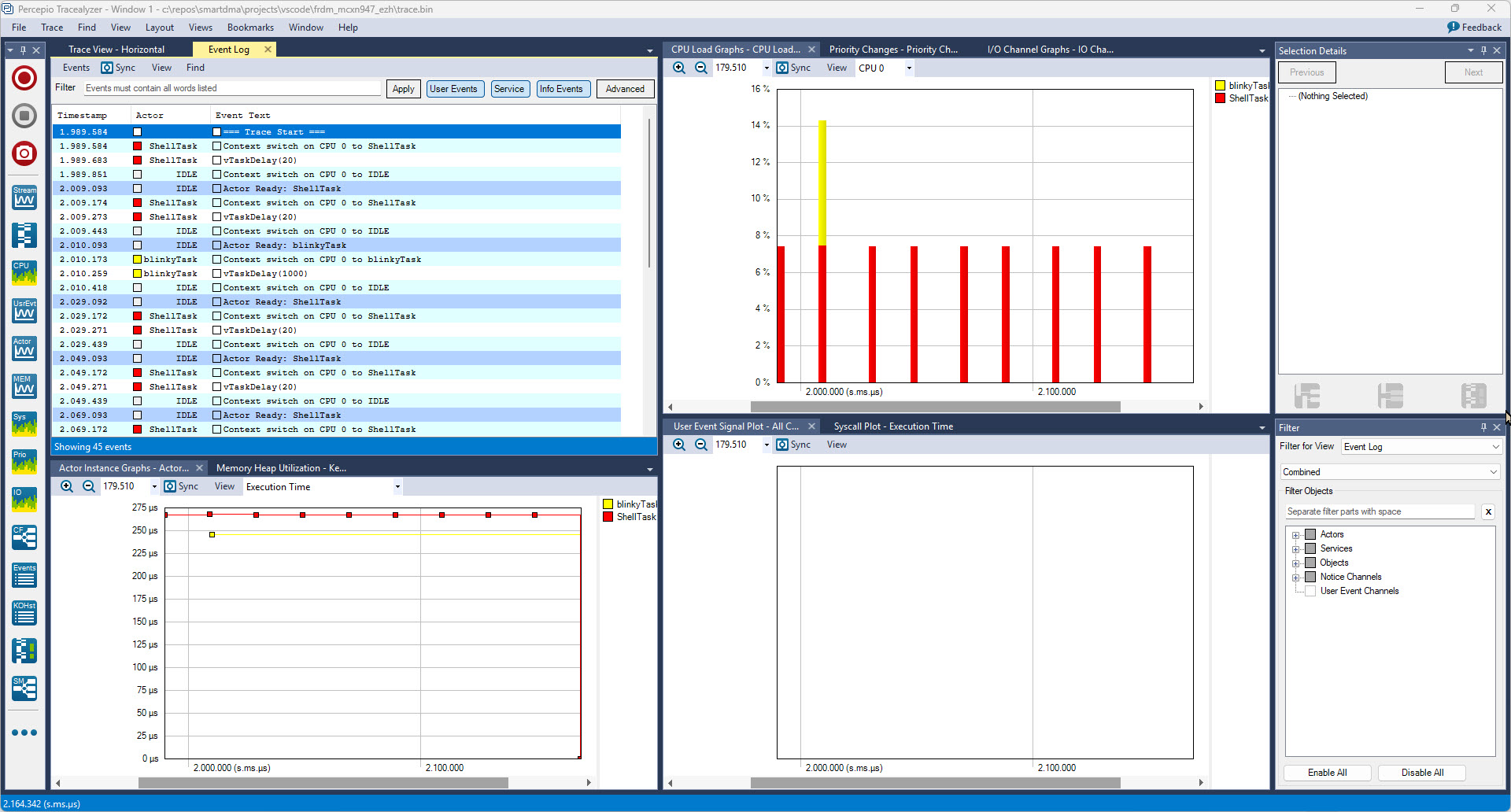
MCU-Link with Cortex-Debug and LinkServer

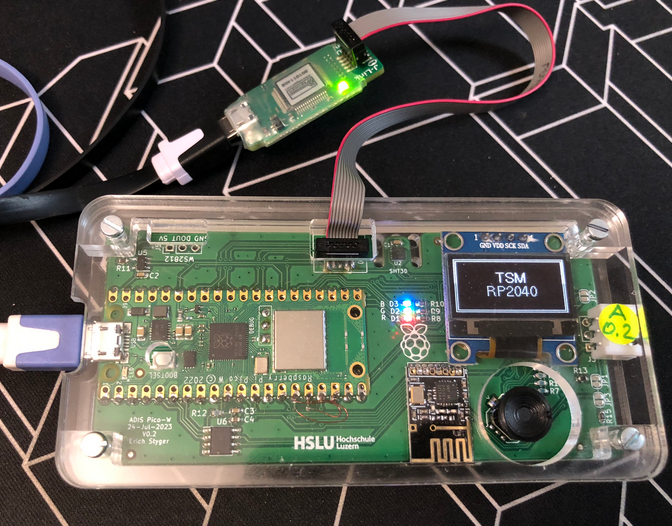
The MCU-Link is a small and inexpensive $10 CMSIS-DAP debug probe from NXP. It can work with OpenOCD, but has better target support using the NXP LinkServer which implements a gdb server. This makes it an ideal combination for scripting or automated testing.

MCU-Link as external debug probe
Continue reading

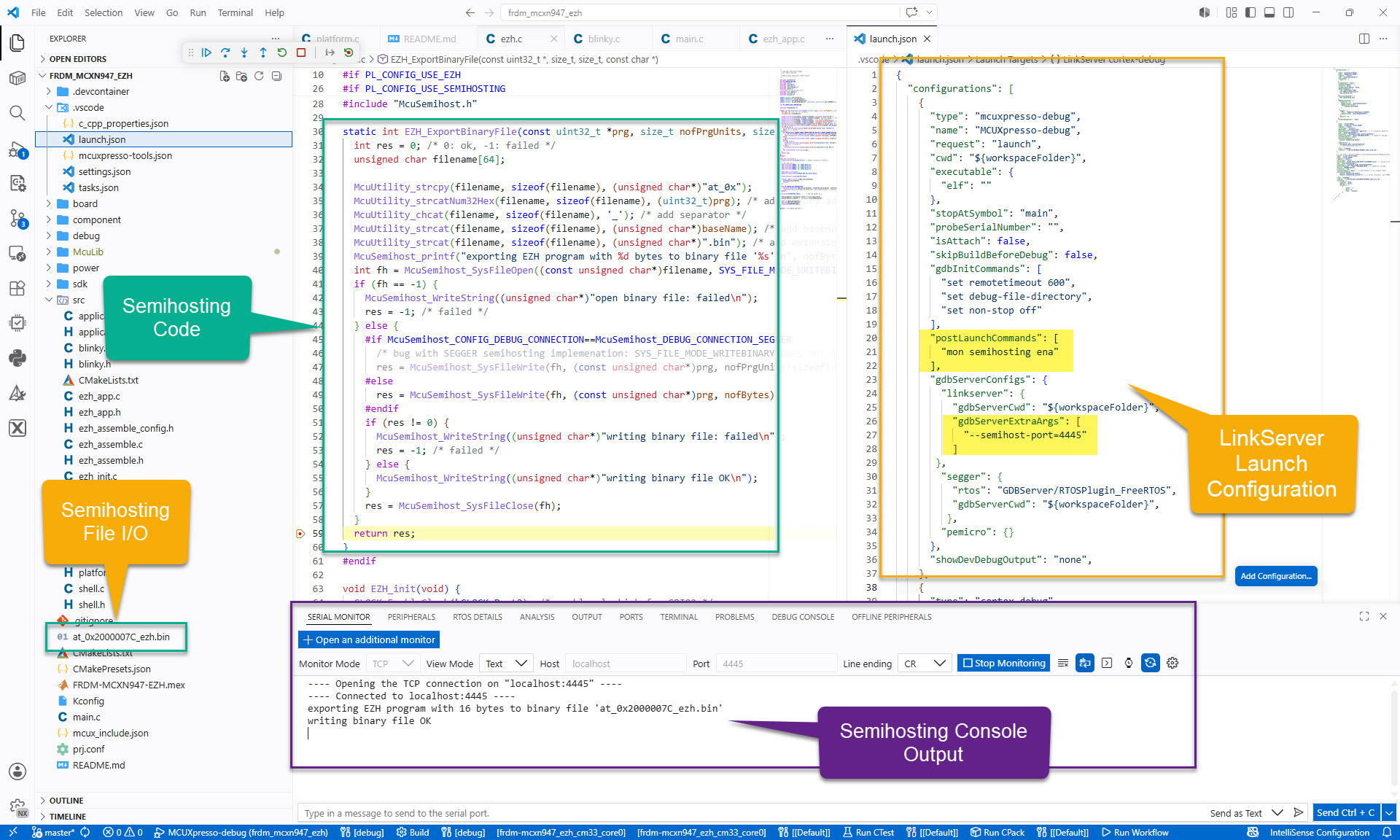
Semihosting with VS Code on RP2040

With semihosting I can use standard I/O function like printf() and I can read and write data on the host through the debug connection. If used with care, this is a great feature especially for unit testing.

Raspberry Pi Pico-W (RP2040) board
Continue reading

VS Code: Virtual Environments for Embedded Development with Conda

Developing for an embedded target means using a certain version of GNU compiler, debugger and other tools. The challenge gets bigger if working with multiple different tool chains and environments.

Conda in VS Code

Conda is package, dependency and environment management tool. While it is heavily used for Python and Data Science development, it is surprisingly working very well to set up and managing environments for embedded development. Conda is great for managing non-Python dependencies and setups.

Continue reading

VS Code: Telemetry-free VSCodium

“There is no such thing as a free lunch.”

https://en.wikipedia.org/wiki/No_such_thing_as_a_free_lunch

And this applies to VS Code and many of its extensions. You agree to the licensing conditions, and you pay with your data.

VS Code source code is MIT licensed, but the binaries you can download and install have telemetry built in: you are giving Microsoft your usage data in return for using VS Code.

If you are concerned about this, and looking for free and libre open source binaries of VS Code, then have a look at MIT-Licensed VSCodium.

https://vscodium.com
Continue reading

VS Code: Uninstall completely

Nothing has to last forever, and VS Code might not be the right thing for everyone. VS Code can go overboard with all the extensions and things it had proposed to install. Up to a point that one needs to get re-started again. Or because you tasted VS Code, but you did not like it.

That’s OK, you can uninstall it, after you have installed it (see VS Code: IDE Installation). The catch is: the uninstall does not a full removal, as settings and extensions do not get removed.

This article shows how to fully uninstall VS Code.

Continue reading