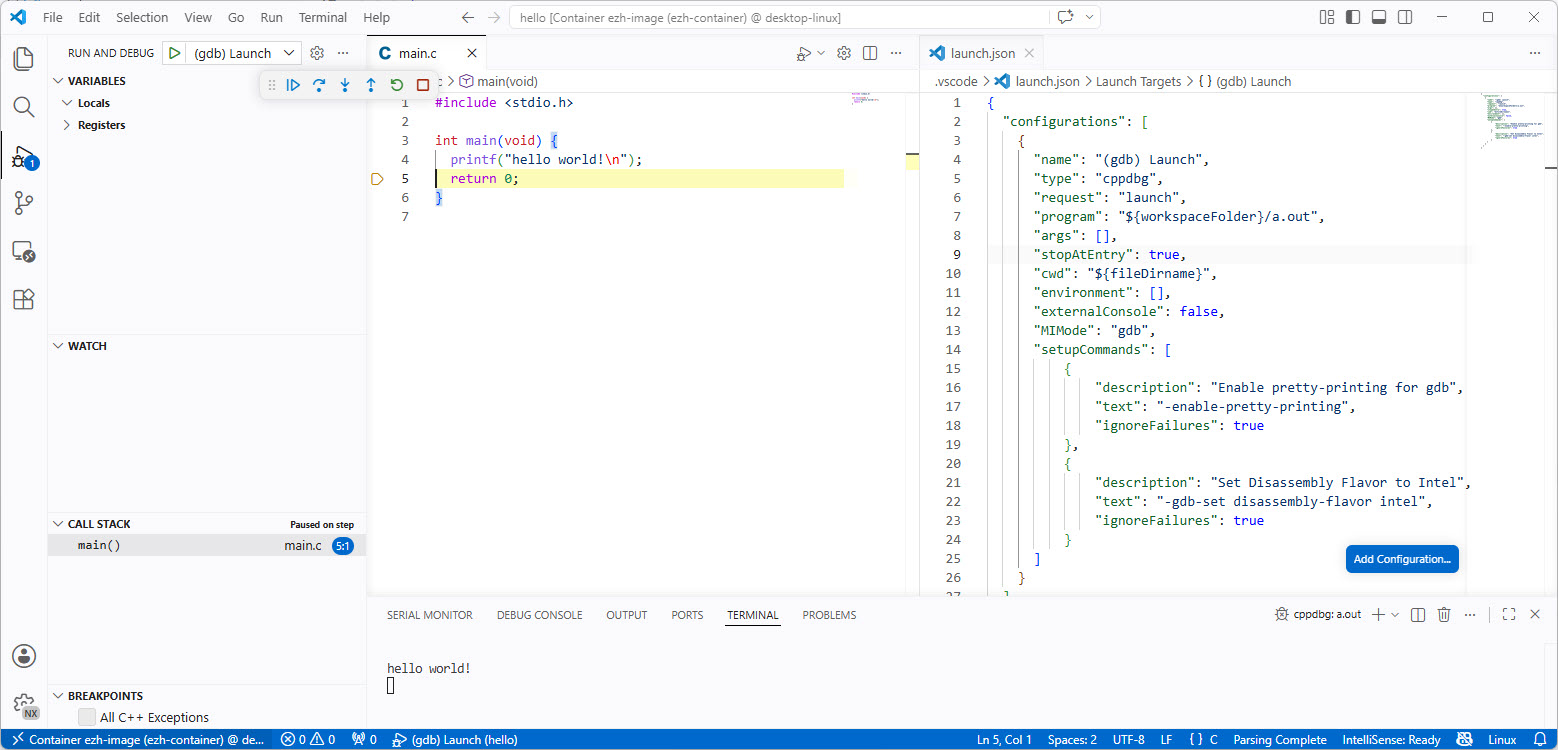
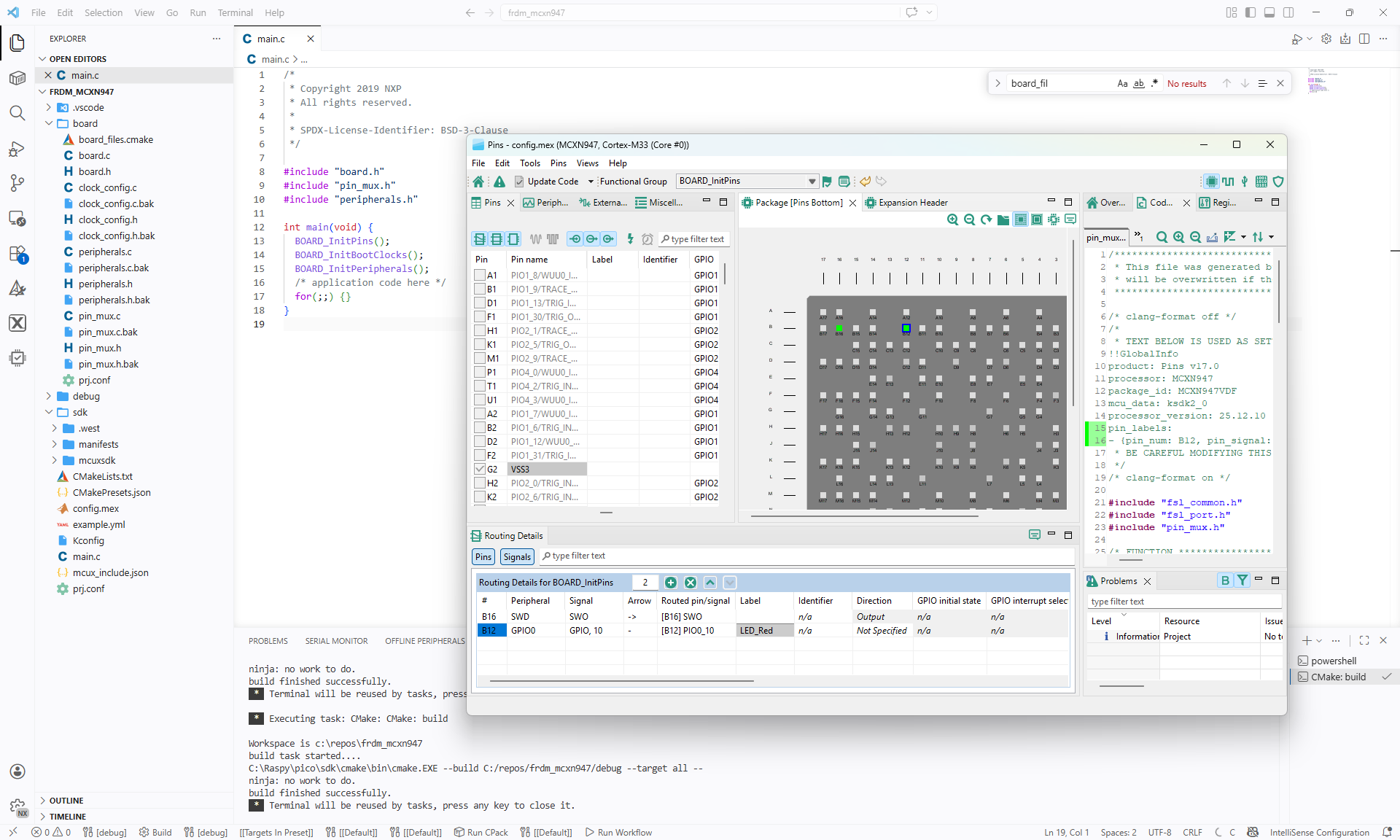
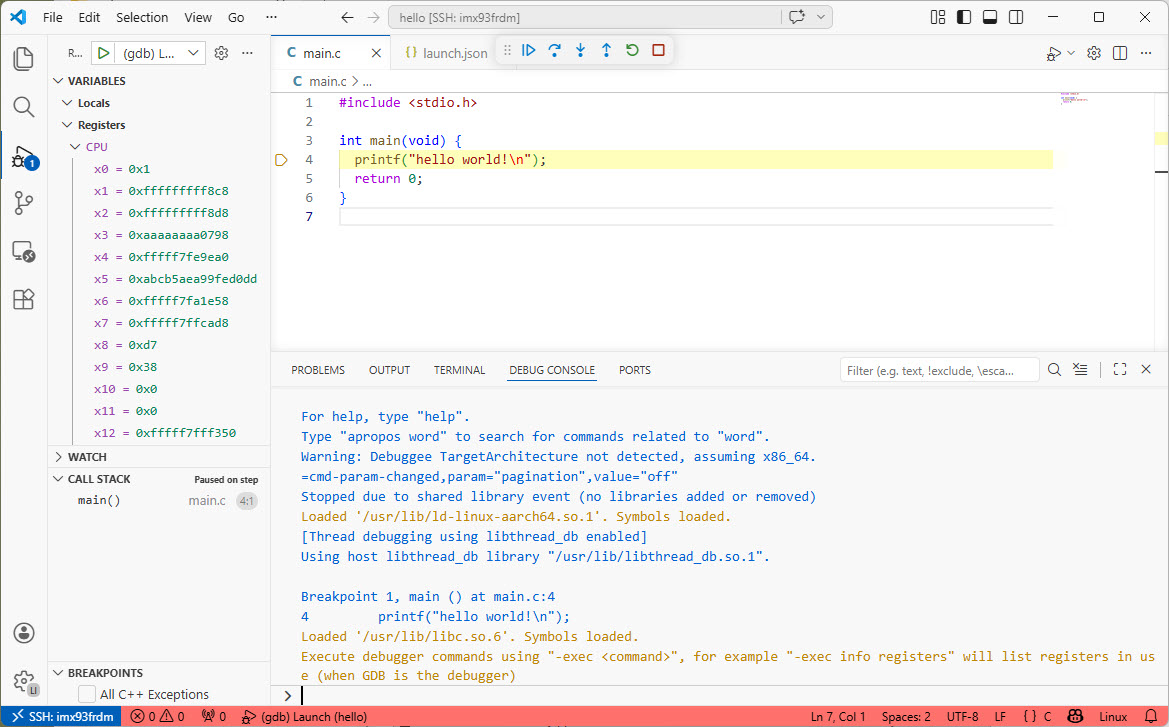
Recently I have been asked “How can I debug a Linux application with VS Code?”. I’m covering that topic in my ‘Embedded Application Development Course on Linux”.
Debugging Linux Application with VS Code over SSH
I realized, that I have never covered that topic in any of my blog articles. So here we go: I show how easy it is to use VS Code to debug a Linux application. You can use this for example with an Raspberry Pi. Or for example the NXP i.MX93 which I’m using in this article.
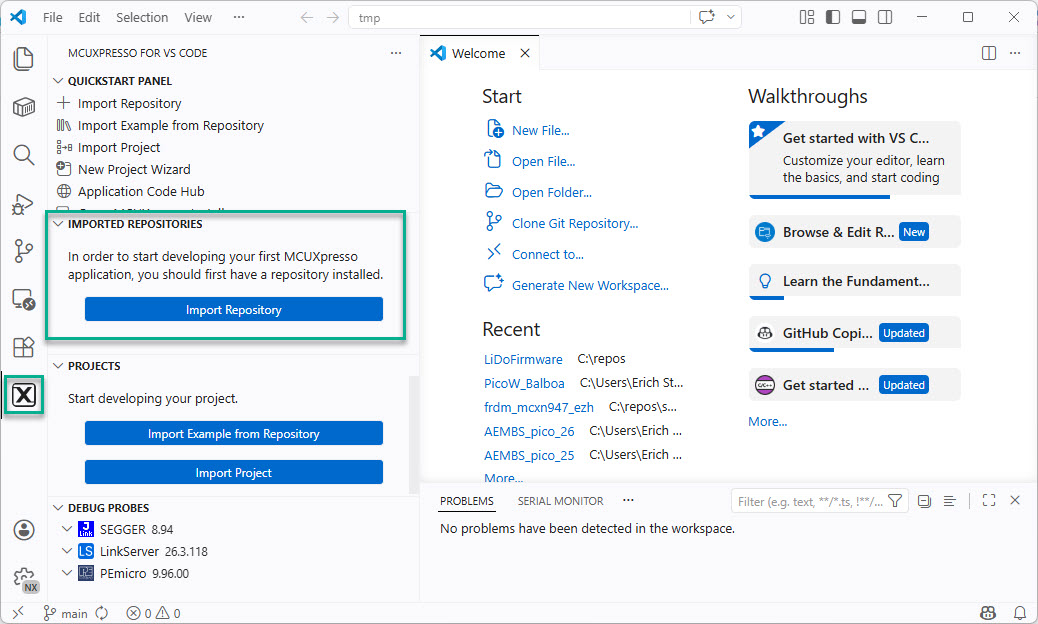
In “Tutorial: Getting Started with MCUXpresso SDK – west“, I demonstrated the ‘west’ tool’s usage. It helps in acquiring an SDK repository. Instead using the command line tool, I can use the NXP VS Code extension to do the same.
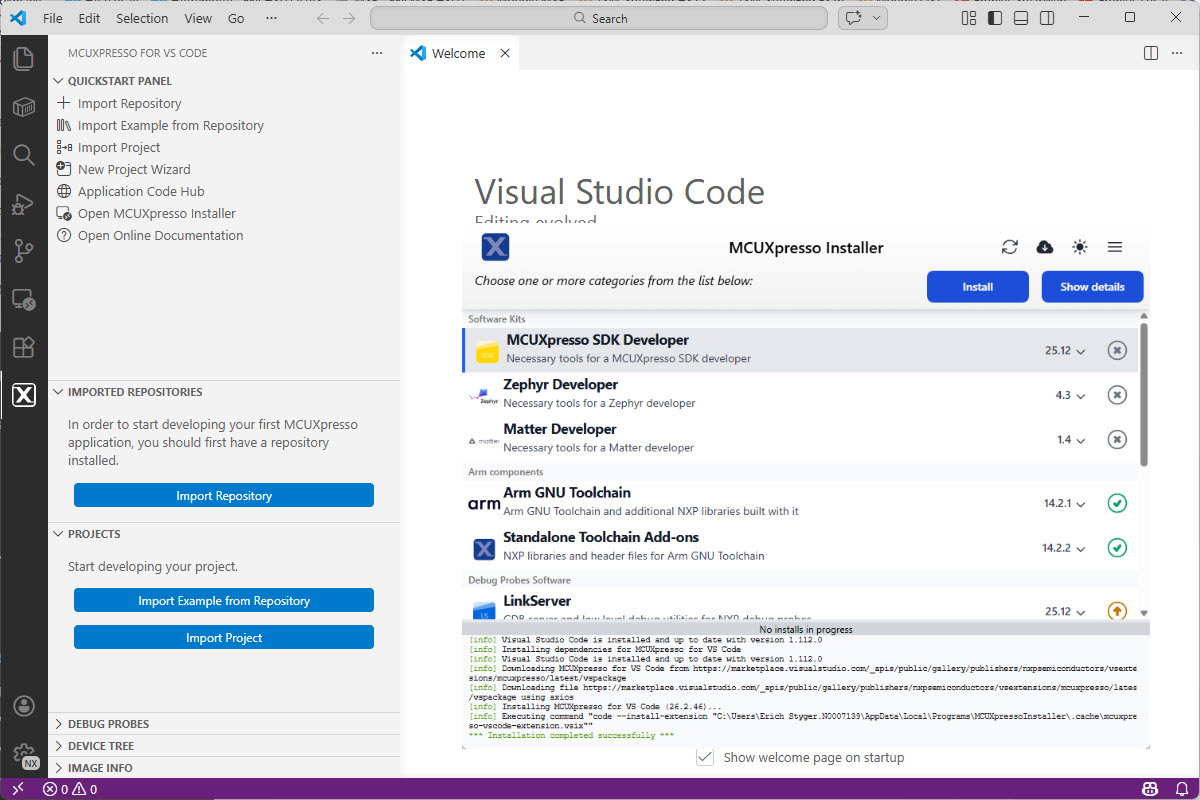
Luckily, although more and different tools are needed these days, the installation experience has improved significantly. It has shifted from installing multiple different tools to a streamlined installation process.
Sometimes, all what I have is a ELF/Dwarf binary, and I need to debug it. I don’t want to build it, only debug it. The NXP VS Code extension makes that possible. I simply import the binary and start debugging.
I recently upgraded from Win10 to Win11. Windows 10 was not great for building performance compared to Linux. And I feel that with Windows 11 things got worse too.
Dev Container in VS Code uses docker-based environments. This enables me using a full-featured development environment, with isolated dependencies. This is especially very useful for development in the embedded systems space. There I have to use many different SDKs, toolchains and libraries. Using Dev Containers is super easy. But file I/O operations with building etc/is not that great.
The solution is to use a Docker Volume with VS Code and Dev Container:
Today’s projects and systems get more and more complex. Many systems include multiple MCUs, connected with a field bus or network, for example CAN. For example there can be up to 70 CAN nodes in modern cars. Such larger and connected systems are a challenge for debugging.
Traditional hardware debugging requires a hardware debug probe, connected with a dedicated SWD/JTAG debug cable to the target device. This needs dedicated pins on the target device plus physical access to the device itself. In many cases, this is not possible in the final product. The hardware debug probes, cables, pins and high speed signals are costly. And worse they can introduce new problems and are prone to interference.
If there is a field bus like CAN connecting all the MCUs, why not use it for hardware debugging? Hardware debugging meaning programming the FLASH memory, halt the MCU, inspect the memory and registers, and step through the code?
Cortex-M Hardware Debugging over CAN
Yes, we can! With the help of a rather unknown hardware feature on ARM Cortex-M devices. We can use the ARM DebugMonitor Interrupt to control and debug the target system. As we would use a JTAG/SWD connection. Instead, we use the CAN bus :-).
The MetaClockClock is a clock made of clocks. It consists of multiple dual-shaft stepper motors, arranged as a matrix of 5×12 analog clocks. Each clock has two motorized hands that can move independently. The clock can tell the time, but in a unconventional way. The entire matrix creates a meta-display that shows the time or other information. Between the updates, the hand can do coordinated, choreographed movements.
The clock hands are laser cut acrylics with get light up with a LED ring around the clock.
This article describes the build with CNC cut oak enclosure, laser-cut parts and 3D printed items.
Test coverage is a very useful metric: it tells how much of your code has been covered by tests. Or the other way: it helps identifying areas of my code which has not been running tests. A new CMake extension in VS Code is available. It works with the new NXP LinkServer test runner to allow running tests on an embedded target. The really cool thing is: it collects and visualizes test data with coverage information in a single step: