When I create a new Processor Expert project for a board I already have the components configured, then an easy way to transfer components from one project to another is to copy-paste the components. In the ‘source’ project I select the components I want to use, choose Copy (or CTRL+C shortcut on Windows):
Category Archives: Building
C++ with Kinetis Design Studio
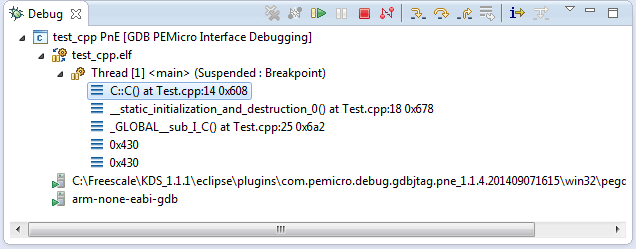
Unlike CodeWarrior, the Kinetis Design Studio (at least in V1.1.1) does not offer a choice between C and C++ projects. That makes sense with the GNU ARM Eclipse plugins, other than the CodeWarrior gcc integration, there is no need for setting up a special tool chain for C++ (see “Compiling C Files with GNU ARM G++“). While this is great, things are not perfect yet, so I’m providing in this post the information needed to properly setup a C++ project with Kinetis Design Studio V1.1.1.
Putting Code of Files into Special Section with the GNU Linker
The GNU Linker (ld) is very, very powerful. This time I wanted to put all my Processor Expert generated code into its own dedicated section. This is useful for example to have a bootloader or a library inside a special area in FLASH. It was not obvious to me how to do this with the linker, with some search on the internet and some trial and errors, I finally managed that. And as always with exploring things, I have learnt something :-). So here is how I’m able to put the code of arbitrary files into its own dedicated section.
Comparing CodeWarrior with Kinetis Design Studio
At FTF 2014, Freescale made the announcement that CodeWarrior won’t support all the new ARM Kinetis devices coming out in the future: they will be supported with the free-of-charge Kinetis Design Studio (KDS) instead. As for myself, this is a big shift from a well established CodeWarrior toolchain to something new. A question which came up recently several times in the forums and in other posts is: how do CodeWarrior and KDS compare with each other?
Executing Multiple Commands as Post-Build Steps in Eclipse
The GNU ARM Eclipse plugins from Liviu already offer several built-in actions which can be performed at the end of a build: creating flash image, create listing file and printing the code and data size:
But what if I need different things, or even more things?
How to Add Existing Files to Eclipse Projects
This Tip sounds very basic, but still: I get asked about this about once a week. So it must be something non-obvious in Eclipse then ;-): how to add existing files to an Eclipse project. As with many things in Eclipse, there is not a single way to do something. There are two basic ways to do this:
- Import
- Drag & Drop
- Copy & Paste
The first is the ‘official’ way in Eclipse, the other two are much faster and easier :-).
1. Import
To import one or multiple files, select the folder/project where I want to add the files, then use the menu File > Import:
Building Projects with Eclipse from the Command Line
Eclipse has a great user interface (UI). But what if I want to do things from the command line, without the GUI? For example to build one or more projects in the workspace without using the Eclipse UI? With this, I can do automated check-outs and do automated builds.
Semihosting with GNU ARM Embedded (LaunchPad) and GNU ARM Eclipse Debug Plugins
In “Semihosting with Kinetis Design Studio” I used printf() to exchange text and data between the target board and the host using the debug connection. Kinetis Design Studio (KDS) has that semihosting baked into its libraries. What about if using the GNU ARM Embedded (launchpad) tools and libraries (see “Switching ARM GNU Tool Chain and Libraries in Kinetis Design Studio“)? Actually it requires two more steps, but is very easy too.
Automatic Documentation Generation: Doxygen with Processor Expert
One really cool thing with Processor Expert is: it does not only generate the source code for me, it generates as well documentation :-). I’m a believer of the ‘single source’ approach: if I have to document a software project, then the software itself shall be the source of the documentation. And for this I love Doxygen: see “5 Best Eclipse Plugins: #1 (Eclox with Doxygen, Graphviz and Mscgen)“. Doxygen is a compiler which compiles my source files, and instead of object files it creates documentation files for me :-).
GNU Libs with Debug Information: Rebuilding the GNU ARM Libraries
With my DIY tool chain (see “Constructing a Classroom IDE with Eclipse for ARM“) I get a complete tool chain. I do not need to build that tool chain from the sources for Windows, as all the binaries are nicely pre-compiled and made available. But there is one issue I face from time to time: as the libraries provided by ARM do not come with sources and debug information enabled, I end up with that “No source available for …” message in the debugger:
The solution is to grab the C/C++ library sources from the ARM launchpad site and get it built locally the way I need it.