
Setting up the correct tools for a development environment can be complex and time consuming. I’m using DevContainers with Docker for almost all of my projects. Because that way I get an isolated development environment. For this I spend time to craft dedicated docker files, to have everything installed correctly with the the right versions.
Outside a docker or DevContainer environment, I’m using the NXP MCUXpresso installer. It is a standalone application which can be used from VS Code to check and install all the necessary tools.

In this article, I show how to have the NXP MCUXpresso Installer installed in a DevContainer so it can be used with VS Code.
Outline
The MCUXpresso Installer is a standalone tool from NXP. With it I can install the necessary tools and environment for example for Zephyr or MCUXpresso SDK development. It is a very useful tool, because that way I can keep the tools in sync. Plus it checks for the latest available versions and update tools if I want to. It comes both as GUI and CLI version.
In a Docker or DevContainer environment that installer is usually not needed, because I install everything with the docker commands.
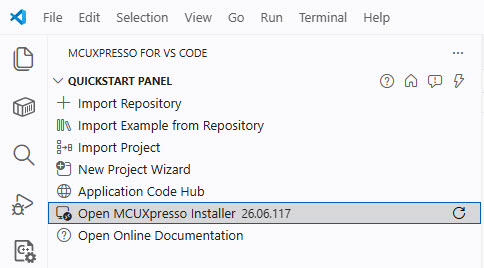
The Installer can be launched from the MCUXpresso for VS Code extension:
If not installed, the extension will check it and proposes to download and install it:

To avoid that extra step, I want to install it in the docker image.
DockerFile
In this example, I’m using Ubuntu:
FROM mcr.microsoft.com/devcontainers/cpp:dev-ubuntu24.04
In my docker files I have a ‘apps’ folder for downloading and installing files:
# folder for downloaded files
WORKDIR /apps
RUN mkdir -p /apps
Downloading and installing Debian file
The script below downloads and installs the installer. The docker script runs as root, but I want the Installer installed for the user ‘vscode’. That user is used by my VS Code.
# Download and install MCUXpresso Installer
# INFO: Installation directory: /home/vscode/MCUXpressoInstaller
# INFO: To start the installer, run /home/vscode/MCUXpressoInstaller/MCUXpressoInstaller
RUN \
    cd /apps \
    && wget https://www.nxp.com/lgfiles/updates/mcuxpresso/MCUXpressoInstaller.deb.bin \
    && chmod a+x MCUXpressoInstaller.deb.bin \
    && mkdir -p /home/vscode/.local/share/applications
# Install as vscode user
USER vscode
RUN sudo /apps/MCUXpressoInstaller.deb.bin
# Back to root
USER root
GUI Libraries
To run the installer with a GUI in my docker/WSL environment, I have to install a few more libraries:
# Install needed libraries to run the MCUXpresso Installer GUI
# NOTE that while this will run the GUI in the container
RUN \
    sudo apt-get update \
    && sudo apt-get install -y \
        libnss3 libatk1.0-0 libatk-bridge2.0-0 libatspi2.0-0 \
        libdrm2 libgbm1 libxkbcommon0 \
        libgtk-3-0 libgdk-pixbuf-2.0-0 \
        libcairo2 libcairo-gobject2 \
        libpango-1.0-0 libpangocairo-1.0-0 libharfbuzz0b libglib2.0-0 \
        libx11-6 libxcomposite1 libxcursor1 libxdamage1 libxext6 \
        libxfixes3 libxi6 libxrandr2 libxrender1 libxss1 libxtst6 \
        libx11-xcb1 libxcb1 libxcb-dri3-0 libasound2t64\
        libfontconfig1 fonts-liberation \
        libcups2 libdbus-1-3 libexpat1 libssl3
GUI Version
With this, I can use the Installer inside the DevContainer. And I can launch it from VS Code in the DevContainer:

CLI Version
There is a CLI/Command Line version of the Installer too. Using it in WSL is a bit tricky, as I have to disable access to the dbus. I run it for example with
unset DBUS_SESSION_BUS_ADDRESS
dbus-run-session -- ./MCUXpressoInstallerCLI list --all

Summary
WSL is not officially supported by NXP for the MCUXpresso Installer. With the above Docker script, I can install and run it inside Docker/DevContainer/WSL. The idea is not to use it for installation of tools. The idea is to have a similar developer experience as natively on the host. I can run it as a GUI or CLI version. Having the installer present in the DevContainer is not absolutely needed, but a nice addition to the developer experience.
Happy installing 🙂
Links
- NXP MCUXpresso installer: https://www.nxp.com/design/design-center/software/development-software/mcuxpresso-software-and-tools-/mcuxpresso-installer:MCUXPRESSO-INSTALLER
- NXP VS Code extension: https://www.nxp.com/design/design-center/software/development-software/mcuxpresso-software-and-tools-/mcuxpresso-for-visual-studio-code:MCUXPRESSO-VSC
- Marketplace NXP extension: https://marketplace.visualstudio.com/items?itemName=NXPSemiconductors.mcuxpresso
- MCUXpresso Installer CLI: https://mcuxpresso.nxp.com/mcux-vscode/latest/html/MCUXpresso-Installer-CLI.html
- Optimizing Embedded Development with VS Code and DevContainer
- Streamlining LinkServer Installation for CI/CD

