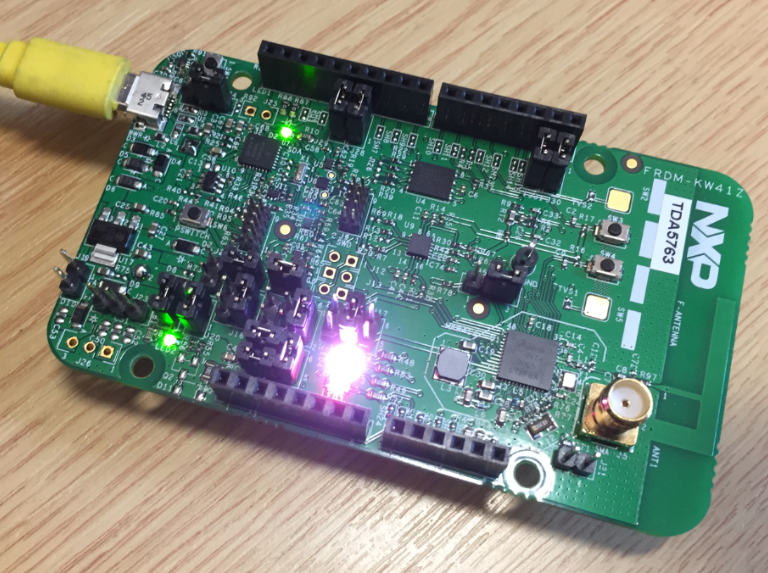
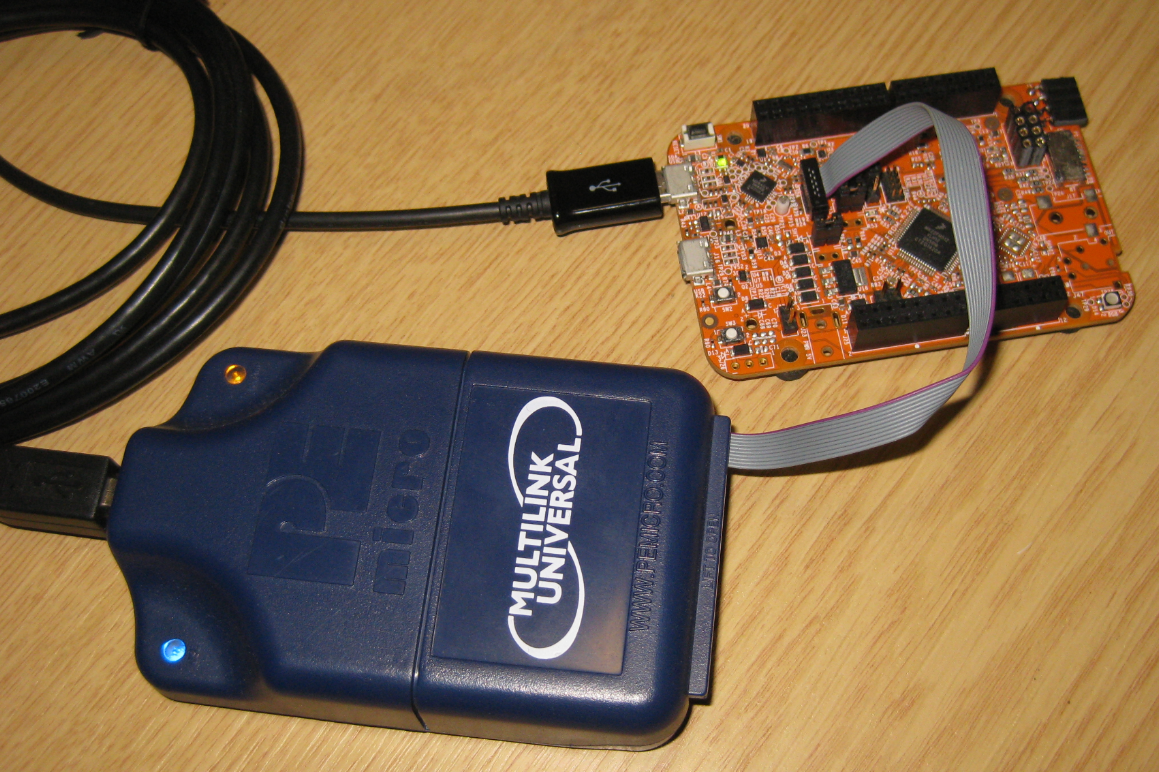
Many of the NXP OpenSDA boot loaders are vulnerable to Windows 8.x or Windows 10: write accesses of Windows can confuse the factory bootloader and make the debug firmware and bootloader useless. In this post I show how to recover the bootloader using MCUXpresso IDE and the P&E Universal Multilink.
Tag Archives: gnu gcc
Tutorial: Porting BLE+NRF Kinetis Design Studio Project to MCUXpresso IDE
The tools and IDE market is constantly changing. Not only there is every year at least one new major Eclipse IDE release, the commercial tool chain and IDE vendors are constantly changing the environment too. For any ARM Cortex-M development, the combination of Eclipse with the GNU tool chain provided by ARM Inc. is the golden standard. But this does not mean that things can be easily moved from one IDE package to another.
While moving between Eclipse versions and GNU versions is usually not a big deal at all, moving between the Eclipse build tool integration is usually not simple. While the GNU MCU Eclipse plugins are widely used (see Breathing with Oxygen: DIY ARM Cortex-M C/C++ IDE and Toolchain with Eclipse Oxygen), the Eclipse based IDEs from the silicon vendors or commercial Eclipse toolchain vendors are using their own GNU toolchain integration. Which means the project files are not compatible :-(.
Building Eclipse and MCUXpresso IDE Projects from the Command Line
Eclipse as IDE takes care about compiling and building all my source files. But in an automated build system I would like to build it from the command line too. While using make files (see “Tutorial: Makefile Projects with Eclipse“) is an option, there is another easy way to build Eclipse projects from the command line:
Breathing with Oxygen: DIY ARM Cortex-M C/C++ IDE and Toolchain with Eclipse Oxygen
Last month (June 2017), the latest version of Eclipse “Oxygen” has been released, and I have successfully used it in several embedded projects. Time to write a tutorial how to use it to build a custom Do-It-Yourself IDE for ARM Cortex-M development: simple, easy, unlimited and free of charge. While the DIY approach takes a few minutes more to install, it has the advantage that I have full control and I actually know what I have.
Solving “No source file named …” in Eclipse and GDB
Sometimes it happens that arm-none-eabi-gdb complains about “no source file named” in the GDB console view in Eclipse when I debug a project with GDB:
Troubleshooting Tips for FreeRTOS Thread Aware Debugging in Eclipse
FreeRTOS seems to get more and more popular, and I think as well because more and more debugger and Eclipse IDE vendors add dedicated debugging support for it.
Tutorial: Makefile Projects with Eclipse
The benefit of an IDE like Eclipse is: it makes working with projects very easy, as generates make files and it takes and automatically manages the make file(s). But sometimes this might not be what I want because I need greater flexibility and control, or I want to use the same make files for my continues integration and automated testing system. In that case a hand crafted make file is the way to go.
One thing does not exclude the other: This article explains how to use make files with Eclipse with similar comfort as the managed build system in Eclipse, but with the unlimited power of make files:
MCUXpresso IDE v10.0.2 – Updated Eclipse based IDE for LPC and Kinetis
NXP has released an updated of their Eclipse based IDE for ARM Cortex-M (Kinetis and LPC) microcontroller: the version v10.0.2 build 411:
Getting Started: ROM Bootloader on the NXP FRDM-KL03Z Board
A bootloader on a microcontroller is a very useful thing. It allows me to update the firmware in the field if necessary. There are many ways to use and make a bootloader (see “Serial Bootloader for the Freedom Board with Processor Expert“). But such a bootloader needs some space in FLASH, plus it needs to be programmed first on a blank device, so a JTAG programmer is needed. That’s why vendors have started including a ROM bootloader into their devices: the microcontroller comes out of the factory with a bootloader in FLASH. So instead writing my bootloader, I can use the one in the ROM.
And as with everything, there are pros and cons of that approach.
Compiler Explorer
If you are like me – someone who always wants to know what the compiler generates for a piece of source code – then have a look at the Compiler Explorer: A web-based compiler code comparison tool:
Thanks to Matt Godbolt, I can select different compilers and compare their output for a given source code. Very useful to see the impact of a compiler optimization or to compare different GCC compiler versions.
Happy Comparing 🙂