So far I have covered in this tutorial series how to install ARM GNU gcc, adding Eclipse, followed by adding GNU GDB debugger, and then adding Processor Expert. I’m using FreeRTOS a lot in my projects, and luckily there is a Kernel Awareness Plugin available for FreeRTOS for GDB in Eclipse. This tutorial is about how to install and use it.
DIY Free Toolchain for Kinetis: Part 4 – Processor Expert for Eclipse
I covered in a previous tutorial how add ARM gcc to Kepler Eclipse to build a DYI toolchain. I’m using Processor Expert a *lot* in my project, because it simplifies and speeds up the development of my embedded applications. What is missing so far is how Processor Expert can be added to Eclipse. As Kepler is as of this writing the latest Eclipse version, this tutorial is using that version.
❗ Eclipse Luna is *NOT* supported in Processor Expert 10.4! Eclipse Luna is expected to be supported in Processor Expert 10.5 coming out in 2015! So if you are using Processor Expert 10.4, then make sure you are using Eclipse Kepler.
Using the FRDM-KL25Z as a USB Mouse Device
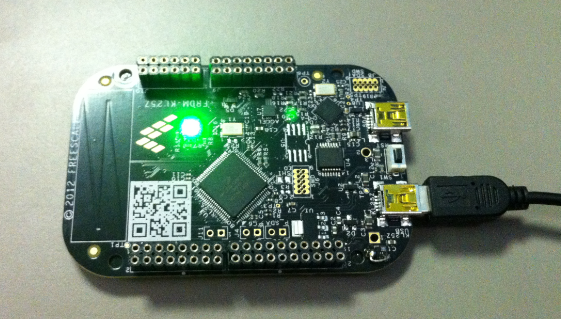
I finally completed my project turning the FRDM-KL25Z board into a USB mouse device :-). The form factor and the capabilities of the Freedom board makes it a great board for implementing it as a ‘custom mouse’. All what I need is the USB stack running on it and have it acting as USB HID Mouse device.
FreeRTOS V7.5.0 released
A week ago, the updated FreeRTOS V7.5.0 has been released on FreeRTOS.org. So time to have my Processor Expert FreeRTOS component updated as well :-).
How to re-enable ‘Add to dictionary’ for the Eclipse Spell Checker
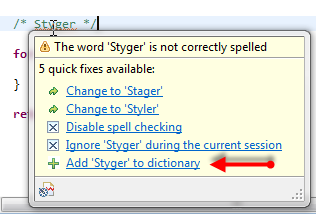
I love to have my sources ‘warning free’, so I spend an extra effort to have things clean and the way the compilers like it. In a similar way, I want to have my source comments spell-error free :-). For this, I love the Eclipse spell checker (see this post) which offers to add unknown words to the dictionary:
But what if that ‘Add’ action is missing? How to re-enable it?
DIY Free Toolchain for Kinetis: Part 3 – Debugger (GDB Server with P&E and Segger)
This is the third part of a tutorial series how to ‘do-it-yourself’ a tool chain for the Freescale Kinetis microcontroller, with the FRDM-KL25Z as example. The tool chain is using GNU ARM gcc plus Eclipse Kepler release. So far I have the following parts:
List of Tutorials
- Part 1: Setting up ARM GNU tool chain
- Part 2: Setting up Eclipse IDE
- Part 3: Setting up the debugger (P&E and Segger)
- Part 4: Setting up Processor Expert
- Part 5: Setting up FreeRTOS Kernel Awareness
- Part 6: Linux Host Support with OpenOCD and CMSIS-DAP
- Part 7: GNU ARM Eclipse Plugins
- Part 8: Processor Expert with GNU ARM Eclipse Plugins
- Part 9: DIY Free Toolchain for Kinetis: Part 9 – Express Setup in 8 Steps
- Part 10 – Project Creation with GNU ARM Eclipse 2.1.1
So far things are very generic. But with debugging it means different hardware, and different hardware connections. And for this connection we need a GDB Server.
GDB Server
Eclipse CDT features a GNU Debugger (GDB), and this is what I want to use here: debugging my microcontroller with GDB inside Eclipse. In order to debug the microcontroller, I need two other things: a GDB Server and a Debug Probe.
DIY Free Toolchain for Kinetis: Part 2 – Eclipse IDE
This is the second part of a multi-part tutorial about how to set up an open source tool chain with GNU ARM gcc + Eclipse to build and debug an application for Kinetis ARM devices.
List of Tutorials
- Part 1: Setting up ARM GNU tool chain
- Part 2: Setting up Eclipse IDE
- Part 3: Setting up the debugger (P&E and Segger)
- Part 4: Setting up Processor Expert
- Part 5: Setting up FreeRTOS Kernel Awareness
- Part 6: Linux Host Support with OpenOCD and CMSIS-DAP
- Part 7: GNU ARM Eclipse Plugins
- Part 8: Processor Expert with GNU ARM Eclipse Plugins
- Part 9: DIY Free Toolchain for Kinetis: Part 9 – Express Setup in 8 Steps
- Part 10 – Project Creation with GNU ARM Eclipse 2.1.1
DIY Free Toolchain for Kinetis: Part 1 – GNU ARM Build Tools
This is the first part of a multi-part tutorial on setting up a free and functional GNU gcc + Eclipse + debugger environment for use with the Freescale FRDM-KL25Z board.
List of Tutorials
- Part 1: Setting up ARM GNU tool chain
- Part 2: Setting up Eclipse IDE
- Part 3: Setting up the debugger (P&E and Segger)
- Part 4: Setting up Processor Expert
- Part 5: Setting up FreeRTOS Kernel Awareness
- Part 6: Linux Host Support with OpenOCD and CMSIS-DAP
- Part 7: GNU ARM Eclipse Plugins
- Part 8: Processor Expert with GNU ARM Eclipse Plugins
- Part 9: DIY Free Toolchain for Kinetis: Part 9 – Express Setup in 8 Steps
- Part 10 – Project Creation with GNU ARM Eclipse 2.1.1
In this first part, I’m showing how to install the GNU ARM tool chain to build a ‘blinking LED’ application for the FRDM-KL25Z. With 100% free tools 😉
Tutorial: Ultra Low Cost 2.4 GHz Wireless Transceiver with the FRDM Board
For my embedded systems lecture I need a wireless connection to the robot we will develop during that course. So far I have SMAC (IEEE802.15.4) and Bluetooth worked out. But that IEEE802.15.4 (ZigBee) is expensive, and the cheap Bluetooth modules are great for robot-to-host connection, but not for swarm robots which need to communicate to each other. Alex Vecchio (see this post) pointed me to a $2.75 (!) wireless module featuring the Nordic Semiconductor nRF24L01+. Exactly what I needed, with an incredible low price :-).
Hacking the Heating System for Cooling – Geothermal Drilling with extra Benefits
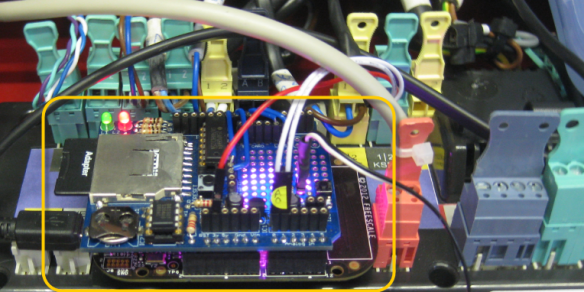
Summer finally has arrived in Switzerland. Yes, I live in a moderate climate zone, but if the outside temperature goes above 28-30° Celsius as these days, then sleeping at night is not that comfortable as it should be in my view. Luckily, I’m in a good constructed house with good insulation, so it takes a few days until it heats up. But I love to keep the temperature below 25° Celsius, especially at night. I do have a heating system which combines geothermal and solar heating. The question is: how can I use it for cooling during hot summer days? The solution: some extra plumbing, a Freescale Tower system and the Freescale FRDM-KL25Z board 🙂