One of the biggest fears of embedded systems developers are stack overflows. FreeRTOS includes a cool feature to monitor and catch task stack overflows. But what about the MSP (Main Stack Pointer) on ARM, or the interrupt stack? What if not using an RTOS and running a bare-metal application?
Checking stack size used
There is a simple way monitoring stack usage at runtime, and for this I want to share the routines and what is now available inside the McuArm module.
If doing embedded development, then the debugging solution is probably the most important single tool in the development chain. Because very debugging probe has its pros and cons, I usually have at least three different debug probes on my desk, simply to get the job done in all aspects.
What is true for the hardware debugging probes, is true for the gdb client and server side. I’m using mostly the P&E, SEGGER and CMSIS-DAP plugins (e.g. NXP LinkServer) and OpenOCD from the Eclipse IDE side. But there are more choices, for example pyOCD.
The ARM Cortex M architecture has many features which are underused, probably simply because engineers are not aware of it. SWO (Single Wire Output) is a single trace pin of the ARM Cortex-M CoreSight debug block. trace pin uses the ITM (Instruction Trace Macrocell) on ARM Cortex. It provides a serial output channel, at a high speed higher than the usual UART, because it is clocked at half or a quarter of the core clock frequency, depending on the core and implementation.
As such, it is an ideal high speed output channel to send text or data to the host. This is how it is usually used, but what is unknown to many: it can be used in a bidirectional way with the help of the debugger.
The topic of this article: how to redirect standard I/O like printf() or scanf() using the SWO ITM console: means both sending *and* receiving data over the SWO debug channel: that way I can use it as a kind of UART with a single pin only.
The year 2022 is coming to an end, and I have spent some time today on a little side project. It is about making an Electrical Vehicle (EV) wallbox charger accessible over Modbus RTU. It is not finished yet, and I plan to publish more articles on it, but I can share that I’m able to access and control the Heidelberg EV charger with a Raspberry Pi Pico W (Dual Core Cortex M0+), NXP K22FN512 (Cortex M4F) and LPC845 (Single Core Cortex M0+):
The RP2040 Pico board comes with 2 MByte onboard FLASH memory. While this is plenty of space for many embedded applications, sometimes it needed to have more storage space. Having the ability to adding an extra SPI FLASH memory with a useful file system comes in handy in such situations. This makes the RP2040 ideal for data logger applications or otherwise store a large amount of data. In this article I’ll show you how to add an extra 16 MByte of memory to the Raspberry Pi Pico board, running FreeRTOS, a command line shell and using LittleFS as the file system.
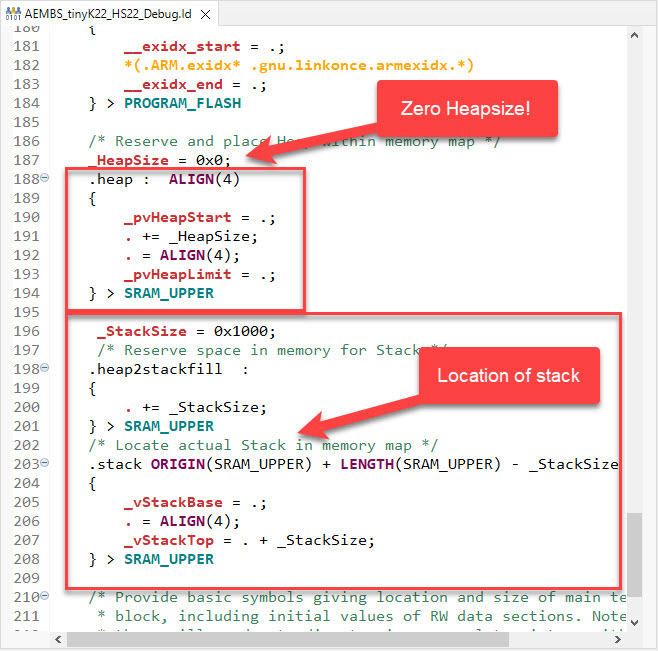
In many embedded applications, it is mandatory that memory allocation is static and not dynamic. Means that no calls to things like malloc() or free() shall be used in the application, because they might fail at runtime (out of memory, heap fragmentation).
But when linking with 3rd party libraries or even with the C/C++ standard libraries, how to ensure no dynamic memory is used? The problem can occur as well for C++ objects, or a simple call to printf() which internally requires some dynamic memory allocated.
A typical debugging session involves just one ELF/Dwarf binary or executable. But what if I need to program multiple binary files with gdb? Things like loading both the bootloader and the application binary? Or I have a an on-chip file system or data section I need to program?
In this article I show how I can use gdb to load and program extra data, like a binary (.bin) file, both using command line interface and using an IDE.
If using C++ on an embedded target, you depend on the constructors for global objects being called by the startup code. While in many cases an embedded system won’t stop, so you don’t need to call the global C++ destructors, this is still something to consider for a proper shutdown.
In Getting Started: Raspberry Pi Pico RP2040 with Eclipse and J-Link I used a SEGGER J-Link EDU for debugging: unfortunately, probably because of silicon shortage, these EDU probes are out of stock everywhere. Luckily, there is a solution: just use another Raspberry Pi Pico!
SWD Debugging with PicoProbe
This turns a $5 Raspberry Pi Pico board in to a very usable and versatile debug probe.




 MCU on Eclipse