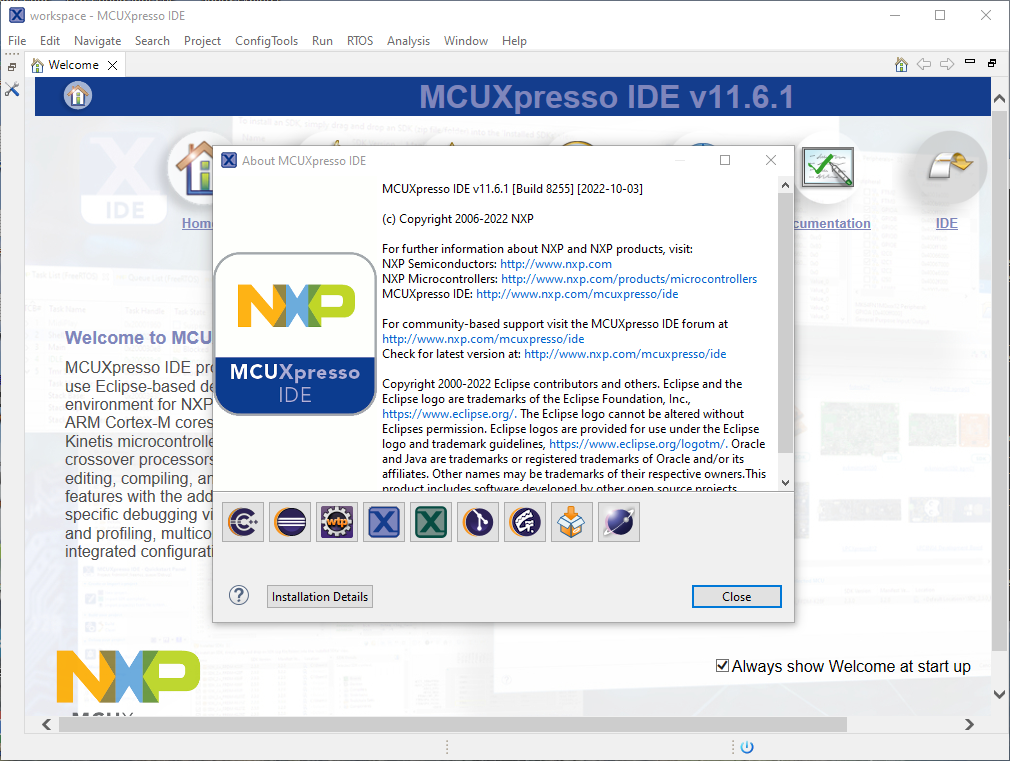
It is the exam and grading time at the university, and the same time I’m preparing the lectures and labs for the new semester starting mid of February. I’m always heading for using the latest and greatest tools in my labs. A few days ago, NXP released the new version of the MCUXpresso IDE, version 11.7.0. Time to check it out…
The year 2022 is coming to an end, and I have spent some time today on a little side project. It is about making an Electrical Vehicle (EV) wallbox charger accessible over Modbus RTU. It is not finished yet, and I plan to publish more articles on it, but I can share that I’m able to access and control the Heidelberg EV charger with a Raspberry Pi Pico W (Dual Core Cortex M0+), NXP K22FN512 (Cortex M4F) and LPC845 (Single Core Cortex M0+):
One little nasty assertion in the GNU standard library appeared a few days ago, kind out of nowhere, reporting “REENT malloc succeeded”:
Obviously it was caused by the call to srand() which sets the ‘seed’ for the standard library (pseudo) random number generator. The assertion happens as well later for calling the rand() function.
The RP2040 Pico board comes with 2 MByte onboard FLASH memory. While this is plenty of space for many embedded applications, sometimes it needed to have more storage space. Having the ability to adding an extra SPI FLASH memory with a useful file system comes in handy in such situations. This makes the RP2040 ideal for data logger applications or otherwise store a large amount of data. In this article I’ll show you how to add an extra 16 MByte of memory to the Raspberry Pi Pico board, running FreeRTOS, a command line shell and using LittleFS as the file system.
A typical debugging session involves just one ELF/Dwarf binary or executable. But what if I need to program multiple binary files with gdb? Things like loading both the bootloader and the application binary? Or I have a an on-chip file system or data section I need to program?
In this article I show how I can use gdb to load and program extra data, like a binary (.bin) file, both using command line interface and using an IDE.
In Getting Started: Raspberry Pi Pico RP2040 with Eclipse and J-Link I used a SEGGER J-Link EDU for debugging: unfortunately, probably because of silicon shortage, these EDU probes are out of stock everywhere. Luckily, there is a solution: just use another Raspberry Pi Pico!
SWD Debugging with PicoProbe
This turns a $5 Raspberry Pi Pico board in to a very usable and versatile debug probe.
MCU vendors offer SDKs and configuration tools: that’s a good thing, because that way I can get started quickly and get something up and running ideally in a few minutes. But this gets you into a dependency on tools, SDK and configuration tools too: changing later from one MCU to another can be difficult and time consuming. So why not get started with a ‘bare’ project, using general available tools, just with a basic initialization (clocking, startup code, CMSIS), even with the silicon vendor provided IDE and basic support files?
In this case, I show how you easily can do this with CMake, make and Eclipse, without the (direct) need of an SDK.




 MCU on Eclipse