Sometimes things take longer than anticipated. And this is definitely the case for my USB MSD Host project where I wanted to use a USB memory stick with the Freedom FRDM-KL25Z board.
But finally, I have things working. At least most of the time ….
Sometimes things take longer than anticipated. And this is definitely the case for my USB MSD Host project where I wanted to use a USB memory stick with the Freedom FRDM-KL25Z board.
But finally, I have things working. At least most of the time ….
When I create a new project for the KL05Z with Processor Expert, then it shows up as 48 pin LQFP package in the project:
However, when I look at my board, it has a KL05Z32 in a LQFP package with 32 pins:
One of the great advantage of using an ARM core as on my FRDM-KL25Z board is that I can leverage a lot of things from the community. And one big thing around ARM is CMSIS (Cortex Microcontroller Software Interface Standard). It is an industry wide software library for the ARM Cortex microcontroller. Using the CMSIS libraries and interfaces will make it easier to port applications within the ARM Cortex family.
In ‘A Library with ARM gcc and Eclipse’ I was using the CodeWarrior MCU10.3 beta version to create a library project. At that time I had to do things manually. Now with the final MCU10.3 there is an option in the New Project Wizard which makes things easier:
This will create a library (or better: an archive) with gcc for me. But how to use it from another project?
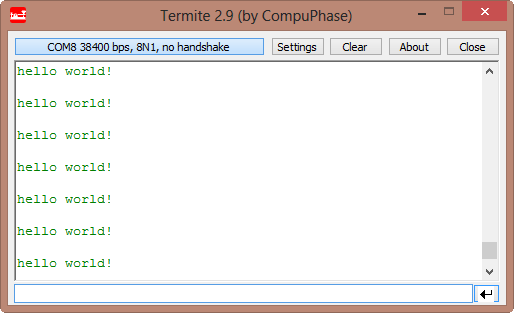
In this post I tapped into how to print messages to a console using the Kinetis/Freedom board. I’m not a fan of printf() for multiple reasons: It is simply a bad thing for embedded systems programming. But as many have asked for it, here is how to say “hello” from the Freedom Board using printf():
CodeWarrior for MCU10.3 comes with the ARM GNU 4.6.2 installed:
What about switching to a different (newer) gcc?
Eclipse based CodeWarrior for MCU10.3 comes with gcc build tools for Kinetis/ARM cores. While it features the parallel build make, I noticed that especially for larger projects build times are not as fast as it should be. The good news is: I was able to cut down my build time to less than half with a simple change :-).
When I looked at the output folder where all the object and make files are stored by Eclipse, I noticed that it has as well the listing files generated:
I know for myself: the earlier I’m able to fix a bug, the better. So I’m always grateful for things which help me to find issues in my sources as early in the development process as possible. Eclipse and CodeWarrior already help me to find syntax errors in my code while I’m typing:
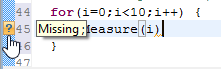
With the built-in syntax checker of Eclipse, this helps me many times to get things right without the need to build my code with the compiler. But when I’m able to compile successfully my code, this does not mean it is without bugs. It would be good to catch as many errors *before* downloading and running it on the target.
Ahrg! Again my ARM application crashed somewhere and I ended up in a HardFault exception :-(. In my earlier post I used a handler to get information from the processor what happened. But it is painful to add this handler again and again. So I decided to make things easier for me: with a special HardFault Processor Expert component :-).
After adding this HardFault component to my project, it automatically adds an entry to the vector table. So no manual steps are needed: having the component in the project and enabled will do the needed steps.
I have successfully used CodeWarrior for MCU10.3 beta version for many projects. With the advent of the final CodeWarrior for MCU10.3, I want to migrate my existing projects to the new and final version. First: my existing projects work as well in the final version, which is good news. But there are two things to change to take advantage of the final 10.3: