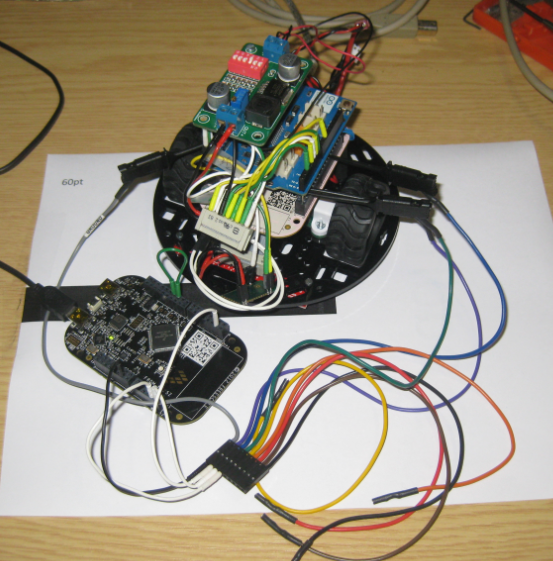
It happens to me many times: I’m stepping with the debugger through my code, and ups! I made one step too far!
What now? Restart the whole debugging session?
Actually, there is a way to go ‘backwards’ 🙂
Continue reading
It happens to me many times: I’m stepping with the debugger through my code, and ups! I made one step too far!
What now? Restart the whole debugging session?
Actually, there is a way to go ‘backwards’ 🙂
Continue reading
“As an engineer, you should ask for the best tools available. Spending money for better tools can make the difference between finding a problem quickly, or wasting days or weeks, and ultimately failing a project.” (unknown)
I had to learn it the hard way: some ‘hard-to-find-problems’ sometimes only can be found with some amount of luck, or with using a good trace solution. CodeWarrior already supports trace, such as using the MTB on the Cortex-M0+. But with this I’m limited to the on-chip trace buffer or on-chip RAM, which is better than nothing. But to solve the real hard problems, a bit of more power and memory is needed. And here where the P&E Tracelink comes into play: with 128 MByte trace buffer it would allow me to record a lot more trace data :-).
The FRDM-KL25Z Open Source Logic Analyzer based on SUMP presented here was already very useful with the added trigger support. But it was not capable to do a sampling rate above a few hundred kHz. That’s ok for slower probing, but not for anything with a higher speed. Using DMA (Direct Memory Access) instead of timer based sampling can remove that limitation :-).
The challenge with small microcontroller like the ARM-Cortex-M0+ is that they have very limited debugging resources. As such, the number of hardware break points is very limited (see this post). For example for the KL25Z on the Freedom board, I only have 2 break points available if I want to do stepping:
I think the most important tool for a firmware engineer is a Logic Analyzer. I always have one on my desk. Working in different locations, sometimes I forget to carry it with me. And for sure I would need it. To buy another one to compensate my laziness? Or maybe there is another solution? And here I stumbled over an article about the Logic Sniffer project recently: it is about an open source logic analyzer hardware and firmware project. What a cool idea! Why not using my FRDM-KL25Z Freedom board as a Logic Analyzer? Heck, that would be awesome 🙂
Maybe Eclipse is ‘too much’, and you are looking for something different? The cool thing with Processor Expert is that while this is Eclipse based, you can use it easily with other tool chains like IAR Embedded Workbench. So you have the choice, and I have explored things a little with porting FreeRTOS for Cortex-M0+ to IAR :-).
In this tutorial I’m showing how use IAR with FreeRTOS and the Freedom FRDM-KL25Z Board, using Processor Expert components.
Debugging is usually a ‘stop-inspect-continue’ process. That does not work very well for watching a system which continuously changes its state. For this usually I toggle an LED, or write things to the console to watch with a human eye what is going on. But there is something very powerful in the CodeWarrior debugger too: to display variables and memory content while the target is running.
And here it is again: a Hard Fault exception raised by the ARM Cortex-M0+ on my Freedom board:
A reason for hard faults are for example dereferencing a NULL pointer. The issue with the ARM Cortex hard fault exception stack is: it is not easy to find out where in the code the problem is.I have created a Processor Expert component to help me to find the location of such an exception. With the Eclipse based CodeWarrior for MCU10.3 there is another way: Trace with the MTB (Micro Trace Buffer)!
Ahrg! Again my ARM application crashed somewhere and I ended up in a HardFault exception :-(. In my earlier post I used a handler to get information from the processor what happened. But it is painful to add this handler again and again. So I decided to make things easier for me: with a special HardFault Processor Expert component :-).
After adding this HardFault component to my project, it automatically adds an entry to the vector table. So no manual steps are needed: having the component in the project and enabled will do the needed steps.
On the TWR-LCD, I’m using a USB MSD bootloader. In Programming part of flash I showed how to download and debug the application on top of the bootloader. But how to debug both the bootloader and the application? At the same time with CodeWarrior for MCU? The magic key is tell CodeWarrior to use ‘Other Executables’.