Eclipse provides in the Editor view great tool tips (called ‘hovers’) which shows what is behind a macro: I can move my mouse over it, and it shows me the content behind it:
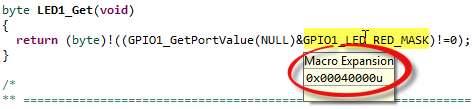
Macro Expansion Hover in Editor View
Eclipse provides in the Editor view great tool tips (called ‘hovers’) which shows what is behind a macro: I can move my mouse over it, and it shows me the content behind it:
Macro Expansion Hover in Editor View
When I create a new bare-board project with the Eclipse based CodeWarrior 10.3 for my FRDM-KL25Z board and GNU gcc, then the ‘Library’ option is grayed out:

Library Option in New Project Wizard
This does *not* mean that libraries cannot be built :-). In fact it is very easy to do this with the GNU tools and Eclipse, and here is how….
Question: What to do on a rainy Sunday?
Answer: Having fun with USB and the KL25Z Freedom board! :-).
In “A shell for the Freedom board” I used the UART-to-USB OpenSDA capability of the KL25Z Freedom board: The KL25Z processor uses the OpenSDA K20 microprocessor as Serial-to-USB converter. But this only works because of the P&E OpenSDA USB CDC (Communication Device Class) implementation. If I create my board without OpenSDA, I need a different approach: I want to do USB CDC with the KL25Z :twisted:.

USB CDC Device on COM22
In this post I have found settings for Eclipse Indexer to show the state if defines correctly. Usually I have something like this in my projects:

debug me
So I define the macro DEBUG_ME on the compiler command line. And it is cool to see that the Eclipse editor correctly grays out the code which is not enabled. But for this the Eclipse Editor view needs to know about the macro, but how does this work?
The Kinetis-L is a 32bit microprocessor family, based on ARM Cortex M0+. It comes with ARM gcc in CodeWarrior. Although the Kinetis-L does not have much RAM, it is very possible to use gcc with C++, especially as a programmer I keep the limited RAM amount in mind. So I thought I try C++ and Processor Expert for my Kinetis-L KL25Z Freedom board.
If I select C++ as language in the New Bareboard Project Wizard of CodeWarrior, then I cannot select Processor Expert or Device Initialization:
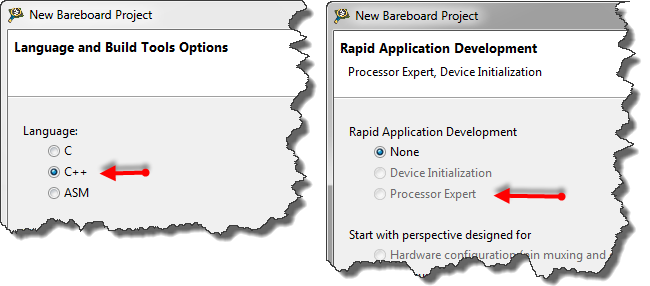
C++ in the New Project Wizard
That makes somewhat sense, as Processor Expert creates normal C code and C files, but no C++. Still, what if I need C++? This is doable, but with anything advanced, I need to know exactly what I want and what I do. Here is the ‘How to use C++ with Processor Expert’.
As noted in my post on gcc and FreeRTOS, some code might be very sensitive to compiler optimizations. While porting code from the Freescale ARM/Kinetis compiler to the gcc compiler as in MCU10.3, I have found way how to force compiler optimization levels in my source code.
There are always hidden treasures in Eclipse, and here is one: By default, variables might look like which is not always what I want:

Variables View
How to change the format to hexadecimal (or any other format)?
There are times when I want to know *exactly* what is inside my source files. In my article on EHEP explains how to get down to the hex bytes of a source file. But in many cases I’m interested to see the non printable/white characters only. Showing white spaces in the sources is easy in Eclipse: I use the ‘Show Whitespace Characters‘ toolbar icon:

Show Whitespace Characters
My earlier posts were around the Kinetis gcc compiler which comes with CodeWarrior for MCU10.3. MCU10.3 comes as well with the Freescale Kinetis compiler as in MCU10.2. In “S-Record Generation with gcc for ARM/Kinetis” I explored how to generate S19 or other output files with gcc. However, you only can produce one file format at a time. What if I need multiple formats or a different format. What if I need to do the same with non-gcc build tools? S-Records are usually easy as supported in the linker. Other formats need a bit more plumbing. So this post is how I can create and manipulate the different output formats, so I can use it with a bootloader.
Working with the Freescale S08 and S12 build tools, there is something I really appreciated: that the linker reports on the console the code size of the application:

S08 Linker in Eclipse reporting the code size
This is especially handy as it allows you to see the impact on code size immediately e.g. if I change a compiler option or do a source code change. Simple and easy. Yes, I could get that kind of information from the linker map file too. But this means I need to open that file, scroll down/etc: many steps just to find out the code size.

