The NXP SDK is git based which is great. If I create a project with VS code, it references the SDK cloned locally.
Standard NXP SDK Project in VS Code
A standalone project structure is needed if you want to easily share a project with your team. It’s also necessary for sharing inside a classroom environment. This article shows how to use an NXP SDK project in standalone mode.
FreeRTOS has a great performance measurement feature built-in: Performance counters. At each context switch, the RTOS can do a bookkeeping of time spent in tasks. With this, it can estimate the runtime distribution between the tasks. A very useful feature to get a feeling what the tasks are doing.
But I noticed that with recent FreeRTOS versions, VS Code extension have issues showing the correct runtime counter values:
Unknown Runtime Counters in VS Code Extension (mcu-debug.rtos-views)Continue reading →
This is the second part describing how to use DevContainer for embedded applications with VS Code.
In Optimizing Embedded Development with VS Code and DevContainer I use VS Code with a docker ‘development’ container. The container is created with a recipe to install the development tools and SDK. With VS Code and DevContainer I have the same developer experience as I would develop locally on the host.
One thing not addressed in that earlier article is debugging. Using USB debug probes like a SEGGER J-Link or NXP MCU-Link is a challenge inside a container. This applies to any other debug probe as well.
The solution is to transform an USB based debug probe into one with a network connection:
Embedded System have a lifetime of 10 or 15 years. During that time the software and tools has to be maintained. This can be very challenging. Who knows if that compiler or tool used is still available in 10 years from now? Additionally installing and configuring the tool chain and environment for a new team member is difficult. Even worse: using a different host operating system for the cross development can produce different results or introduce issues.
VS Code running with DevContainer
One solution for all these problems is to use Docker images and containers. I can pack all the necessary tools and software into a virtual environment and container. But developing inside a container comes with many challenges. In this article I’ll show how Visual Studio Code or VS Code makes working with containers very easy. In this article I show how easy it is to use modern development tools and methodologies for embedded development.
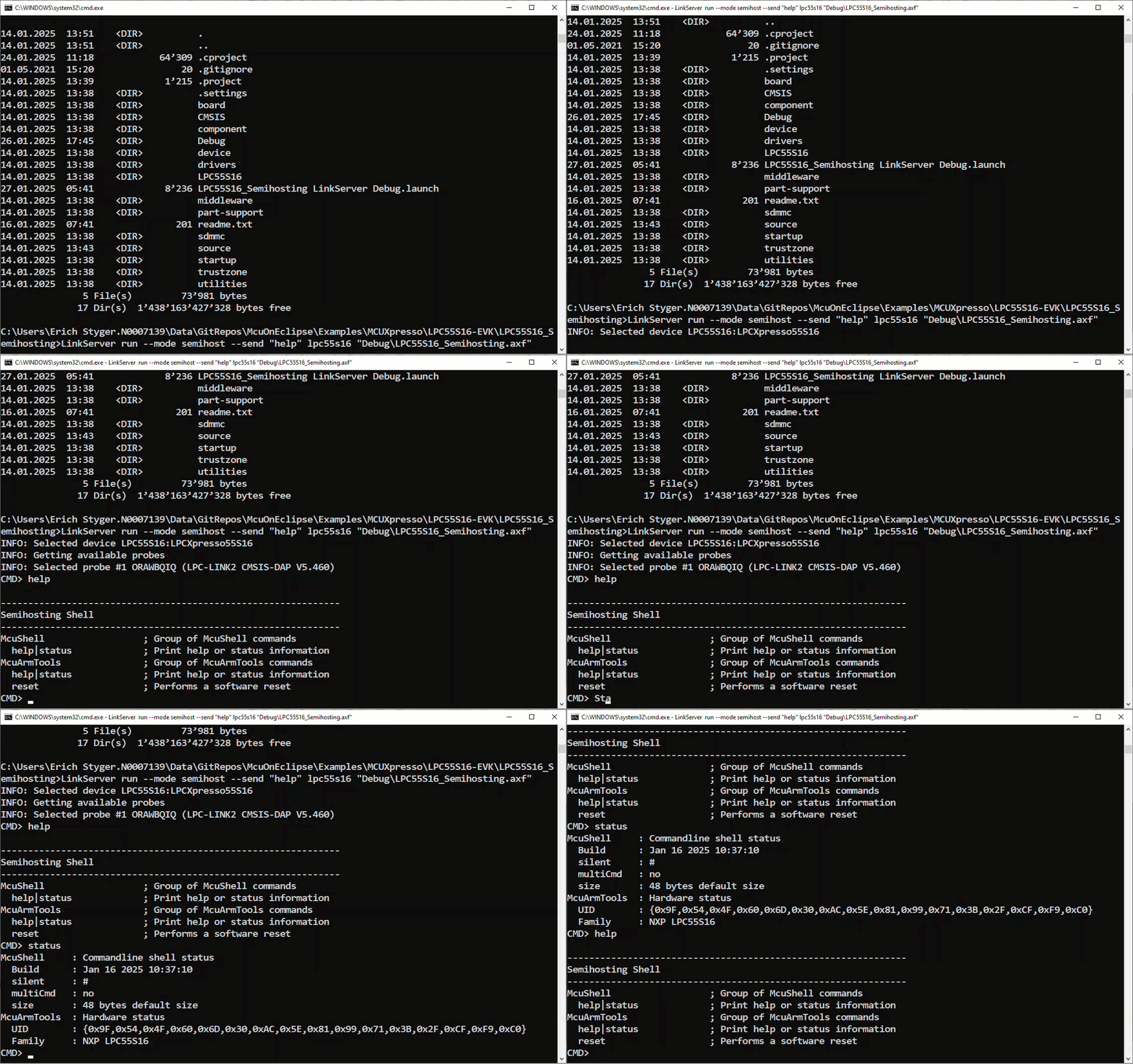
NXP has released a new LinkServer software. It includes an interesting feature. The LinkServer test runner has been extended with a Semihosting console. This is not only very useful for on-target testing. With the Semihosting console, I have a bidirectional communication channel with the target. And I do not need any hardware pins or to run a debug session. All what I need is the CMSIS-DAP connection with the NXP LinkServer runner to have a command line shell:
If working with different tool chains, SDKs, and vendors, then one must use different environments.
With VS Code, this can end up in counter-intuitive situation. When I start a new Visual Studio Code instance, it will open a new window. But if there is already an instance running, it actually will re-using that environment. This can cause lots of subtle problems, including failed builds.
VS Code re-using instance environment
So how to start a new Visual Studio Code Window, with a new instance?
This time, let’s do a similar thing. But instead of GitHub, I use GitLab with VS Code. And I use it for a project where three different MCUs are used: the Raspberry Pi Pico-W, an Espressif ESP32 plus the NXP K22FX512 on the Sumo robot:
Raspberry Pi Pico-W, Espressif ESP32 and Robot with NXP K22FX512Continue reading →
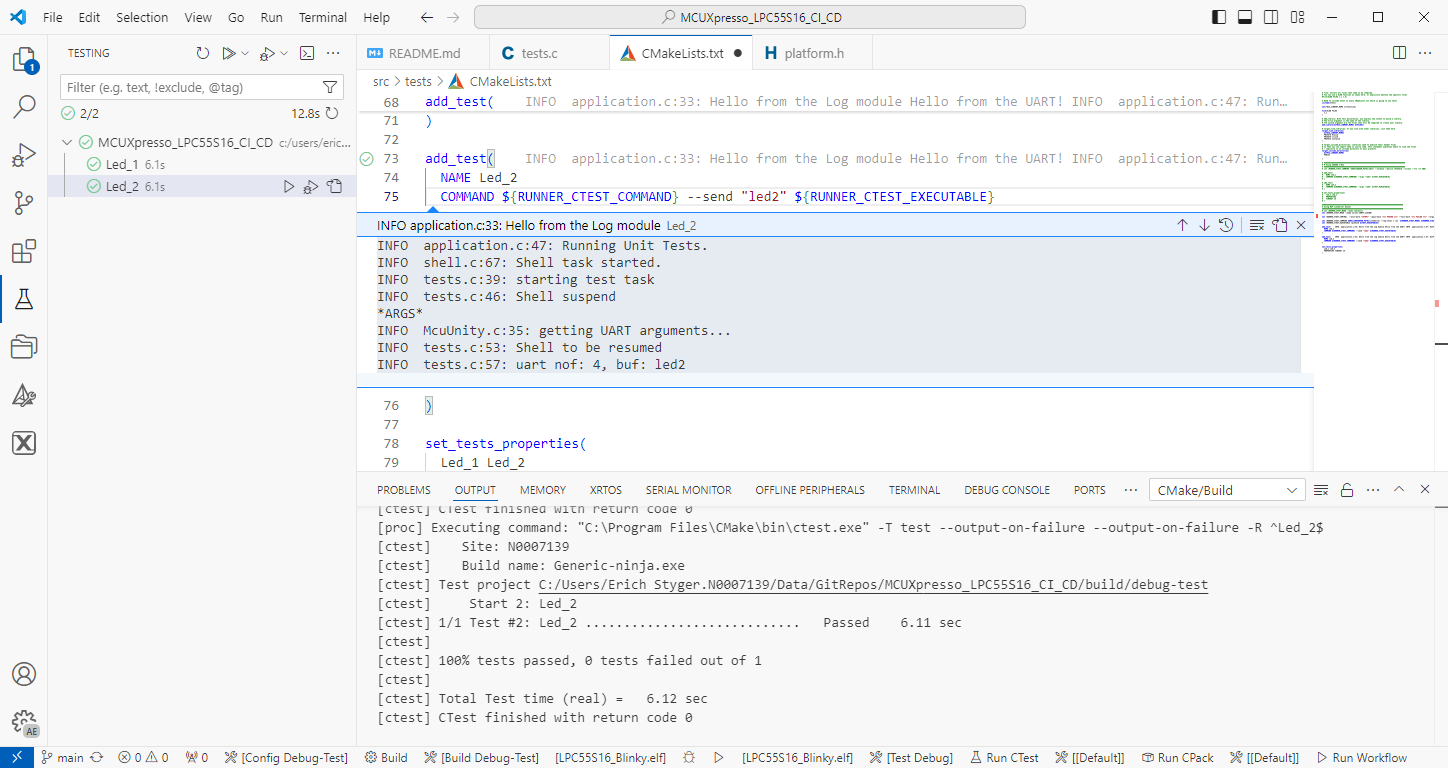
The release 24.9.75 of LinkServer software and tools includes interesting feature: the ability to use the debug probe for automated on-target testing. It includes a ‘runner’ which can program, launch and run the application on the target through a debug probe. While the target is running, it uses semihosting or UART for communication. This makes it a perfect tool for automated testing, especially in a CI/CD environment. One such environment is running automated tests with CMake and CTest in VS Code.
Automated on-target testing with VS Code and LinkServerContinue reading →
NXP has released a new version of the LinkServer software. This is a utility for debugging and using scripting for a wide range of devices and debugging probes. It includes support for the MCU-Link, LPC-Link2, on-board and CMSIS-DAP based debug probes with the ‘LinkFlash’:
Programming with LinkFlash
With the new release, it includes a graphical user interface (GUI) for flash programming. It also includes erasing, verifying, recovery, and saving the memory to a file.
SEGGER has released a new version of their J-Link tools suite. That suite includes the J-Run utility which loads, executes and monitors the output of the target. Output can be with RTT (Real-Time Transfer) or semihosting. This makes it useful for automated tests with CMake and CTest:
CTest with J-Run
What has been added from the V7.98g release is the ability to send arguments to the running application using the --args command, for example with CMake/CTest:
set (RUNNER_CTEST_COMMAND "$ENV{SEGGER_PATH}/JRun" --verbose --device LPC55S16 --silent --rtt -if SWD)

add_test(
  NAME Led_1
  COMMAND ${RUNNER_CTEST_COMMAND} --args "Led_1" ${TEST_EXECUTABLE}
)
Like applications running on the host, I can now pass arguments to the running application. This is useful to set up the target, or to tell which kind of tests to run.






 MCU on Eclipse