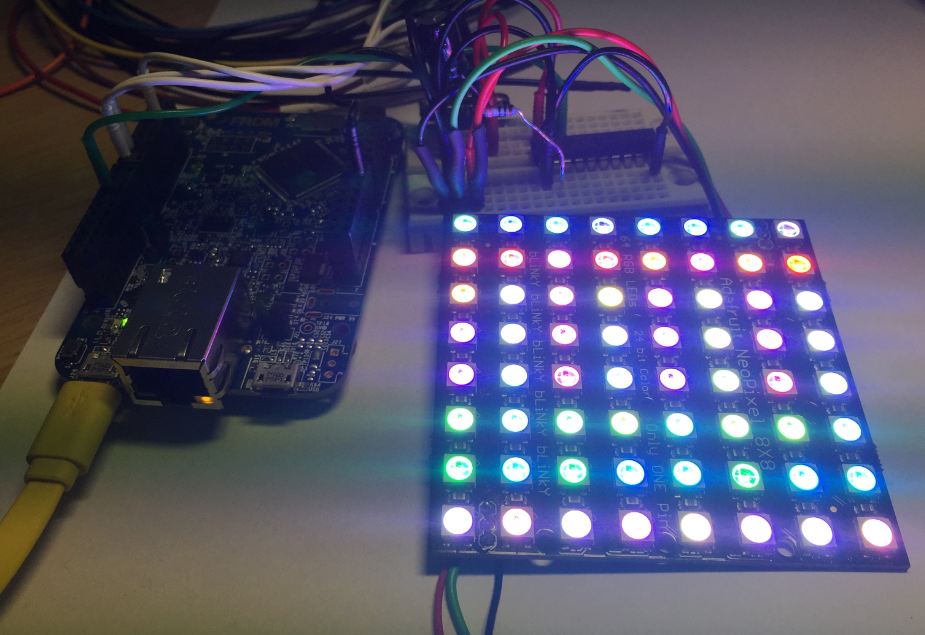
This is Part 3 of a Mini Series. In Part 2, I described how to set up the development tools and to debug the first project (see “Tutorial: Adafruit WS2812B NeoPixels with the Freescale FRDM-K64F Board – Part 2: Software Tools“). Now it is time to look into the software concepts. The goal is to drive Adafruit’s NeoPixel (WS2812B) with the Freescale FRDM-K64F board:
Tag Archives: Freescale
Tutorial: Adafruit WS2812B NeoPixels with the Freescale FRDM-K64F Board – Part 2: Software Tools
This is Part 2 of a Mini Series. In Part 1, I described how to set up the hardware (see “Tutorial: Adafruit WS2812B NeoPixels with the Freescale FRDM-K64F Board – Part 1: Hardware“). Now it is time to have the software tools ready. In this post I describe to have the IDE (Freescale Kinetis Design Studio) with the Freescale SDK installed, along with the correct firmware on the FRDM-K64F Board. The goal is to drive Adafruit’s NeoPixel (WS2812B) with the Freescale FRDM-K64F board:
Tutorial: Adafruit WS2812B NeoPixels with the Freescale FRDM-K64F Board – Part 1: Hardware
This is Part 1 of a Mini Series. Manya has challenged herself to use the Adafruit NeoPixels (WS2812B RBG LEDs) with the Freescale FRDM-K64F board and the Kinetis SDK (see “Let’s play with Freescale FRDM-K64F“). I did a while back that with the FRDM-KL25Z board (see “NeoShield: WS2812 RGB LED Shield with DMA and nRF24L01+“). I used Processor Expert in my project (without the Kinetis SDK), and with this setup it is very easy. However, Manya wanted to do this with the Kinetis SDK and without Processor Expert. No surprise to me, she has found out that this setup with the Kinetis SDK and without the usage of Processor Expert is much more challenging (see “Not done yet!!“). I promised to Manya to give her a helping hand, so here we go! 🙂
Improve Eclipse Performance with Increased Heap Size
I noticed that especially working with several projects in my workspace, Eclipse got sluggish and slowly responding. I have in Eclipse the Heap Monitor/Status enabled (see “Show Heap Status in Eclipse“):
So the used heap of the Java VM is hitting a limit of about 500 MByte, and seems to be trashing around? How to increase that heap size?
FRDM K64F Data Logger using FatFs with KSDK 1.2.0
Check out the article by Wesley Hunter about how to use the FRDM-K64F as a data logger. He describes all the steps how to use the Kinetis SDK v1.2.0 with FatFS.
Happy Logging 🙂
This blog is a guide on how to setup using the FatFs library included with the Kinetis SDK 1.2.0 using mostly the Processor expert within Eclipse Luna. FatFs is a generic FAT file system module for small embedded systems written by Chan. I prefer to use Processor Expert when possible as this will often generate code that is smaller in size than using the KSDK library files direct. I experienced many gotcha’s and complication setting this up and wanted to share how I finally managed to get it to work.
- Prerequisites
- Create New Project
- Open Processor Expert
- Add SD card component
- Add Init_Port component
- Add GPIO component
- Configure the clock
- Import FatFs
- Add Card detection code
- FAT file appender function
- Disable the MPU
Prerequisites
Before you begin please make sure your development environment is setup and you can already compile and debug code using KSDK 1.2.0 on Eclipse Luna…
View original post 2,197 more words
Using Kinetis Design Studio V3.0.0 with the Launchpad 4.9-2015-q2 Release
The Kinetis Design Studio v3.0.0 comes with the GNU/GCC ARM Embedded (launchpad) version 4.8-2014-q3. End of June 2015, ARM released a new version, the 4.9-2015-q1.So why not using that newer release?
- It comes with GDB version 7.8 and has the ‘return of function display’ feature.
- GDB has Phyton scripting support.
- It fixes that nasty GDB bug ‘breakpoint on removed code’ issue.
Is that already enough to make that switch?
How to use Kinetis Design Studio!!
Getting the hands on an embedded project has always been exciting for me. So, here I am again with my blog trying to provide you with an easy to use guide for the Kinetis Design Studio 3.0.0 (KDS_3.0.0). Well, as you all know I am an intern at Freescale working for the first time on KDS, I will tell you what all we can do to start working on it with a perspective of a novice. But personally I feel KDS is one of the most encouraging IDE you can work on. So how do I start with my code for our NeoMatrix board? I am currently working with one of the demo codes for the NeoMatrix:
https://mcuoneclipse.com/2015/07/10/lets-play-with-freescale-frdm-k64f/
So, my first task is to write the code in KDS for the NeoMatrix_Demo. How do I do that? After opening the KDS 3.0.0, I need to go to File and select New and then Kinetis Project. You can see that the New Kinetis Project wizard appears once you click the File>New> Kinetis Project. Type a name and click next.
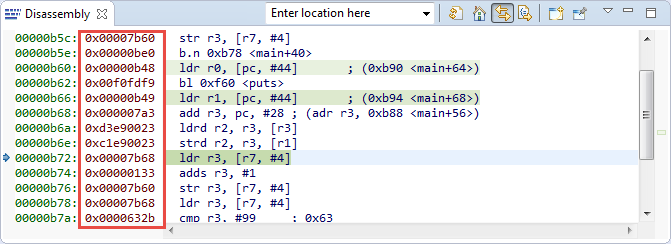
Show Opcodes in Eclipse Disassembly View
One new feature in CDT 8.4 or later is the ability to see the instruction opcode in the disassembly view:
Getting to know FRDM-K64F and more!! :)
I believe waiting makes you feel more impatient. So here I am, waiting for my NeoMatrix 8×8 – 64 RGB LED Pixel Matrix to arrive, so that we can begin working on our cool project. But looking on the brighter side, I got some time to make the beforehand preparations for our Signboard project. I took the opportunity to invest this time in finding out how to start running the Adafruit NeoMatrix with Kinetis FRDM-K64F development board. We should definitely get ourselves ready with something so that we can test NeoMatrix with FRDM-K64F as it arrives. So I thought of setting up a repository where we can turn back anytime we feel we are stuck.
Automatic Variable, Expression and Memory Display with GDB and Eclipse
One of the great features in CodeWarrior for MCU10.x is the ability to read memory/variables while running (see “Live View for Variables and Memory“). This technology of ‘live view’ is based on the CodeWarrior debugger engine. How can I do something like this with stock GDB and Eclipse? What I need is a periodic update of variables/expressions/memory while the program on the board is running, without the need to stop the board with the debugger first: