In essence, VS Code is only a text editor, although with very nice features. An editor which can be enhanced with so called extensions. With the right set of extensions, VS Code can be specialized for web development, or even LaTeX documenting. Or as in the case of this article series, for embedded development.
This is another article in my series about Visual Studio Code. After having it installed (see VS Code: IDE Installation), this one is about starting the IDE
I can start the IDE from the shortcut (if created during the installation) or by typing code in console/command prompt shell (e.g. Windows PowerShell). To be able to use the code command requires VS Code to be present in the PATH.
Don’t worry: despite all the things going on with VS Code, Eclipse is here to stay probably for many more years. The Eclipse foundation is pumping out releases, and so does NXP with their latest MCUXpresso IDE 11.8.0. Lets have a look…
Nothing has to last forever, and VS Code might not be the right thing for everyone. VS Code can go overboard with all the extensions and things it had proposed to install. Up to a point that one needs to get re-started again. Or because you tasted VS Code, but you did not like it.
That’s OK, you can uninstall it, after you have installed it (see VS Code: IDE Installation). The catch is: the uninstall does not a full removal, as settings and extensions do not get removed.
This article shows how to fully uninstall VS Code.
I’m using the RS-485 field bus in many of my projects: it is very reliable and robust, and easy to implement. And with ModBus there is standardized protocol used in building automation or industrial control applications. For example I’m using the protocol to communicate between battery systems and an EV Charger.
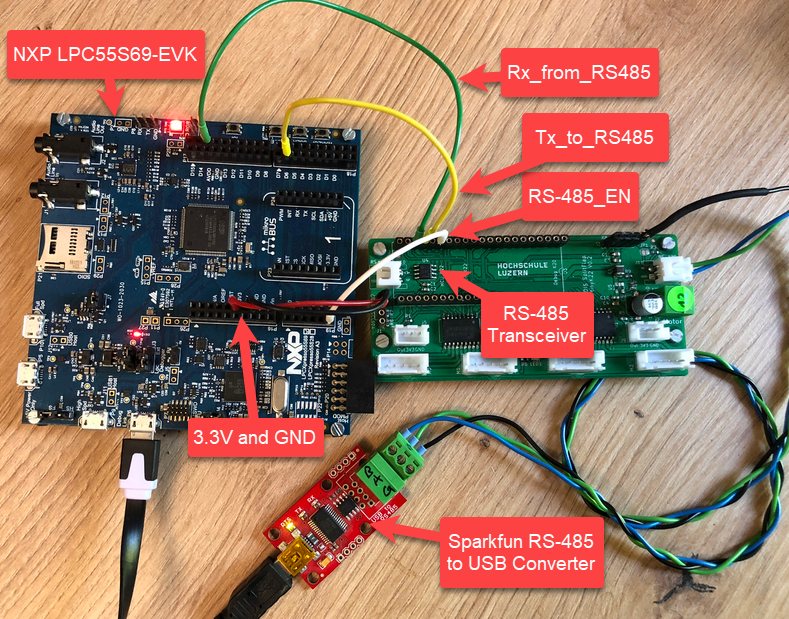
NXP LPC55S69-EVK with RS-485
In this article I show you with an example, how the NXP LPC55S69 can be used with RS-485.
It is August 1st, and Switzerland is celebrating its National Holiday. Rather cold and rainy, so this gets me some time to catch up on things. The preparation for the coming university semester in September is in full swing, and I have the honor to take over building up a new Master of Science in Engineering education module. In the existing courses I teach on the topic of embedded systems, I do use devices and MCUs from vendors like Broadcom, NXP, STM, Nordic, Raspberry Pi and Espressif. This not only means different SDKs, but different IDEs with different debug probes.
Just a subset of different hardware kits used in different labs
Eclipse has been the common factor in the mix with all these, and with all the pros and cons, it worked very well. With NXP having released support for Visual Studio Code, adding an announcement, and other vendors going into the same direction, I took the decision that I want to migrate my lab and lecture infrastructure to VS Code.
The combination of the NXP MCUXpresso IDE with the NXP MCU-Link Pro debug probe implements a nifty power and energy measurement tool (see New “MCU-Link Pro”: Debug Probe with Energy Measurement). The eclipse based IDE provides a dedicated view to inspect the data collected. It can export and import data, but it is in a binary format. In this article I present a way to export and then convert the data into .csv or any other format for processing or visualizing it in different ways.
Exporting data to gnuplot and csvplot
Using an open source command line tool, the binary data gets converted into a csv format, which then can be consumed by many tools, e.g. gnuplot.
If one is using a dedicated logger module like the McuLog, then you don’t have to worry or care about timestamp support. But if your application is using normal printf() calls for for logging purpose, you will face issues to adding timestamps to it. You might consider to change all prinft() calls. This might be a lot of work, or not possible in all cases if you cannot change the source code.
But there is a really cool feature of the GNU linker to solve that problem. It allows to ‘wrap’ around any symbol or function, including the ones in the standard library. That way I can add my mode to the printf() code as a wrapper, for example adding a timestamp for every call.
In the example below you can see this in action:
printf() calls with added timestamps
In this article I’ll show how you can wrap any function with custom code.
In many of my embedded projects I need persistent data or storage for settings. If using an SD card, then FatFS is usually my choice for the file system. But if using an external FLASH memory device, then my preferred choice is usually LittleFS: it is a little fail-safe filesystem, designed for micro-controllers, which I’m using with external flash memory devices.
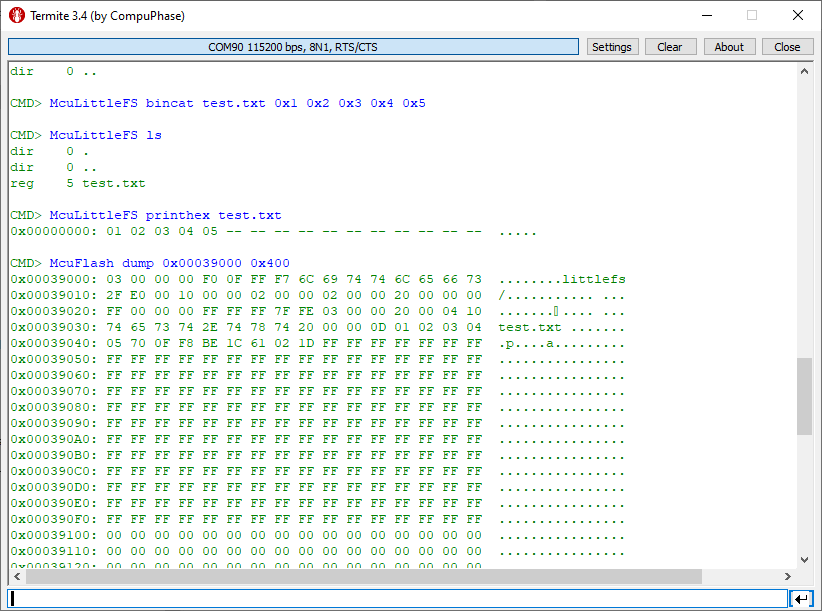
In the case where there is enough MCU flash, or if there is no external FLASH device available in a design, it can use the MCU internal FLASH as storage storage too. This is the topic of this article:




 MCU on Eclipse