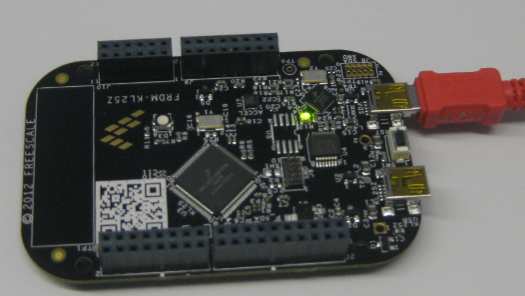
The ARM Cortex-M0+ on the KL25Z Freedom Board (FRDM-KL25Z) runs up to 48 MHz. For this, the 8 MHz crystal on the board is used. A 48 MHz is required for USB communication, to have the needed oversampling on USB data lines. I have shown in my USB CDC post how such a clock is configured, using the white pre-production board. To my surprise, when I tried the same code on the black production boards, it did not work on the production black boards. Even worse: it worked on some, but not on every board :-(.
Assembly Instruction Stepping
Usually I debug and step on C and C++ level: means I step on C/C++ source lines. But sometimes a finer stepping detail is required. What I need is stepping on assembly level. For first time users of Eclipse, that might not be that obvious, so here is the hint:
In the Debug view toolbar (while debugging), there are the normal stepping commands like ‘step’, ‘step over’ or ‘step out’. All these stepping can be performed on assembly instruction level if I enable the ‘Instruction Stepping Mode’:
Unsecuring the KL25Z Freedom Board
In ‘Device is Secure‘ I had a case where this was a false alarm. But recently there has been a report in the Freescale Forum that this can be a real problem with the Freedom KL25Z board I’m using too. I was not able to reproduce this on my end, so a reader of this blog who sent me a binary file to reproduce it.
Well, I was really scared to try that ‘killer’ file on my board, but well, that board is not that expensive, and I have 5 pieces of silicon at hand from a sample order :-). So I took some risk, and programmed that binary using the simple flash programmer. And indeed, when I wanted to debug it again, I got that dialog with my black Freedom board:
Completing the FRDM-KL25Z Board
I had pre-ordered some FRDM-KL25Z boards, and they came with the extra headers in plastic bags (see this post):
I have received as well a batch of the production boards, and for these I need to order the missing parts. So for everyone else, here are the Farnell part numbers:
Copy my CodeWarrior Project
I have a project working, and then I want to do a copy. Unfortunately, this is not as simple as it should be :-(. In order to copy a project with all the settings, some knowledge about the internals of the project structure is required, which is the topic of this post.
In “Copy my Project” I was using a ColdFire V2 project which is not an easy case, as is using a Target Task to flash the microcontroller. Fortunately, all other targets in CodeWarrior for MCU are *not* using target tasks :-). With little help and preparation, a copy a project is not that difficult to do. I’m showing how to do this with the FRDM-KL25Z project I have created in this post.
Continue reading
USB Host Mode Hack for the Freedom KL25Z Board
On the FRDM-KL25Z Board the target processor supports both USB host and device mode. However, the Freedom board has no jumper or other means to power the USB bus (which is required in the USB host mode). So if I want to get access to a memory stick from the KL25Z, then I’m stuck because the board does not offer that option. Luckily there is an easy hack to work around this.
Looking at the FRDM-KL25Z board schematics, there is 5V available on Pin 10 of J9:
Tutorial: printf() and “Hello World!” with the Freedom KL25Z Board
Sometimes I show to much in a tutorial: only writing something to the UART? Sounds boring, so why not adding tasks, LEDs and a full shell implementation to the mix as in this post? Yes, definitely too much to start with at the beginning :-(. So less is more, and if it is just about the UART. And I promise: it is doable with around 50 lines of application code :shock:.
AND: I admit, this post title is a trap ;-). It is not about printf(). But it *is* about using the UART on the KL25Z Freedom board and to do things like printf(), and even more. Trust me. It is about how to write *and* read from the UART. While I’m using here the Kinetis-L ARM Cortex-M0+ KL25Z Freedom board, it is applicable to any other Kinetis device.
Removal of Processor Expert for a Project
Yes, I’m using Processor Expert *a lot*. But there might be reasons to go without it. Because then I really want to do it the hard-hard-hard core way. Or maybe because I have configured my system, and want to freeze my code. And nothing prevents me to do it ‘my way’.
In any case, it is easy to transform a CodeWarrior Processor Expert project, and then decide to remove that technology from it, and go further with the ‘traditional’ technology.
Fixing the USB Drivers
USB has two sides: if it works, it is great :-). If it does not, it is really bad :-(. It took a while in the desktop and PC world until USB for common devices (mouse, keyboard, memory sticks, …) was working without issues. But ‘non-standard’ devices like a USB debugging probe/cable are not of that kind of category.
Occasionally I run into USB driver issues in my class. So this post is about identifying the different USB driver parts for the P&E OpenSDA, P&E OSBDM/OSJTAG and P&E Multilinks. And how to install the drivers manually if something is not going well.
Hot-Sync: Attach, Connect & Download
Usually I compile my sources, link it and pass it to the debugger for downloading it to the target. And ‘downloading’ means for me: flashing to the target (RAM debugging is something for the non-hardcore programmers ;-)). But there are more options than only downloading and flashing. There is definitely more which helps me to do post-mortem (yes, I *love* Latin :cool:) debugging.
Downloading means to me that the debugger will program my application into the device, then loads the symbolics (debug information, source file information, …) and then I debug my application. Looking at the ‘Debug As’ options, there is as well Attach and Connect: