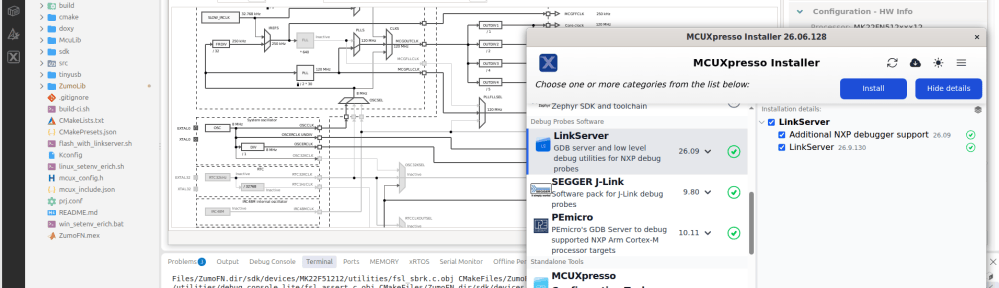
Working with different toolchains, different versions and targets can be very challenging. To simplify the setup and distribution of the development environment I’m using the concept of containers.
I’m using different Docker images and containers for development and automated CI/CD integration. In the past weeks I have extended, simplified and consolidated my work flows. For example I have now an image with the MCUXpresso tools, with everything running in a container: both locally on my machine with Docker, with VS Code, and the same integrated in the CI/CD pipeline:
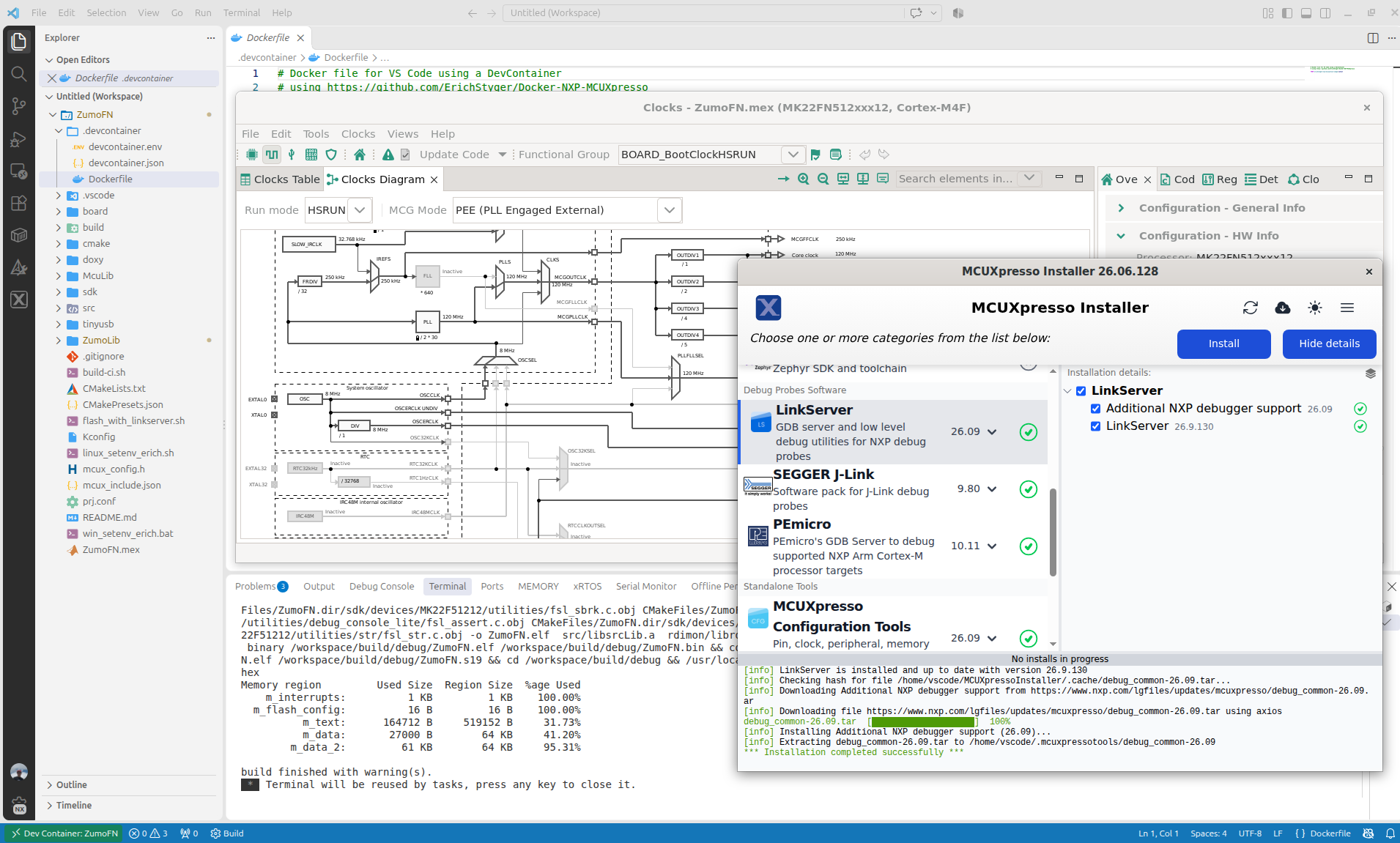
It not only simplifies my development flow: the same way I can easily deploy the installation and setup for a class room lab environment: basically everything is only one click away.
Outline
I’m using Docker and VS Code DevContainer in most of my projects: it allows me to quickly switch between different setup, projects and tool chain configurations.
I’m using the same setup for the CI/CD development flow as well. And over the past weeks I have migrating my lab and lecture material using Docker and DevContainer too.
For the NXP MCUXpresso set of tools, there is no dedicated docker/container available. Instead, I have created a custom setup which I can use, see CI/CD for Embedded with VS Code, Docker and GitHub Actions.
But several challenges remained: the container was command-line tools only. I did add recently the MCUXpresso installer to it, see Installing MCUXpresso Installer in DevContainer.
I have now extended and completed the setup, and it is now available on GitHub. The proposed Dockerfile can install all the necessary tools into your environment:
- ARM Cortex-M cross-tool-chain
- Build tools with CMake and Ninja
- Doxygen for documentation generation
- Coverage with gcov and gcovr
- NXP MCUXpresso GUI Installer
- NXP Configuration GUI Tools with offline data
- NXP LinkServer GUI Power Measurement
- Debug support with NXP LinkServer, SEGGER J-LInk and P&E debug probes, including extra NXP device support
- Automatic setup of necessary environment variables
The result is a docker image which both is usable as a VS Code DevContainer and for CI/CD (e.g. runner on GitLab) for both on-target and off-target testing.
In the next sections, I show the current implementation. For the complete file and the latest version, have a look on GitHub.
Dockerfile
The Docker file is using Ubuntu 24.04 as base. It is pre-configured for an x86 64bit machine, but can be easily switched to ARM64/Apple Silicon too:
# Docker file for VS Code using a DevContainer

FROM mcr.microsoft.com/devcontainers/cpp:dev-ubuntu24.04

# folder for downloaded files
WORKDIR /apps
RUN mkdir -p /apps

# Create user directory, needed by MCUXpresso tools. Directory has to be owned by the user which is 'vsocde'
USER vscode
RUN mkdir -p /home/vscode
# switch back to root
USER root

# Set your host machine architecture with ARG, just set one and comment the other one:
ARG HOST_MACHINE="x86"
#ARG HOST_MACHINE="arm"

ARG HOST_MACHINE_X64_ARM64="x64"
#ARG HOST_MACHINE_X64_ARM64="arm64"

ARG HOST_MACHINE_INTEL64_ARM64="x86_64"
#ARG HOST_MACHINE_INTEL64_ARM64="arm64"
Prerequisites
The script uses different tools, including wget to get files from the internet for the image:
#####################################################################################################
# Install prerequisites
RUN \
    apt-get update \
    && apt-get install -y git wget unzip nano iputils-ping file \
    && apt-get install -y python3 python3-pip python3-venv \
    && apt-get install -y cmake build-essential ninja-build \
    && apt-get install -y gcc-arm-none-eabi gdb-arm-none-eabi libnewlib-arm-none-eabi \
    && apt-get install -y doxygen graphviz \
    && apt-get install -y apt-transport-https ca-certificates curl software-properties-common \
    && apt-get install -y libx11-xcb1 libxcb-icccm4 libxcb-image0 libxcb-keysyms1 libxcb-randr0 \
    && apt-get install -y libxcb-render-util0 libxcb-shape0 libxcb-sync1 libxcb-util1 libxcb-xfixes0 \
    && apt-get install -y libxcb-xkb1 libxkbcommon-x11-0 libxkbcommon0 xkb-data \
    && apt-get install -y udev
New Build Tools
Because later NXP MCUXpresso SDKs require newer CMake and Ninja versions, they get updated on top of what is present in the Ubuntu image:
#####################################################################################################
# Install the more recent CMake version, as the Ubuntu 24.04 comes with 3.28.3
ARG CMAKE_VERSION=3.30.9
RUN wget -q \
      https://github.com/Kitware/CMake/releases/download/v${CMAKE_VERSION}/cmake-${CMAKE_VERSION}-linux-x86_64.tar.gz \
      -O /apps/cmake.tar.gz \
    && mkdir -p /opt/cmake \
    && tar -xzf /apps/cmake.tar.gz \
       --strip-components=1 \
       -C /opt/cmake
ENV PATH="/opt/cmake/bin:${PATH}"


#####################################################################################################
# Install Ninja 1.13.2
ARG NINJA_VERSION=1.13.2
RUN curl -fL \
       https://github.com/ninja-build/ninja/releases/download/v${NINJA_VERSION}/ninja-linux.zip \
       -o /apps/ninja.zip \
    && unzip -o /apps/ninja.zip -d /usr/local/bin \
    && chmod +x /usr/local/bin/ninja
ARM Toolchain
To support GNU coverage, a dedicated toolchain for ARM gets installed:
#####################################################################################################
# Get a specific version of the arm toolchain
ARG TOOLCHAIN_VERSION="15.2.1-1.1"
# x86:              xpack-arm-none-eabi-gcc-${TOOLCHAIN_VERSION}-linux-x86.tar.gz
# Apple silicon:    xpack-arm-none-eabi-gcc-${TOOLCHAIN_VERSION}-linux-arm64.tar.gz
RUN \
    cd /apps \
    && wget https://github.com/xpack-dev-tools/arm-none-eabi-gcc-xpack/releases/download/v${TOOLCHAIN_VERSION}/xpack-arm-none-eabi-gcc-${TOOLCHAIN_VERSION}-linux-${HOST_MACHINE_X64_ARM64}.tar.gz -O gcc-arm-none-eabi.tar.gz \
    && mkdir /opt/gcc-arm-none-eabi-${TOOLCHAIN_VERSION} \
    && tar -xvzf gcc-arm-none-eabi.tar.gz -C /opt/gcc-arm-none-eabi-${TOOLCHAIN_VERSION} --strip-components 1 \
    && rm gcc-arm-none-eabi.tar.gz \
    && ln -s /opt/gcc-arm-none-eabi-${TOOLCHAIN_VERSION}/bin/* /usr/local/bin
GNU Coverage with gcov and gcovr
For GNU Coverage, it installs gcovr inside a python environment and adds it to the path:
#####################################################################################################
# Coverage support with gcov and gcvor
# for gcov, have to use the one matching for arm-none-eabi-gcov
RUN \
    rm /usr/bin/gcov \
    && cd /usr/bin \
    && ln -s /opt/gcc-arm-none-eabi-${TOOLCHAIN_VERSION}/bin/arm-none-eabi-gcov gcov
# install gcvor in local virtual environment
RUN \
    cd /apps \
    && python3 -m venv venv \
    && ./venv/bin/pip install gcovr
# add location of gcovr inside the virtual environment to the path
ENV PATH="/apps/venv/bin:${PATH}"
MCUXpresso SDK
The SDK is not installed in the image, as it belongs to the project, and the image shall be generic. But it installs the necessary tools:
#####################################################################################################
# Python dependencies for NXP MCUXpresso SDK
RUN /apps/venv/bin/python -m pip install --no-cache-dir \
    PyYAML \
    jsonschema \
    pykwalify
LinkServer Debug
LinkServer tools are installed including support for the GUI tools (LinkFlash and Energy Monitoring). The special thing is that the udev rules are not installed inside the container, but have to be installed on the host.
#####################################################################################################
# Install NXP LinkServer software
# which version to use:
ARG LINKSERVER_VERSION="26.9.130"
# x86:              LinkServer_${LINKSERVER_VERSION}.x86_64.deb.bin
# Apple silicon:    LinkServer_${LINKSERVER_VERSION}.arm64.dmg
# Install LinkServer dependencies. USB udev rules are managed by the Docker host.
RUN apt-get update \
    && apt-get install -y whiptail libusb-1.0-0-dev dfu-util usbutils hwdata \
       gir1.2-webkit2-4.1 libwebkit2gtk-4.1-0 gir1.2-gtk-3.0

# install LinkServer software
# it gets installed into /usr/local/LinkServer_${LINKSERVER_VERSION}
RUN if [ "$HOST_MACHINE" = "x86" ]; then \
        URL="https://www.nxp.com/lgfiles/updates/mcuxpresso/LinkServer_${LINKSERVER_VERSION}.${HOST_MACHINE_INTEL64_ARM64}.deb.bin"; \
    else \
        URL="https://www.nxp.com/lgfiles/updates/mcuxpresso/LinkServer_${LINKSERVER_VERSION}.${HOST_MACHINE_INTEL64_ARM64}.dmg"; \
    fi; \
    curl -fL -o /apps/linkserver-installer "$URL";
# The NXP .deb postinst scripts reload udev rules, which fails in a DevContainer.
# Temporarily shadow udevadm only for the reload-rules operation, and always
# restore the original executable before ending this build step.
RUN set -eu; \
    cd /apps; \
    chmod a+x linkserver-installer; \
    mkdir -p /tmp/nxp-udev-shim; \
    printf '%s\n' '#!/bin/sh' \
      'if [ "$1" = "control" ] && [ "${2:-}" = "--reload-rules" ]; then exit 0; fi' \
      'exec /usr/bin/udevadm "$@"' > /tmp/nxp-udev-shim/udevadm; \
    chmod +x /tmp/nxp-udev-shim/udevadm; \
    PATH="/tmp/nxp-udev-shim:$PATH" ./linkserver-installer acceptLicense skipIdeSelect; \
    PATH="/tmp/nxp-udev-shim:$PATH" dpkg --configure -a; \
    rm -rf /tmp/nxp-udev-shim; \
    dpkg --audit
# add LinkServer to the PATH
ENV PATH="/usr/local/LinkServer_${LINKSERVER_VERSION}:${PATH}"
SEGGER Debug
Similar to SEGGER and J-Link Debug: the udev script is removed from of the installation script:
#####################################################################################################
# Install SEGGER debugging tools
# for x86:           JLink_Linux_V980_x86_64.deb
# for Apple silicon: JLink_Linux_V980_arm64.deb
ARG SEGGER_VERSION="V980"
RUN \
    cd /apps \
    && curl -d "accept_license_agreement=accepted&submit=Download+software" -X POST -O "https://www.segger.com/downloads/jlink/JLink_Linux_${SEGGER_VERSION}_${HOST_MACHINE_INTEL64_ARM64}.deb"
# in case issue with mismatch between J-Link version between host and container/image: use matching version
# issue with udev, see https://forum.segger.com/index.php/Thread/8953-SOLVED-J-Link-Linux-installer-fails-for-Docker-containers-Error-Failed-to-update/
RUN \
    cd /apps \
    && dpkg --unpack JLink_Linux_${SEGGER_VERSION}_${HOST_MACHINE_INTEL64_ARM64}.deb \
    && rm -f /var/lib/dpkg/info/jlink.postinst \
    && dpkg --configure jlink \
    && apt install -yf
PEMICRO Debug
Similar to the debug support for P&E: here I have to set the correct permissions during installation:
#####################################################################################################
# Download and install PEMICRO debug software
# Note: file name with "10110000" means v10.11
RUN \
    apt-get install -y libusb-0.1-4
RUN \
    cd /apps \
    && wget -O pemicro-gdb.deb "https://www.pemicro.com/fixedlinks/pemicrogdbserver_10110000_x64.deb"
# installing the .deb file without the postinst script inside the package: need to set USB drivers on the host.
RUN dpkg-deb -x /apps/pemicro-gdb.deb / \
    && chmod 755 /usr/local/pemicrogdbserver/pegdbserver_console \
    && chmod 755 /usr/local/pemicrogdbserver/gdb/arm-none-eabi-gdb \
    && chmod 755 /usr/local/pemicrogdbserver/drivers/libp64-0.1.so.4 \
    && install -m 755 \
       /usr/local/pemicrogdbserver/drivers/libp64-0.1.so.4 \
       /usr/lib/libp64-0.1.so.4 \
    && ldconfig
# add to path
ENV PATH="/usr/local/pemicrogdbserver:/usr/local/pemicrogdbserver/gdb:${PATH}"
Additional NXP debug support files
NXP provides extra debug support files which get installed too:
#####################################################################################################
# Download and install addditional NXP debugger support
RUN \
    cd /apps \
    && wget -O debug_common.tar "https://www.nxp.com/lgfiles/updates/mcuxpresso/debug_common-26.09.tar"
USER vscode
RUN \
    mkdir -p /home/vscode/.mcuxpressotools/debug_common-26.09 \
    && tar -xf /apps/debug_common.tar -C /home/vscode/.mcuxpressotools/debug_common-26.09
# back to root
USER root
Config Tools
NXP provides graphical tools to configure clocks, pins and driver. With the script below it gets copied into the image and installed:
#####################################################################################################
# Install the MCUXpresso Config tools
# Install MCUXpresso Config Tools
# The installer is downloaded manually from NXP.
# installed as /opt/nxp/MCUX_CFG_26.09/bin/tools
# Prepare MIME database before installing MCUXpresso Config Tools
RUN apt-get update \
    && DEBIAN_FRONTEND=noninteractive apt-get install -y \
       shared-mime-info \
    && update-mime-database /usr/share/mime \
    && dpkg --configure -a
COPY mcuxpresso-config-tools*.deb.bin /apps/config-tools-installer.deb.bin
RUN \
    cd /apps \
    && chmod +x /apps/config-tools-installer.deb.bin \
    && /apps/config-tools-installer.deb.bin -- -s \
    && dpkg --configure -a
# Copy and extract the MCU data files for offline usage
COPY config_data.zip /apps/config_data.zip
# Install as vscode user
USER vscode
RUN \
    mkdir -p /home/vscode/.nxp/ \
    && unzip -q /apps/config_data.zip -d /home/vscode/.nxp
# Back as root
USER root
MCUXpresso Installer
The image includes all the needed tools. But if I want to update the setup or install additional tools, for example for Matter development, then I can use the MCUXpresso installer. Installing the installer was a bit tricky as it required the necessary tools to elevate permissions and properly run with a GUI.
#####################################################################################################
# Download and install MCUXpresso Installer
# x86:              MCUXpressoInstaller.deb.bin
# Apple silicon:    MCUXpressoInstaller_arm64.dmg
# INFO: Installation directory: /home/vscode/MCUXpressoInstaller
# INFO: To start the installer, run /home/vscode/MCUXpressoInstaller/MCUXpressoInstaller
# install package to elevate user permissions for installation
RUN \
    apt-get update \
    && apt-get install -y policykit-1
RUN if [ "$HOST_MACHINE" = "x86" ]; then \
        URL="https://www.nxp.com/lgfiles/updates/mcuxpresso/MCUXpressoInstaller.deb.bin"; \
    else \
        URL="https://www.nxp.com/lgfiles/updates/mcuxpresso/MCUXpressoInstaller_arm64.dmg"; \
    fi; \
    curl -fL -o /apps/mcuxpresso-installer "$URL";
RUN \
    cd /apps \
    && chmod a+x mcuxpresso-installer
# Install as vscode user
USER vscode
RUN mkdir -p /home/vscode/.local/share/applications
RUN sudo /apps/mcuxpresso-installer
# Back as root
USER root
# need to set the following variable for the Installer GUI to work
ENV XDG_SESSION_TYPE=wayland
# Install needed libraries to run the MCUXpresso Installer GUI
# NOTE that while this will run the GUI in the container (WSL in my case), this is not supported by NXP
# Files are only installed so one can use the 'Open MCUXpresso Installer' from the NXP extension.
RUN \
    sudo apt-get update \
    && sudo apt-get install -y \
        libnss3 libatk1.0-0 libatk-bridge2.0-0 libatspi2.0-0 \
        libdrm2 libgbm1 libxkbcommon0 \
        libgtk-3-0 libgdk-pixbuf-2.0-0 \
        libcairo2 libcairo-gobject2 \
        libpango-1.0-0 libpangocairo-1.0-0 libharfbuzz0b libglib2.0-0 \
        libx11-6 libxcomposite1 libxcursor1 libxdamage1 libxext6 \
        libxfixes3 libxi6 libxrandr2 libxrender1 libxss1 libxtst6 \
        libx11-xcb1 libxcb1 libxcb-dri3-0 libasound2t64\
        libfontconfig1 fonts-liberation \
        libcups2 libdbus-1-3 libexpat1 libssl3
# ---------------------------------------------------------------------------
# Passwordless sudo through a dedicated group, and a pkexec replacement for
# the npm "sudo-prompt" library (used by the MCUXpresso Installer). The real
# pkexec needs polkitd, dbus and a polkit authentication agent, none of
# which run inside a container (no systemd-logind session).
# ---------------------------------------------------------------------------
# Group whose members can use sudo without being asked for a password
RUN groupadd -f sudonopasswd \
    && usermod -aG sudonopasswd vscode \
    && echo '%sudonopasswd ALL=(ALL:ALL) NOPASSWD: ALL' > /etc/sudoers.d/90-sudonopasswd \
    && chmod 440 /etc/sudoers.d/90-sudonopasswd \
    && visudo -c
# Install the pkexec replacement at the exact path sudo-prompt checks.
# dpkg-divert prevents a later 'apt install pkexec' from overwriting it.
COPY pkexec-shim.sh /tmp/pkexec-shim.sh
RUN dpkg-divert --local --rename --add /usr/bin/pkexec \
    && install -m 755 /tmp/pkexec-shim.sh /usr/bin/pkexec \
    && sed -i 's/\r$//' /usr/bin/pkexec \
    && rm /tmp/pkexec-shim.sh
Environment Variables
In the last image step, several needed environment variables are set. They are used in the build and debug files to keep them host and target independent:
#####################################################################################################
# Set environment variables needed:
# where the MCUXpresso SDK is located:
ENV MCUXPRESSO_SDK_PATH=/workspace/sdk/
# where the toolchain (e.g. arm-none-eabi-gcc) is located
ENV TOOLCHAIN_PATH=/usr/local
# user home directory. USERPROFILE exists by default on Windows
ENV USERPROFILE=/home/vscode
# path to the SEGGER programs
ENV SEGGER_PATH=/opt/SEGGER/JLink
ENV SEGGER_GDB_SERVER="$SEGGER_PATH/JLinkGDBServerCLExe"
Building the Image
Below are the steps to build the image and push it to docker hub:
Build the image:
docker build -t nxp-mcuxpresso-image .
Create the container:
docker create -i -t --name nxp-mcuxpresso-container nxp-mcuxpresso-image
Tag it (replace with your Docker user name:
docker tag nxp-mcuxpresso-image <your-name>/nxp-mcuxpresso-image:latest
Push it to the repository:
docker push <your-name>/nxp-mcuxpresso-image:latest
Using for VS Code DevContainer
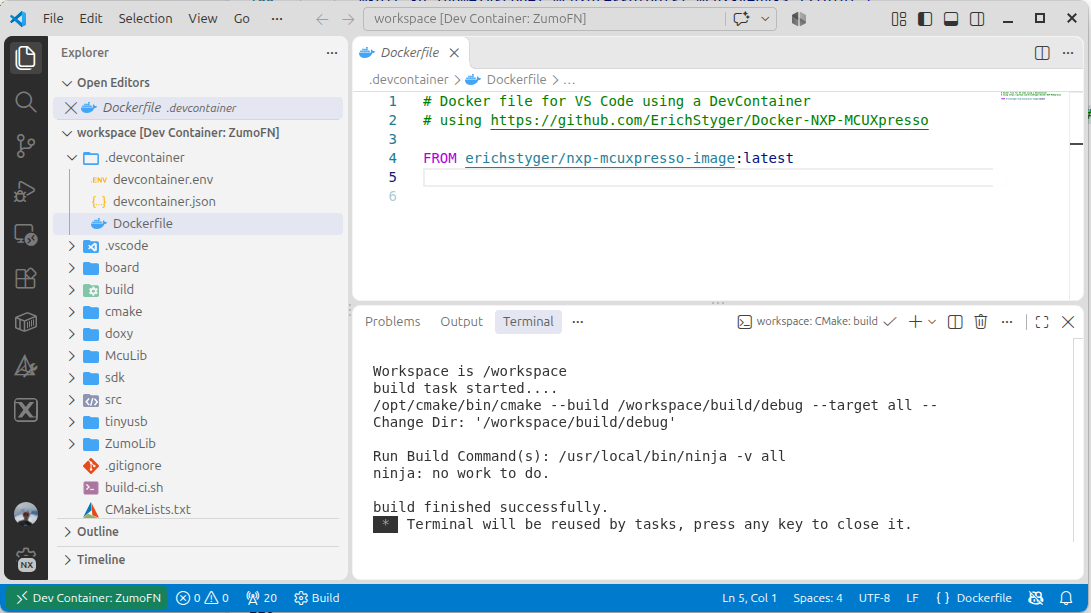
To use it in VS Code as DevContainer: specify the image and everything is set up:
Using for CI/CD Pipeline
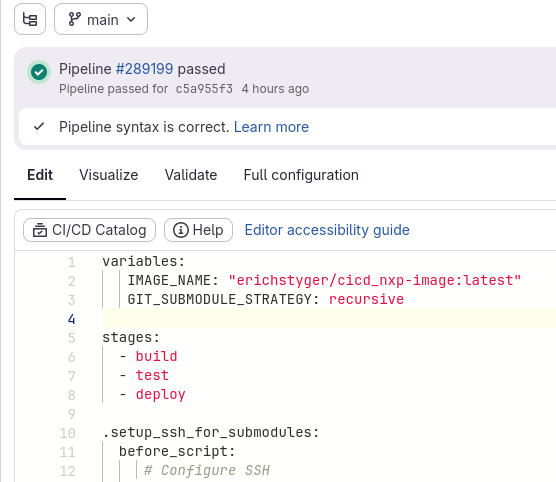
The same image can be used in a CI/CD pipeline. Below is an example for GitLab:
Summary
Using the presented approach, I have optimized my workflow. I have everything in a container, usable both locally as a Docker container, as VS Code DevContainer or as a container for CI/CD integration.
It not only simplifies my workflow: I’m using this for class room labs, where students basically only need to have Docker installed, and get everything they need with the container.
There are for sure possible improvements to the image, for example I could pre-install more tools. This article describes the current state. If you want to see the latest development, check out the latest version on GitHub.
Happy dockering 🙂
Links
- Files on GitHub: https://github.com/ErichStyger/Docker-NXP-MCUXpresso
- CI/CD for Embedded with VS Code, Docker and GitHub Actions
- Installing MCUXpresso Installer in DevContainer
- GitLab Automated CI/CD Embedded Multi-Project Building using Docker
- On-Target Testing with LinkServer Runner and VS Code
- Modern On-Target Embedded System Testing with CMake and CTest
- Optimizing Embedded Development with VS Code and DevContainer
- https://mcuoneclipse.com/2025/04/15/using-semihosting-and-file-i-o-in-devcontainers/
- Docker: https://www.docker.com/
- DockerHub Container repository: https://hub.docker.com

