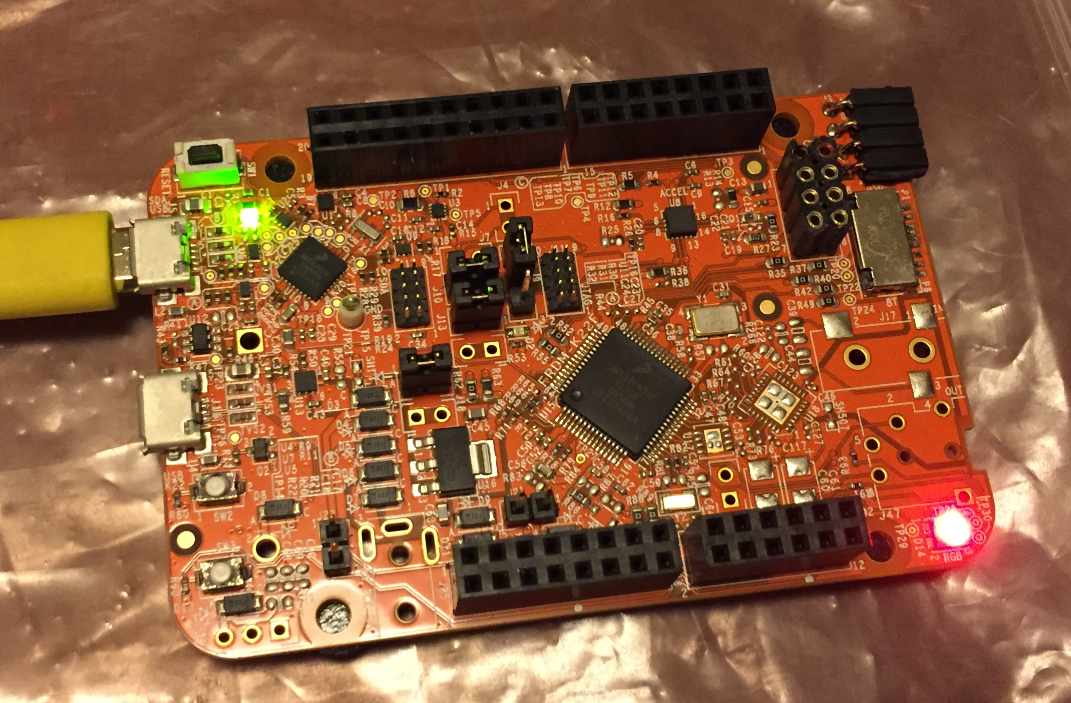
Major changes in this new release:
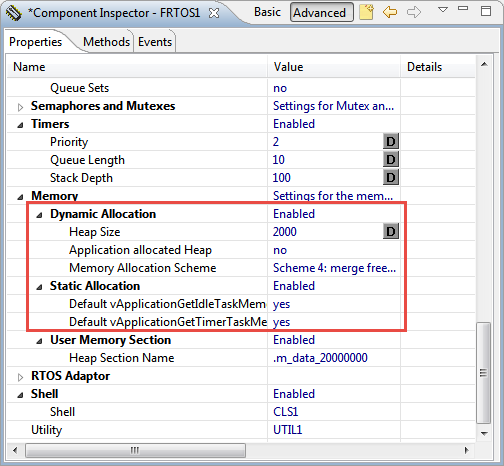
- FreeRTOS V9.0.0 with static memory allocation.
- Shell with single character I/O function.
- FatFS File System with extra shell commands for memory dump and file creation.
- Segger SystemViewer library updated to V2.36a
Major changes in this new release:
I’m using FreeRTOS in most of my applications. There were only a few exceptions where an RTOS has to be used in safety critical systems: there usually it is not permitted to use any dynamic memory allocation because this adds the risk that a memory allocation could fail at runtime because of memory fragmentation or memory leak. And FreeRTOS uses a dynamic memory (heap) for the task stacks and the RTOS resources including semaphore, mutex and queues.
This is now a thing of the past. This week a new FreeRTOS Version 9 was released which does not need any dynamic memory allocation anymore: it is possible now to build completely statically allocated systems with FreeRTOS :-).
Sometimes it is very useful to clean or build a selected set of files. For this I select the file(s) in the Eclipse Project Explorer and use the context menu:
In “Tutorial: Blinky with NXP Kinetis SDK V2.0 and Processor Expert” I used Processor Expert components with the NXP Kinetis SDK to blink some LEDs. This tutorial extends the earlier project and adds FreeRTOS.
In “Mother of Components: Processor Expert with NXP Kinetis SDK V2.0 Projects” I presented an approach how to use Processor Expert components with the NXP Kinetis SDK. This article is a tutorial how to create a blinking LED project with that approach, using McuOnEclipse Processor Expert components and the Kinetis SDK V2.0. As board the FRDM-K22F is used:
Eclipse based IDE’s have a powerful feature to make ‘variants’ of the same projects: Build Configurations. Build configurations are a powerful thing in Eclipse: they allow me to make ‘variants’ of a project. The project will share the common things, and I can simply tweak things one way or the other for example to produce a ‘release’ or a ‘debug’ binary of my application without duplicate the project.
Build configurations are manged through either the context menu on the project or with the top menu:
Unfortunately, now the NXP Kinetis SDK V2.0 does not include Processor Expert support (see “First NXP Kinetis SDK Release: SDK V2.0 with Online On-Demand Package Builder“). But at the Lucerne University we are using more than 150 different custom Processor Expert components we would like to use with that new SDK. So how to make them working with the Kinetis SDK V2.0? Using a Processor Expert as “the mother of all components”:
My embedded applications are implemented mostly in C, a few in C/C++. But all of them have one or few assembly files included too: Assembly programming is the needed to do low-level things so it is a natural part of a true embedded application. For example I use often an assembly file for the application startup code.
I have run into a nasty Eclipse CDT issue which deals with assembly files projects. Here is a quizz for you: can you spot the problem in my project below?
By default I’m programming the Elf/Dwarf (.elf) file present in the GNU ARM Eclipse debug configuration:
But how to program the board with something different from the .elf file?
With Processor Expert projects it is very easy to change the heap and stack size: There is a setting for this in the Cpu component settings, under the ‘Build options’ tab:
As there is no Processor Expert in the NXP Kinetis SDK V2.0 (see “First NXP Kinetis SDK Release: SDK V2.0 with Online On-Demand Package Builder“), how to do the same in a SDK V2.0 project?