Ah, a lot of work went into a new Processor Expert component, and finally it shows up in the component library:
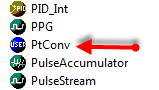
default user icon
Oh, wait: *that* icon does not look nice enough for that amount of work behind the component?
Ah, a lot of work went into a new Processor Expert component, and finally it shows up in the component library:
default user icon
Oh, wait: *that* icon does not look nice enough for that amount of work behind the component?
In my previous post I mentioned the Drivers\Common folder which has ‘include’ files. These files are maintained automatically by the Component Wizard. But what is the purpose of these files?
The Common Folder has *.inc files which are included in the driver as ‘function’ header. The .inc file contains documentation about the function and parameters for that function.
What I describe here is an overview about the different locations, folder and files you will see if you are importing or developing a Processor Expert User component. I’m showing below example screenshot for the FreeRTOS component, as this is probably the most complex one I ever have created.
OK, I think this topic is a very special one, and probably not of interest of many folks out there. Or how many want to create a Processor Expert Plugin for an RTOS? Well, I did this. And I think that topic might be very controversial too, especially for all the RTOS vendors out there :-). The thoughts expressed here about creating Processor Expert components do not only apply for an RTOS, but as well for any other ‘complex’ software or stack. So if you are interested about the ‘behind the scenes’ of creating Processor Expert components, especially in the context of an RTOS, then read on ;-).
No, this is not about how to fold Eclipse: it is about the Folding feature of the Eclipse editor view. My source files tend to get much larger than a single screen page. The Eclipse framework comes with many great editor and navigation features, but it would be great to have the amount of information reduced. Well, it can look like this:
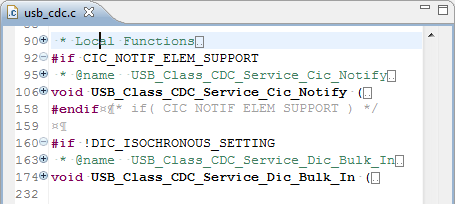
Source file with source folding
If you are new to Processor Expert in MCU10, and new to FreeRTOS, then you need to learn two new things in parallel the same time. That might be overwhelming. But don’t worry: if you do things step by step and slowly the first time, this much easier than you might think. This tutorial shall help you with this.
This is a step-by-step tutorial about how to create a project with CodeWarrior for MCU10.2, Processor Expert and the DEMOJM board. The goal is to create a project from scratch with two tasks blinking an LED. This tutorial uses the DEMOJM board, but in practice any other ColdFire/Kinetis/S08 board can be used as well.
Occasionally I run into this kind of problem: I have downloaded my application, and it immediately crashes or looses the connection:
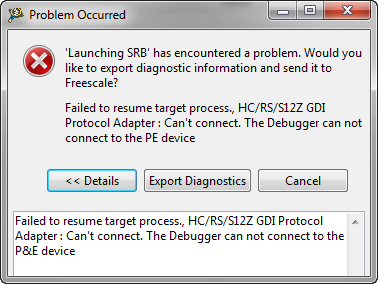
What happened?
What is the problem? It is helpful to understand what happens if I press ‘debug’ in CodeWarrior or any other debugger:
The #1 award in my list goes to Eclox+Doxygen+Graphviz+Mscgen. Yes, it is a single Eclipse plugin (Eclox) for Doxygen, and with two other powerful tools. It solves a typical engineering problem: “How to document my project? And how to keep it up-to-date?”.
Like many other engineers, I do not like to write documentation. Because it is painful. I want to write code and program. Writing documentation for it should be fun too. And it should solve the problem that the documentation does not match what has been implemented. I’m a big fan of the ‘single source’ concept: information has to be in a single place, and not copied and distributed among different places. And here my #1 helps me doing this.

I worked long hours on my project, and it was working well. But after a series of edits, somehow the application was not working the way it should. What did I change to break my code? Usually I smile, because I have things in a version control system. But: not this time (I should know better!). Luckily there are some ways to find out what has been changed: with the Local History and Quick Diff.
If I decide to delete a project from my workspace, I hit delete and get this dialog:

delete project contents on disk (cannot be undone)
If I press OK, then my workspace will not list that project anymore. But what about this ‘Delete project content on disk (cannot be undone)‘ check box?
 MCU on Eclipse