The NXP SDK is git based which is great. If I create a project with VS code, it references the SDK cloned locally.

A standalone project structure is needed if you want to easily share a project with your team. It’s also necessary for sharing inside a classroom environment. This article shows how to use an NXP SDK project in standalone mode.
Outline
In my case, I want to share one or more projects with students in a classroom environment. The ‘standard’ way to use the NXP SDK is to clone the SDK repository.
The NXP SDK is using ‘west‘. That tool was originally used for Zephyr. The new NXP SDK requires that tool for non-Zephyr SDK too. Cloning the SDK takes +20 minutes and needs +8 GB of disk space.
The latest v24.03 SDK with VS Code includes ‘sdk-freestanding’. Creating a project pointing to a simpler SDK mirror. But there is still an absolute Symbolic Link. Other absolute paths and host-specific shell scripts make it difficult to share it in a git repository.

So what I have done instead is to create standalone projects, which can be used instantly by the students. Everything can be shared in a single .zip file or put on git, without the need for west or to clone the full SDK. Everything is self-contained. It does not use any absolute paths in the project. This makes it perfect for cross-host and cross-platform embedded development. Additionally, the setup makes it very easy to be used with Docker or as VS Code DevContainer.
I’m going to use here a project for the NXP FRDM-K22F board. You can find the project discussed on GitHub.
Approach
The approach I’m using here is using a VS Code project which can be used standalone:
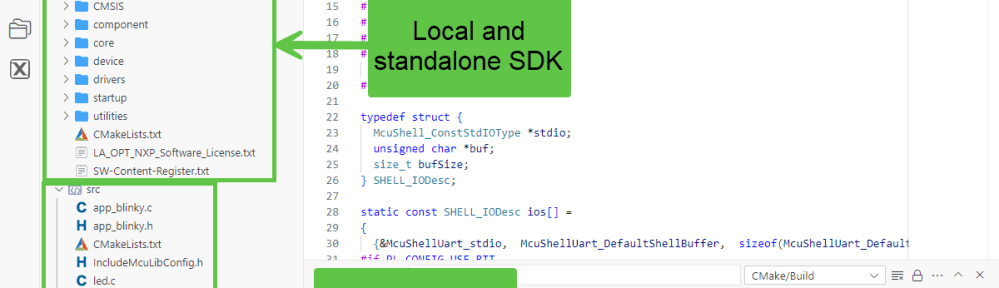
- All SDK files are inside the project folder. No external references or symbolic links. That makes it easy to share as a single simple zip file.
- All references (e.g. path to SDK) are relative. No absolute paths. That makes it easy to share on different machines (Windows, Mac, Linux).
- Standard CMake Presets are used for different build configurations. No host specific shell scripts or command files are needed.
- Multiple debug probe support: e.g. NXP LinkServer and SEGGER J-Link.
- Multiple launch configurations: cortex-debug plus NXP debug extension.
- Taking advantage of the NXP extension: building, debugging, project browsing, …
Toolchain and other tools
I’m not going to cover details about the GNU ARM toolchain or other required tools. It is assumed that common tools like git, cmake and ninja are installed on the host.
Alternatively, the project can be used with a docker DevContainer. No tool chain installation is needed, as everything is inside a container.
Directory Structure
The image below shows the directory structure used:

The mcuxpresso-tools.json is using relative paths only:
{
  "version": "25.3",
  "toolchainPath": "${env:TOOLCHAIN_PATH}/..",
  "linkedProjects": [],
  "trustZoneType": "none",
  "multicoreType": "none",
  "projectType": "sdk-freestanding",
  "sdk": {
    "version": "2.16.000",
    "path": "${workspaceFolder}/sdk",
    "boardId": "frdmk22f",
    "deviceId": "MK22FN512xxx12",
    "coreId": "core0_MK22FN512xxx12"
  }
}
Everything under the ‘build’ folder is ignored by git, and can be deleted to force a clean rebuild.
External tools like the tool chain or debug probe software is referenced by environment variables if needed. See the readme in the project for details.
Summary
With the presented approach I have standalone SDK projects. They are easy to share in classroom or development team environment. The projects are not using any absolute paths or absolute/external file links. Students can clone the project from a git repository or unzip a single zip file. Or directly use it with CI/CD. No need to clone a SDK repository. No need to import projects. Simply open the folder in VS Code and start developing.
Happy building 🙂
Links
- NXP SDK on GitHub: https://github.com/nxp-mcuxpresso/mcuxsdk-manifests
- Project used in this article on GitHub: https://github.com/ErichStyger/mcuoneclipse/tree/master/Examples/VisualStudioCode/FRDM-K22F/FRDM-K22F_SDK_Standalone
- Using CMake Presets: https://mcuoneclipse.com/2023/12/03/building-with-cmake-presets/
- Using VS Code with DevContainer: https://mcuoneclipse.com/2025/02/08/optimizing-embedded-development-with-vs-code-and-devcontainer/
- NXP VS Code Extension: https://marketplace.visualstudio.com/items/?itemName=NXPSemiconductors.mcuxpresso
 MCU on Eclipse
