The #1 award in my list goes to Eclox+Doxygen+Graphviz+Mscgen. Yes, it is a single Eclipse plugin (Eclox) for Doxygen, and with two other powerful tools. It solves a typical engineering problem: “How to document my project? And how to keep it up-to-date?”.
Like many other engineers, I do not like to write documentation. Because it is painful. I want to write code and program. Writing documentation for it should be fun too. And it should solve the problem that the documentation does not match what has been implemented. I’m a big fan of the ‘single source’ concept: information has to be in a single place, and not copied and distributed among different places. And here my #1 helps me doing this.
I worked long hours on my project, and it was working well. But after a series of edits, somehow the application was not working the way it should. What did I change to break my code? Usually I smile, because I have things in a version control system. But: not this time (I should know better!). Luckily there are some ways to find out what has been changed: with the Local History and Quick Diff.
If I decide to delete a project from my workspace, I hit delete and get this dialog:
delete project contents on disk (cannot be undone)
If I press OK, then my workspace will not list that project anymore. But what about this ‘Delete project content on disk (cannot be undone)‘ check box?
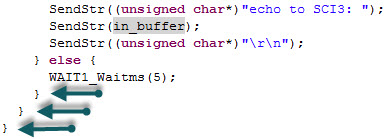
If you are like me, then it is easy to miss a bracket or two in my source code. Or I have tons of closing brackets at the end of a function, and it is hard to tell which one is which? Eclipse comes with basic bracket support: you select/click a bracket, and it helps you to find the closing one. I was pretty happy about that, unless I saw a list of most popular Eclipse plugin. One plugin stood out of the masses in the Top 10 Most Popular New Eclipse Plugins review: Bracketeer. That plugin exactly helps me to solve my problem: which bracket is which?
Brackets
It would be really cool to know to which code block each ‘}’ belongs. And Bracketeer can do this for me!
Installation of Eclipse plugins is really ease: I use the menu Help > Install New Software, point to the update site and I have it installed. Uninstallation of a plugin is not that obvious. Not sure why it is so hidden, and yes, I rarely need to uninstall a plugin. But from time to time I try out a new plugin, and if it does not fit my needs, I want to get it removed. How to uninstall it?
Percepio has released a new V2.2.2 library of FreeRTOS+Trace (see Tracing with FreeRTOS+Trace from Percepio). The new release comes with many improvements. The trace recording is optimized for more efficient recording and longer trace with the same amount of memory.
Note: Because the trace data structure is changed and optimized, I need the latest tool on the PC/host from http://www.percepio.com.
I have updated the Percepio Processor Expert component to generate and use the new trace library V2.2.2. This includes the new settings in the component properties as shown below: Continue reading →
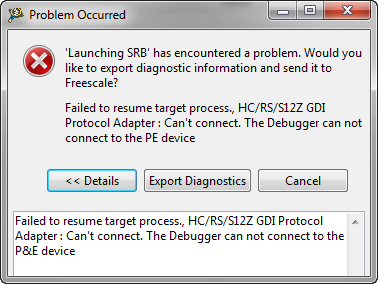
I’m stressing the CodeWarrior debugger a lot: having multiple boards attached, debugging things in parallel, switching and unplugging boards all the time. I have my eclipse IDE running for several days and nights (up to a week or more), with constantly suspending and resuming and switching networks. And sometimes it is my fault (see Device is Secure?). But well, sometimes the CodeWarrior debugger has a problem too. Luckily, a simple trick gets things back on track.
It is one of these long weekends which allow to catch up on many things. One thing I finally completed was the move to FreeRTOS V7.1.1. With this I did some tests using the Tower boards, including the Kinetis one. So I have rebuild my Kinetis K60 application and was ready to flash the device. But then to my surprise I got this dialog:




 MCU on Eclipse