In my previous article “Building Zephyr RTOS Blinky with west” I showed how to build an application inside a Zephyr workspace with west. In this article I’ll show how to program it onto a board with west.
Outline
west is the ‘Swiss Army Knife’ for everything with Zephyr. It can create a workspace with the SDK, install the toolchain and build the application. It does not stop there: west can also program the binary onto a board. Everything is done from the command line, and no GUI is required.
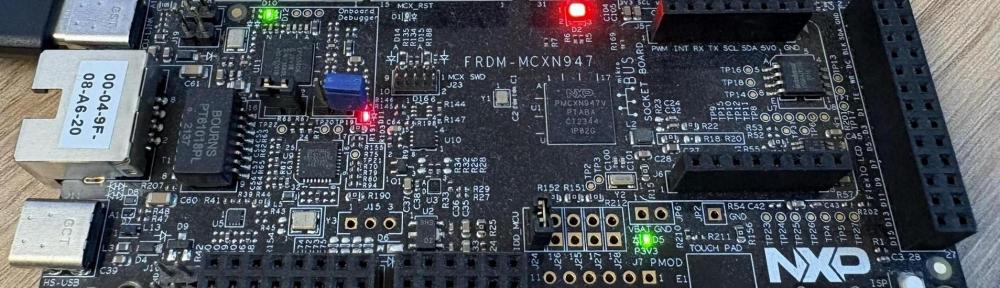
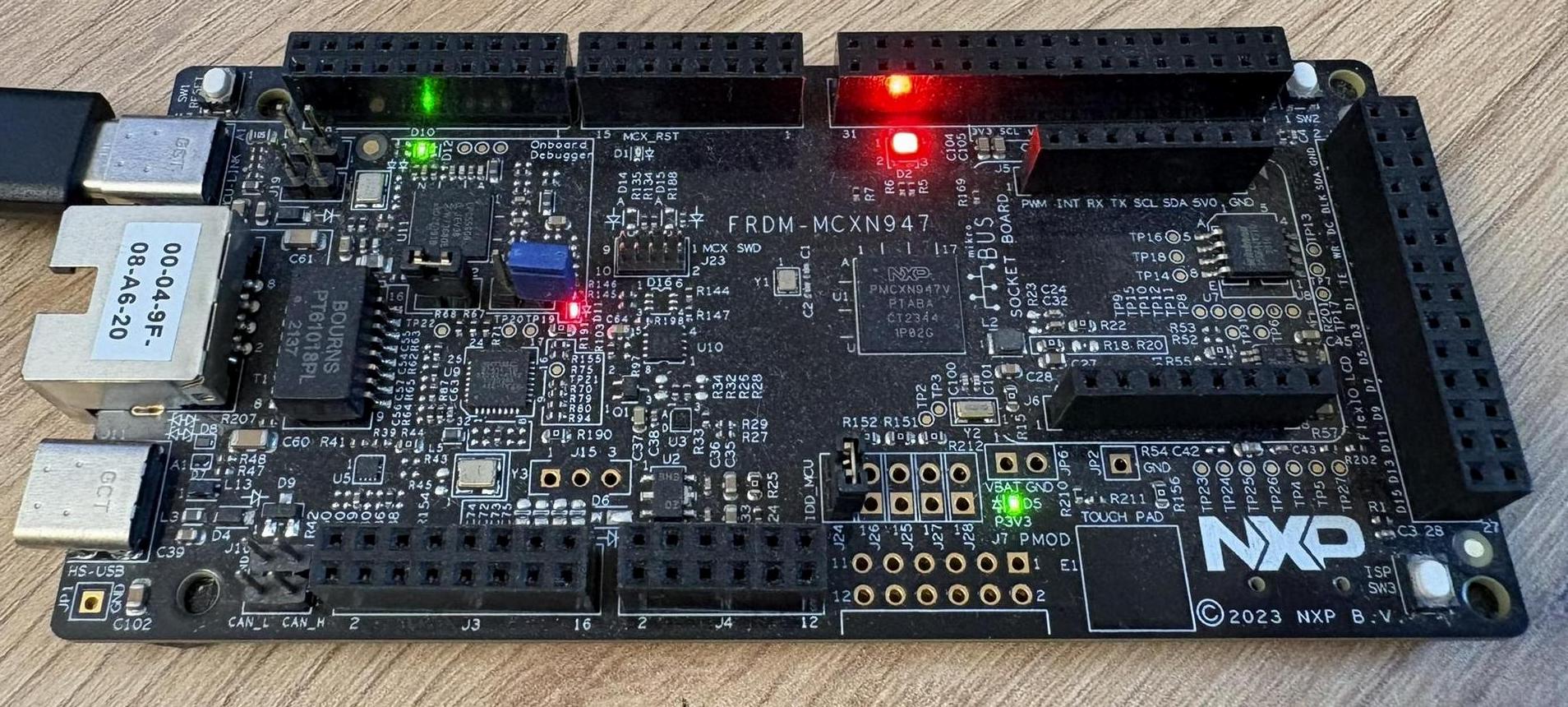
The board I’m using here is the NXP FRDM-MCXN947. But you can use any other board that is supported by Zephyr.
Precondition
After we have built the application with west build (see Building Zephyr RTOS Blinky with west), we can use west to flash it to the board.
Change the directory to the workspace folder. If we are not in the virtual environment, switch to it first:
$ source .venv/bin/activate
💡 Always use the virtual environment for executing west commands on the console. See Zephyr RTOS Workspace Setup Cheat Sheet (west, SDK, Python, Build Tools).
west flash runner
west flash can program an attached board with a new binary using a “runner”:
(.venv)$ west flash help

usage: west flash [-h] [-d DIR] [-r RUNNER] [--domain DOMAIN] [--rebuild | --no-rebuild] [-H] [--board-dir DIR] [--gdb GDB] [--openocd OPENOCD] [--openocd-search DIR]

Reprogram a board's flash with a new binary.

options:
  -h, --help            show this help message and exit
In Zephyr RTOS, a runner is a Python backend (ZephyrBinaryRunner) used by west flash (as well as west debug and west attach) to program firmware onto a target board using a specific debug probe or flashing tool. See https://github.com/zephyrproject-rtos/zephyr/blob/main/doc/develop/west/build-flash-debug.rst for more details.
west flash
The selected board has a default runner assigned, which is used by west flash:
(.venv)$ west flash
which gives:
-- west flash: rebuilding
ninja: no work to do.
-- west flash: using runner linkserver
RUNNER - gdb_port = 3333, semih port = 8888
LinkServer: /usr/local/LinkServer/LinkServer, version v26.12.139
INFO: Exact match for MCXN947:FRDM-MCXN947 found
INFO: Selected device MCXN947:FRDM-MCXN947
INFO: Selected probe #1 E4TXJ1FKX2QFK (MCU-LINK FRDM-MCXN947 (r0E7) CMSIS-DAP V3.174)
INFO: MCU-Link firmware update `check`: Probe ([E4TXJ1FKX2QFK] [MCU-LINK FRDM-MCXN947 (r0E7) CMSIS-DAP V3.174]) is already running the same firmware version as the included firmware version [3.174]
INFO: Selected device matches probe's target identification info
We can see here that it uses the NXP LinkServer debug connection by default. It performs a build first, then programs the binary and starts the application.
Note that you do not need to add arguments to the west flash command specifying the board or device used, or any other low-level debug connection commands. For the FRDM-MCXN947, plain west flash uses LinkServer by default. Zephyr obtains the target device and runner arguments from the build directory, and LinkServer uses those arguments to connect through the physical MCU-Link probe.
💡 Not using NXP LinkServer? See the next sections.
Choosing the build folder
If I want to run west flash for a different build folder, I can specify it with the --build-dir option:
(.venv)$ west flash --build-dir /home/erich/repos/cds/zephyr-wsp/build/
💡 The
westcommand still has to be executed inside a west workspace.
Different runner
In the previous step we are using the NXP LinkServer debug connection, which is the default for many NXP boards. There are many different runners available in Zephyr, for example OpenOCD or SEGGER J-Link.
To select a specific runner, I can use the --runner option:
(.venv)$ west flash --runner jlink
which gives:
-- west flash: rebuilding
ninja: no work to do.
-- west flash: using runner jlink
reset after flashing requested
JLink version: 9.80
Flashing file: /home/erich/repos/cds/zephyr-wsp/build/zephyr/zephyr.bin
Making runner permanent
To make the J-Link runner the default for the build, I configure it with:
(.venv)$ west build -- -DBOARD_FLASH_RUNNER=jlink
To set it back to the NXP LinkServer, I use
(.venv)$ west build -- -DBOARD_FLASH_RUNNER=linkserver
Getting the full context
Now the question remains: what other runners or options do I have? Here the command –context
(.venv)$ west flash --context
comes in, which gives all the information:
-- west flash: rebuilding
ninja: no work to do.
build configuration:
  build directory: /home/erich/repos/cds/zephyr-wsp/build
  board: frdm_mcxn947/mcxn947/cpu0
  runners.yaml: /home/erich/repos/cds/zephyr-wsp/build/zephyr/runners.yaml
zephyr runners which support "west flash":
  nrfjprog, jlink, teensy, hifive1, stm32cubeprogrammer, vegadude,
  stm32flash, openocd, nrfutil, esp32, spi_burn, sy1xx, ecpprog,
  probe-rs, uf2, wlink, misc-flasher, blackmagicprobe,
  silabs_commander, pyocd, mdb-hw, linkserver, minichlink, amebaflash,
  mplab_ipe, rfp, mdb-nsim, native, intel_cyclonev, dfu-util,
  rtsflash, dediprog, mpcli, iar, gd32isp, spsdk, xsdb, arc-nsim,
  trace32, bflb_mcu_tool, alif_flash, intel_adsp, rtkprog, sftool,
  ezflashcli, lldbac, bflb_flash_command, qemu, openfpgaloader,
  bossac, canopen, wchisp

  Note: not all may work with this board and build directory.
  Available runners are listed below.
available runners in runners.yaml:
  linkserver, jlink, pyocd
default runner in runners.yaml:
  linkserver
common runner configuration:
  - build_dir: /home/erich/repos/cds/zephyr-wsp/build
  - board_dir: /home/erich/repos/cds/zephyr-wsp/zephyr/boards/nxp/frdm_mcxn947
  - elf_file: /home/erich/repos/cds/zephyr-wsp/build/zephyr/zephyr.elf
  - exe_file: None
  - hex_file: None
  - bin_file: /home/erich/repos/cds/zephyr-wsp/build/zephyr/zephyr.bin
  - uf2_file: None
  - mot_file: None
  - file: None
  - file_type: FileType.OTHER
  - gdb: /home/erich/zephyr-sdk-1.0.1/gnu/arm-zephyr-eabi/bin/arm-zephyr-eabi-gdb
  - openocd: /home/erich/zephyr-sdk-1.0.1/hosttools/sysroots/x86_64-pokysdk-linux/usr/bin/openocd
  - openocd_search: ['/home/erich/zephyr-sdk-1.0.1/hosttools/sysroots/x86_64-pokysdk-linux/usr/share/openocd/scripts']
  - rtt_address: None
runner-specific context:
  linkserver capabilities:
    RunnerCaps(commands={'debug', 'debugserver', 'attach', 'flash'}, dev_id=True, mult_dev_ids=False, flash_addr=True, erase=True, reset=False, reset_types=False, reset_types_supported=None, extload=False, tool_opt=True, gdb_init=True, file=True, hide_load_files=False, rtt=False, dry_run=False, skip_load=False, batch_debug=True)
  linkserver options:
    -i, --dev-id DEV_ID   Device identifier. Use it to select which debugger, device, node or instance to target when multiple ones are available or connected.
    --dt-flash {Y,y,N,n,yes,no,YES,NO}
                          If 'yes', try to use flash address information from devicetree when flash addresses are unknown (e.g. when flashing a .bin)
    -f, --file FILE       path to binary file
    -t, --file-type FILE_TYPE
                          type of binary file. If --file is not given, selects the build artifact (hex, bin, elf)
    --elf-file FILE       Deprecated, use -f/--file instead.
    --hex-file FILE       Deprecated, use -f/--file instead.
    --bin-file FILE       Deprecated, use -f/--file instead.
    --mot-file FILE       Deprecated, use -f/--file instead.
    --erase, --no-erase   mass erase flash before loading, or don't. Default action depends on each specific runner.
    -O, --tool-opt TOOL_OPT
                          Option to pass on to the underlying tool used by this runner. This can be given multiple times; the resulting arguments will be given to the tool in
                          the order they appear on the command line.
    --gdb-init COMMAND    command to run in the GDB client, after the ones the runner issues itself; may be given multiple times, in order
    --batch, --no-batch   enable west debug batch mode
    --device DEVICE       device name
    --core CORE           core of the device
    --probe PROBE         interface to use (index, or serial number, default is #1
    --tui                 if given, GDB uses -tui
    --gdb-port GDB_PORT   gdb port to open, defaults to 3333
    --semihost-port SEMIHOST_PORT
                          semihost port to open, defaults to the empty string and runs a gdb server
    --linkserver LINKSERVER
                          LinkServer executable, default is LinkServer
    --override OVERRIDE   configuration overrides as defined bylinkserver. Example: /device/memory/0/location=0xcafecafe
  linkserver arguments from runners.yaml:
    --dt-flash=y
    --device=MCXN947:FRDM-MCXN947
    --core=cm33_core0
    --override=/device/memory/1/flash-driver=MCXN9xx_S.cfx
    --override=/device/memory/1/location=0x10000000
    --override=/device/memory/-={"location":"0x30000000",                               "size":"0x00060000","type":"RAM"}
    --override=/device/memory/-={"location":"0x30060000",                               "size":"0x00008000","type":"RAM"}
    --override=/device/memory/-={"location":"0x50000000",                               "size":"0x00140000","type":"RAM"}
  jlink capabilities:
    RunnerCaps(commands={'rtt', 'attach', 'flash', 'debug', 'reset', 'debugserver'}, dev_id=True, mult_dev_ids=False, flash_addr=True, erase=True, reset=True, reset_types=True, reset_types_supported=None, extload=False, tool_opt=True, gdb_init=True, file=True, hide_load_files=False, rtt=True, dry_run=False, skip_load=False, batch_debug=True)
  jlink options:
    -i, --dev-id DEV_ID   Device identifier. Can be either a serial number (for a USB connection), a path to a tty device, an IP address or a tunnel address. User can enforce
                          the type of the identifier with --dev-id-type. If not specified, the first USB device detected is used.
    --dt-flash {Y,y,N,n,yes,no,YES,NO}
                          If 'yes', try to use flash address information from devicetree when flash addresses are unknown (e.g. when flashing a .bin)
    -f, --file FILE       path to binary file
    -t, --file-type FILE_TYPE
                          type of binary file. If --file is not given, selects the build artifact (hex, bin, elf)
    --elf-file FILE       Deprecated, use -f/--file instead.
    --hex-file FILE       Deprecated, use -f/--file instead.
    --bin-file FILE       Deprecated, use -f/--file instead.
    --mot-file FILE       Deprecated, use -f/--file instead.
    --erase, --no-erase   mass erase flash before loading, or don't. Default action depends on each specific runner.
    --reset, --no-reset   reset device after flashing, or don't. Default action depends on each specific runner.
    --reset-type RESET_TYPE
                          reset type to use for resetting the device. Default type depends on each specific runner and target.
    -O, --tool-opt TOOL_OPT
                          Additional options for JLink Commander, e.g. '-autoconnect 1'
    --gdb-init COMMAND    command to run in the GDB client, after the ones the runner issues itself; may be given multiple times, in order
    --rtt-address RTT_ADDRESS
                          address of RTT control block. If not supplied, it will be autodetected if possible
    --batch, --no-batch   enable west debug batch mode
    --device DEVICE       device name
    --loader LOADER       specifies a loader type
    --id DEV_ID           obsolete synonym for -i/--dev-id
    --iface IFACE         interface to use, default is swd
    --speed SPEED         interface speed, default is autodetect
    --flash-script FLASH_SCRIPT
                          Custom flashing script, default is None
    --tui                 if given, GDB uses -tui
    --gdbserver GDBSERVER
                          GDB server, default is JLinkGDBServer
    --gdb-host GDB_HOST   custom gdb host, defaults to the empty string and runs a gdb server
    --gdb-port GDB_PORT   pyocd gdb port, defaults to 2331
    --commander COMMANDER
                          J-Link Commander, default is JLinkExe
    --reset-after-load, --no-reset-after-load
                          obsolete synonym for --reset/--no-reset
    --rtt-port RTT_PORT   jlink rtt port, defaults to 19021
    --rtt-channel RTT_CHANNEL
                          jlink rtt channel, not send by default
    --flash-sram          if given, flashing the image to SRAM and modify PC register to be SRAM base address
    --dev-id-type {auto,serialno,tty,ip,tunnel}
                          Device type. "auto" (default) auto-detects the type, or specify explicitly
    --pre-script-cmd PRE_SCRIPT_CMDS
                          Custom JLink command to prepend to the runner.jlink. Can be given multiple times. ArgParse should preserve their order.
  jlink arguments from runners.yaml:
    --dt-flash=y
    --device=MCXN947_M33_0
    --reset-after-load
  pyocd capabilities:
    RunnerCaps(commands={'rtt', 'attach', 'flash', 'debug', 'reset', 'debugserver'}, dev_id=True, mult_dev_ids=False, flash_addr=True, erase=True, reset=False, reset_types=False, reset_types_supported=None, extload=False, tool_opt=True, gdb_init=False, file=False, hide_load_files=False, rtt=True, dry_run=False, skip_load=True, batch_debug=False)
  pyocd options:
    -i, --dev-id DEV_ID   Device identifier. Use it to select the probe's unique ID or substring thereof.
    --dt-flash {Y,y,N,n,yes,no,YES,NO}
                          If 'yes', try to use flash address information from devicetree when flash addresses are unknown (e.g. when flashing a .bin)
    --elf-file FILE       path to zephyr.elf
    --hex-file FILE       path to zephyr.hex
    --bin-file FILE       path to zephyr.bin
    --mot-file FILE       path to zephyr.mot
    --erase, --no-erase   mass erase flash before loading, or don't. Default action depends on each specific runner.
    -O, --tool-opt TOOL_OPT
                          Additional options for pyocd commander, e.g. '--script=user.py'
    --rtt-address RTT_ADDRESS
                          address of RTT control block. If not supplied, it will be autodetected if possible
    --load, --no-load     load image on target before 'west debug' session
    --target TARGET       target override
    --daparg DAPARG       Additional -da arguments to pyocd tool
    --pyocd PYOCD         path to pyocd tool, default is pyocd
    --flash-opt FLASH_OPT
                          Additional options for pyocd flash, e.g. --flash-opt="-e=chip" to chip erase
    --frequency FREQUENCY
                          SWD clock frequency in Hz
    --gdb-port GDB_PORT   pyocd gdb port, defaults to 3333
    --telnet-port TELNET_PORT
                          pyocd telnet port, defaults to 4444
    --tui                 if given, GDB uses -tui
    --board-id DEV_ID     obsolete synonym for -i/--dev-id
  pyocd arguments from runners.yaml:
    --dt-flash=y
    --target=mcxn947

Note: use -r RUNNER to limit information to one runner.
As noted at the end, I can use the -r or --runner option to limit the output to a runner, for example:
(.venv)$ west flash --context -r jlink
pyOCD
As you can see above, the NXP MCXN947 is supported by pyOCD, which made me curious whether I can use pyOCD with my NXP FRDM-MCXN947 board.
💡 It is always good to have multiple debug options like LinkServer, J-Link, P&E, OpenOCD or pyOCD. However, usually only a few technologies are officially supported. Tools like OpenOCD or pyOCD might work, but there is no guarantee. My recommendation is to use the default option from the silicon vendor plus a commercial vendor like SEGGER or PEMICRO. A free-of-charge debug solution might work, but having a backup solution is worth the money.
Because the MCXN947 is not included in the default pyOCD package, I have to install it into my environment first:
(.venv)$ pyocd pack install mcxn947
Then I can use the following:
(.venv)$ west flash --runner pyocd
However, this might fail with a timeout error:
-- west flash: using runner pyocd
Flashing file: /home/erich/repos/cds/zephyr-wsp/build/zephyr/zephyr.bin
0002040 I Loading /home/erich/repos/cds/zephyr-wsp/build/zephyr/zephyr.bin at 0x10000000 [load_cmd]
0002041 I Erasing... [loader]
0007073 C flash init timed out [__main__]
FATAL ERROR: command exited with status 1: pyocd flash -e sector -a 0x10000000 -t mcxn947 /home/erich/repos/cds/zephyr-wsp/build/zephyr/zephyr.bin
I have the pyOCD DFP 26.09.00 installed, and the workaround is to install the 19.0.0 version (see this community discussion).
Unfortunately, pyOCD has no way to download and install a specific version directly, so I have to do the following:
(.venv)$ mkdir -p cmsis-packs
(.venv)$ curl -fL https://mcuxpresso.nxp.com/cmsis_pack/repo/NXP.MCXN947_DFP.19.0.0.pack -o cmsis-packs/NXP.MCXN947_DFP.19.0.0.pack
(.venv)$ west flash -r pyocd --flash-opt="--pack=$PWD/cmsis-packs/NXP.MCXN947_DFP.19.0.0.pack"
In summary, I got pyOCD working, but I still consider this more of an experiment and do not plan to use it in production.
Summary
Using west flash, I have a useful command line tool to program the board. It uses the context of a “runner”, and each board or target can have different supported runners. west flash abstracts away the underlying debug probe used, and as such it is a great way to have a common infrastructure. With this, I can easily use the same commands for different boards and architectures, which also makes integration into a CI/CD environment easier.
west supports many different debugging probes as runners: here I recommend going with the silicon vendor’s own debug probe plus a commercial vendor probe supporting your device(s); this will give you the best options plus a backup if something fails.
Happy programming 🙂
Links
- The Zephyr project: https://www.zephyrproject.org/
- Zephyr RTOS Workspace Setup Cheat Sheet (west, SDK, Python, Build Tools)
- Optimizing Zephyr RTOS: ARM Toolchain Installation & Usage
- Building Zephyr RTOS Blinky with west
- Getting started guide with Zephyr: https://docs.zephyrproject.org/latest/develop/getting_started/index.html

