Docker or Development Container are great for isolation. And they work very well with things outside which are TCP/IP based. But most debug probes are USB only. Docker container don’t work well with USB. In Remote Debugging with DevContainer and VS Code, I showed how to use USB based debug probes. I demonstrated using them with an IP connection. In this article I show how Windows USB devices can be used from a container, with the help of usbipd.
Outline
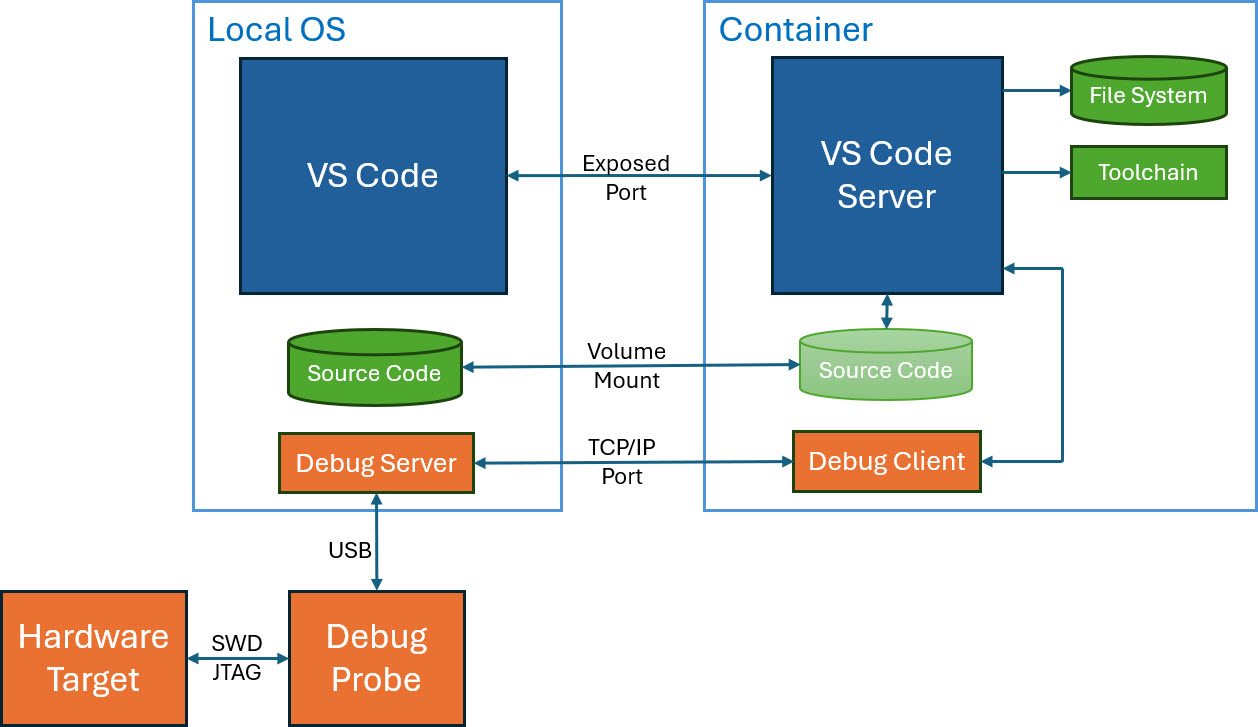
Container support very easily any network connection. One way is to connect the debug probe on the host to the debug client in the container. This is what is used in Remote Debugging with DevContainer and VS Code:
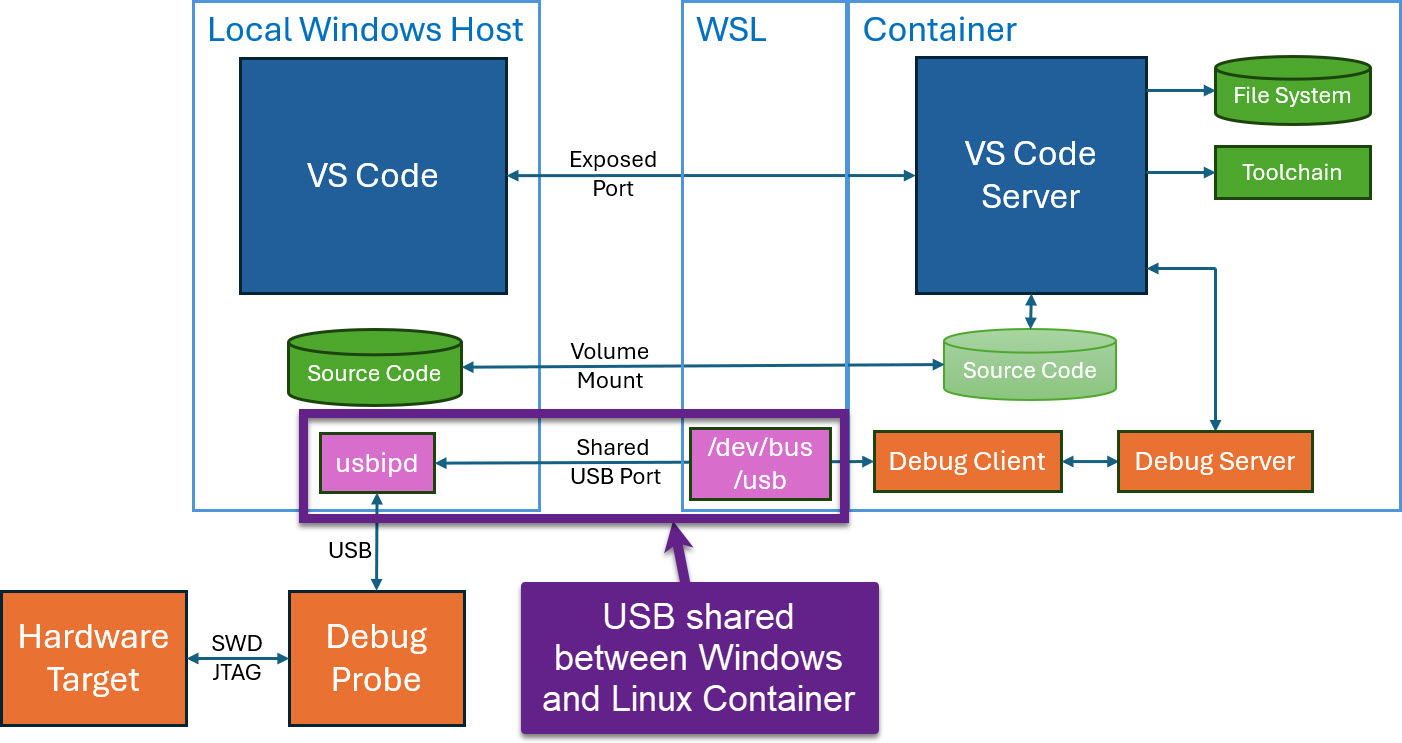
In this article, I show how to use Windows USB based debug probes or VCOM interfaces from a docker container. The concept uses WSL (Windows Subsystem for Linux) with a special windows tool: usbipd. This is a windows tool for sharing USB connections with WSL2 on Windows.

I go through the installation steps. Then how to bind and attach USB devices. With this I can share USB between Windows and WSL plus Dev Container. I’ll cover some troubleshooting tips. I will also show how I can use USB devices in the container as if it were a local host. Additionally I offer a script which automatically re-attaches disconnected devices.
An example project is provided on GitHub: https://github.com/ErichStyger/MCUXpresso_LPC55S16_CI_CD
Installation
Make sure you have the latest WSL. Update WSL in a Windows console/powershell:
PS wsl --update
Install usbipd-win from a Windows PowerShell:
PS winget install --id=Microsoft.usbipd-win
Help in usbipd
`usbip` includes help text, use it with
PS usbipd --help
This gives with my current version
usbipd-win 4.3.0

Description:
  Shares locally connected USB devices to other machines, including Hyper-V guests and WSL 2.

Usage:
  usbipd [command] [options]

Options:
  --version       Show version information
  -?, -h, --help  Show help and usage information

Commands:
  attach   Attach a USB device to a client
  bind     Bind device
  detach   Detach a USB device from a client
  license  Display license information
  list     List USB devices
  policy   Manage policy rules
  server   Run the server on the console
  state    Output state in JSON
  unbind   Unbind device
List Devices
Show all USB devices on the host with the list command:
PS usbipd list
Here is an example output:
Connected:
BUSID  VID:PID    DEVICE                                                        STATE
2-6    0bda:5570  Integrated Webcam, Integrated IR Webcam, Camera DFU Device    Not shared
2-8    0a5c:5843  Dell ControlVault w/ Fingerprint Touch Sensor, Microsoft ...  Not shared
2-10   8087:0033  Intel(R) Wireless Bluetooth(R)                                Not shared
4-4    0bda:8153  Realtek USB GbE Family Controller                             Not shared
7-5    413c:b06e  USB Input Device                                              Not shared
8-2    1366:0101  J-Link driver                                                 Shared
8-3    1fc9:0090  CMSIS-DAP, USB-Eingabegerät, LPC-LinkII UCom Port (COM57)...  Attached
9-4    0bda:402e  Realtek USB Audio                                             Not shared
9-5    413c:b06f  USB Input Device                                              Not shared
Binding
One needs to bind a device first. After that it can be attached to WSL. Binding is persistent, attach is not.
You need either the --busid or --hardware-id information and command-line. The information is available with the usbipd list command from above.
Binding needs to be done with a powershell in administrative mode:
PSA usbipd bind --busid=8-2
After we have attached a device, it shows up as ‘Shared’ when using the usbipd list command, for example:
Connected:
BUSID  VID:PID    DEVICE                                                        STATE
2-6    0bda:5570  Integrated Webcam, Integrated IR Webcam, Camera DFU Device    Not shared
2-8    0a5c:5843  Dell ControlVault w/ Fingerprint Touch Sensor, Microsoft ...  Not shared
2-10   8087:0033  Intel(R) Wireless Bluetooth(R)                                Not shared
4-4    0bda:8153  Realtek USB GbE Family Controller                             Not shared
7-5    413c:b06e  USB Input Device                                              Not shared
8-2    1366:0101  J-Link driver                                                 Shared
8-3    1fc9:0090  CMSIS-DAP, USB-Eingabegerät, LPC-LinkII UCom Port (COM57)...  Attached
9-4    0bda:402e  Realtek USB Audio                                             Not shared
9-5    413c:b06f  USB Input Device                                              Not shared
Shared means that there has be a binding, but it is not attached yet. To use it on the Linux or Container side, you have to attach it.
Attaching
To use a device, we have first to `bind` it, than `attach` it.
For attaching, we can sue the bus ID:
PS usbipd attach --busid 8-2 --wsl
Troubleshooting: Error with loading vhci_hcd drivers
Binding and Attaching works not only for debug probes, but as well for VCOM (Virtual COM, USB-CDC) devices.
With the attach, WSL loads the kernel module driver for it. And this gave an error for me:
usbipd: info: Using WSL distribution 'Ubuntu' to attach; the device will be available in all WSL 2 distributions.
usbipd: info: Loading vhci_hcd module.
usbipd: error: Loading vhci_hcd failed.
Update WSL
First try to update and restart WSL from an administrative console:
PSA wsl --update
PSA wsl --shutdown
Then start WSL again with
PS wsl
and then check the kernel version in WSL:
$ uname -r
It should report a recent version, for example:
6.6.87.2-microsoft-standard-WSL2
Checking WSL Kernel Modules
Next, check that the drivers are installed:
$ ls /lib/modules/$(uname -r)/kernel/drivers/usb/usbip/
which should show:
usbip-core.ko usbip-host.ko vhci-hcd.ko
this means, we have a recent kernel with the needed kernel modules. The issue is probably that that the modules are not loaded automatically.
Manually loading Kernel Modules
Lets load them using `modprobe`:
$ sudo modprobe vhci-hcd
$ sudo modprobe usbip-core
Then try again in a PowerShell (change it for your bus ID):
PS usbipd attach --busid 2-4 --wsl
Now it should work:
usbipd: info: Using WSL distribution 'Ubuntu' to attach; the device will be available in all WSL 2 distributions.
usbipd: info: Using IP address 172.30.160.1 to reach the host
Automatic WSL Kernel Module loading
To load the modules permanently:
Create a new file in WSL:
$ sudo nano /etc/modules-load.d/vhci-hcd.conf
with the following content to load `vhci-hcd.ko`:
# load vhci-hcd.ko at boot
vhci-hcd
Same for the other module `usbip-core.ko`:
$ sudo nano /etc/modules-load.d/usbip-core.conf
with the next content:
# load usbip-core.ko at boot
usbip-core
Then reboot WSL:
$ sudo reboot
Now you should see that the modules are loaded with
$ lsmod
should give something like this:
Module                  Size  Used by
...
cp210x                 32768  0
ftdi_sio               61440  0
usbserial              49152  2 ftdi_sio,cp210x
...
vhci_hcd               45056  0
usbcore               290816  4 ftdi_sio,usbserial,cp210x,vhci_hcd
usbip_core             32768  1 vhci_hcd
usb_common             12288  3 usbip_core,usbcore,vhci_hcd
...
Shared USB Devices in WSL
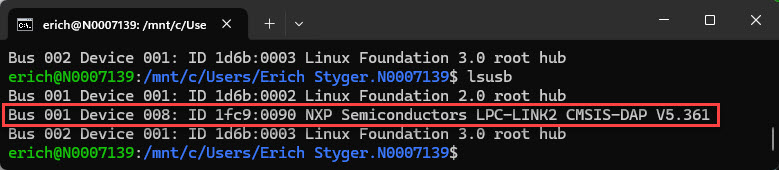
With this, the shared devices shall be visible in WSL. Check with
$ lsmod
Automatic re-attaching
On problem with usbipd is: if an attached device gets disconnected, you have to attach it again. For this, I have created a PowerShell Script which is on GitHub:
# usbipd-reattach.ps1
# Loops and automatically re-attaches all USB devices currently shared via usbipd
# Run it with
# powershell.exe -noprofile -executionpolicy bypass -file .\usbipd-reattach.ps1

# === CONFIGURATION ===
# Change this to your WSL distro or VM name (optional)
$attachToWSL = $true   # set to $false if attaching to remote host instead
$remoteHost = ""       # e.g. "192.168.1.10" (only used if $attachToWSL is $false)
$PollInterval = 10     # Seconds between checks

# === SCRIPT START ===
while ($true) {
    try {
        Write-Host "Checking shared USB devices..." -ForegroundColor Cyan

        # Get usbipd list output
        $usbipdList = usbipd list | Out-String
        $lines = $usbipdList -split "`n"

        # Extract devices explicitly marked as "Shared" (not "Not shared")
        $sharedDevices = @()

        foreach ($line in $lines) {
            # Split on multiple spaces which are the column borders
            $parts = $line -split '\s{2,}' | Where-Object { $_ -ne "" }

            # Expected columns: BUSID  VID:PID  DEVICE  STATE
            if ($parts.Count -ge 4) {
                $busId = $parts[0]
                $state = $parts[3].Trim()
                if ($state -eq "Attached") {
                    Write-Host -ForegroundColor Green $line
                } elseif ($state -eq "Shared") {
                    Write-Host -ForegroundColor Yellow $line
                    $sharedDevices += $busId
                }
            }
        }

        if ($sharedDevices.Count -eq 0) {
            Write-Host "No detached shared USB devices found." -ForegroundColor Yellow
            #exit 0
        } else {

            Write-Host "Found $($sharedDevices.Count) shared devices: $($sharedDevices -join ', ')" -ForegroundColor Green

            # Process each shared device
            foreach ($dev in $sharedDevices) {
                Write-Host "Reattaching $dev ..." -ForegroundColor Cyan

                # Detach first (ignore errors)
                usbipd detach --busid $dev 2>$null
                Start-Sleep -Seconds 1

                if ($attachToWSL) {
                    usbipd attach --busid $dev --wsl
                } elseif ($remoteHost -ne "") {
                    usbipd attach --busid $dev --remote $remoteHost
                } else {
                    usbipd attach --busid $dev
                }

                if ($LASTEXITCODE -eq 0) {
                    Write-Host "Successfully attached $dev" -ForegroundColor Green
                } else {
                    Write-Host "Failed to attach $dev" -ForegroundColor Yellow
                }

                Start-Sleep -Seconds 1
            }
            Write-Host "all shared devices processed" -ForegroundColor Cyan
        }
    } catch {
        Write-Warning $_.Exception.Message
    }
    Start-Sleep -Seconds $PollInterval
}
The script checks periodically, if any shared device is detached and attaches it again:
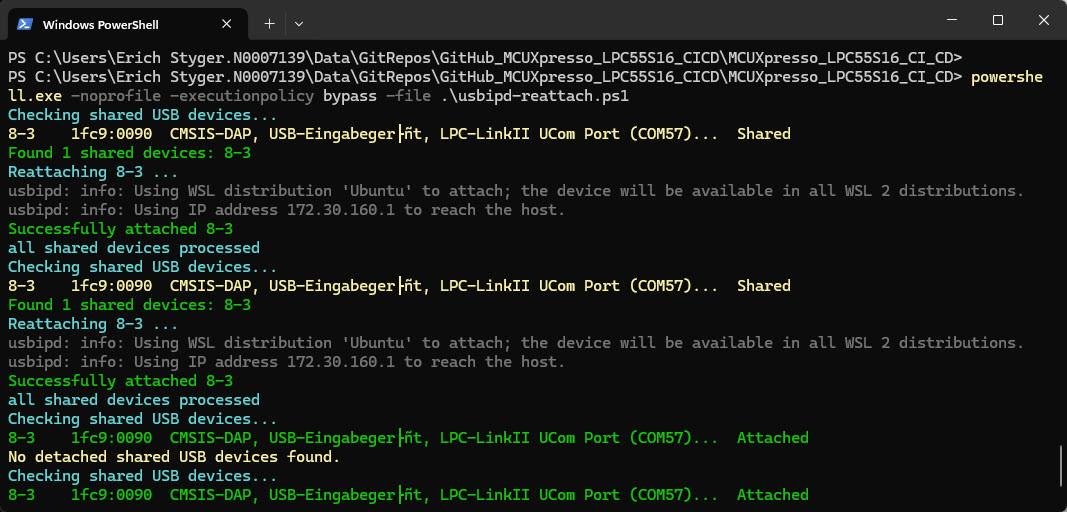
Visual Studio Code Dev Container
To make the shared USB devices visible inside the VS Code Dev Container, I have to add two options to the “runArgs”:
        "--device=/dev/bus/usb",
        "--privileged"
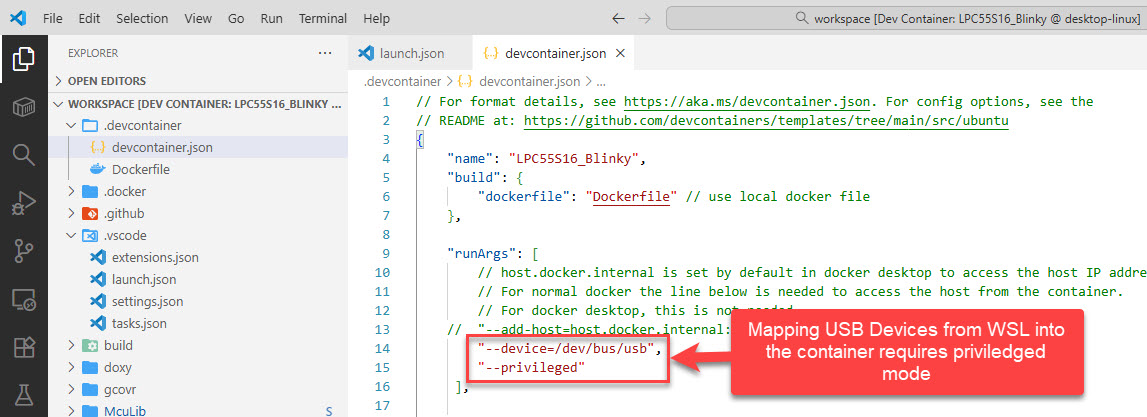
Note that this will map all shared USB devices. If you only want to map a special device, you can use something like this:
"--device=/dev/bus/usb/001/002"
Check your USB device file tree for the exact numbers.
USB Devices in the Dev Container
After building the container with the above settings, the devices are visible inside the container:

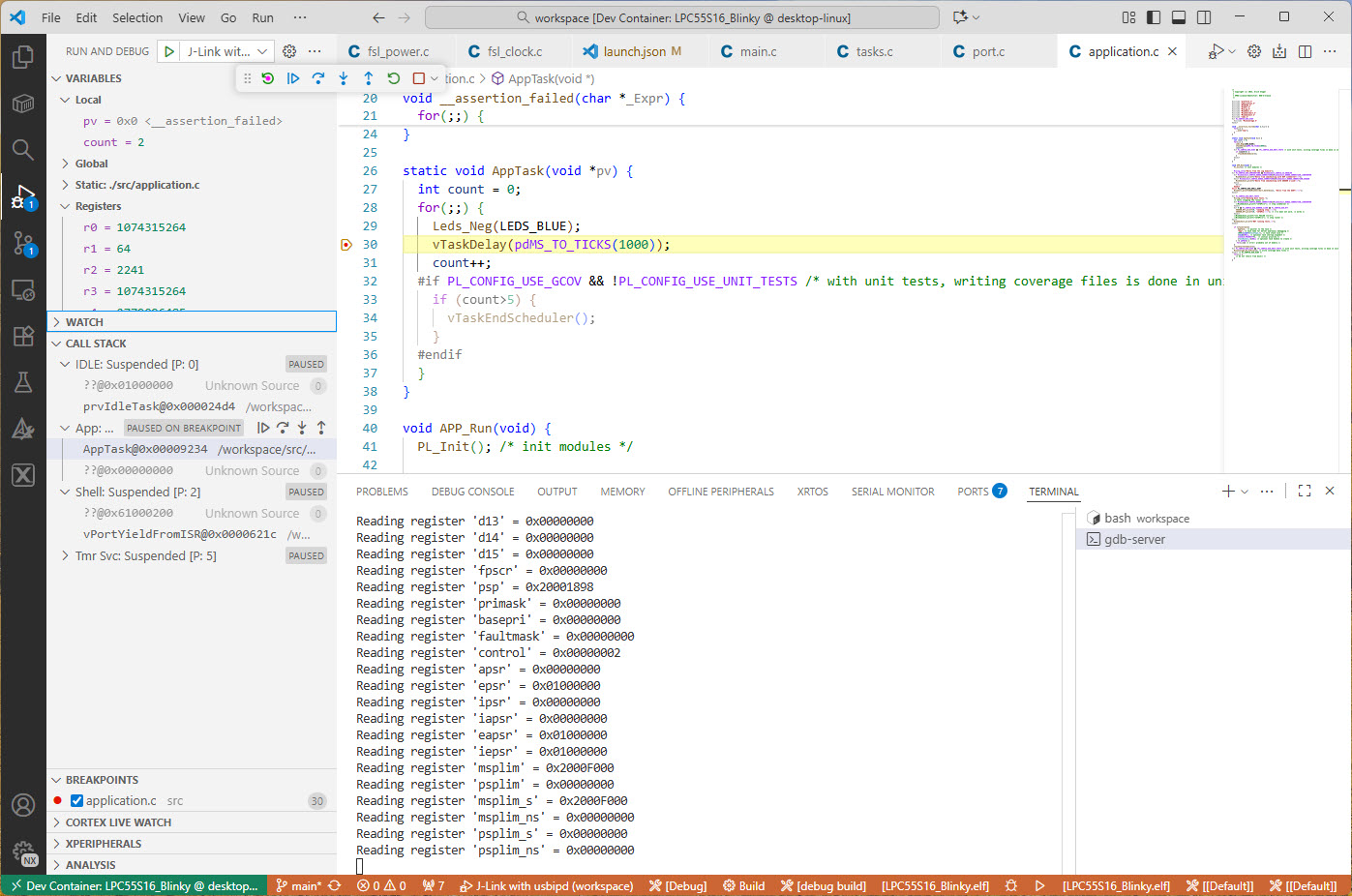
Debugging with VS Code
With the USB devices mapped and shared through WSL into the Docker Development container, debugging is now nothing special: it works exactly as I would use the USB debug probe in a native environment :-):
Summary
It took me a while to get usbipd working with Windows, WSL and VS Code Dev Containers. But now I have a development system I can use locally on the host. And in the same way with a VS Code Dev Container. Or even with a VS Code Dev Container mapped to a Docker Volume. With the help of usbipd I can map USB based debug probes or VCOM ports into the Linux containers. With this I have a uniform development flow. And I can pick and choose which flow works best for me. The problem with disconnecting devices has been solved. This was achieved using a PowerShell script that can run in the background.
Kudos to Frans van Dorsselaer for implementing and maintaining usbipd! Not having USB devices in a Docker container on Windows was a big missing piece for me. Now I can use USB devices in the container, as it would be locally on the Windows host.
Happy sharing 🙂
 MCU on Eclipse
Thanks for the usbipd-reattach script!
In my setup, I attach the SWD debugger to WSL, and run openocde inside WSL Ubuntu since it’s much easier to setup and keep up to date via Ubuntu debs.
Openocd in WSL is then shared via TCP/IP to my dev containers.
The only problem with my setup previously was the USB reattachment issue, whenever I unplug the SWD debugger, it will need the reattachment.
LikeLike
Yes, I desperately wanted an automatic reattachment because if you unplug the cable, you would have to manually attach again. The script simplifies this.
Ready your reply, I think the “run opencode in WSL Ubuntu” is about OpenOCD, right?
I did a similar thing in my setup, but running the debug servers (LinkServer, OpenOCD, pyOCD, Segger) on the Windows host and accessing it with TCP/IP from my containers.
LikeLike
yeah an ‘e’ slipped in somehow.
I figured that setting up the debug stuff in WSL would generally be easier, in addition to being able to use apt for package updates.
incidentally, attaching the SWD debugger directly to the dev container via usbipd didn’t work, probably due to missing drivers, which I wasn’t keen to try and debug since it would recur every time a new
dev container is created.
LikeLike
For me, it was easier to run the servers on Windows, as there anyway I had everything already installed and up-and-running.
As for usbipd, I had tried to get that running for a long time. Was under Windows 11, and now had to switch to Windows 12, so I gave it a new push.
But it has been more about configuring everything correctly in the docker file/scripts, plus WSL was not loading the kernel drivers correctly.
Investigation took me a long time, but when finally everything was working, it was very rewarding.
One thing I noticed from time to time that I ad to re-open the container, as in some strange cases the USB dev was visible, but the debugger was not able to use it. Closing and re-opening the container helped in such cases.
LikeLike
Instead of starting the container in privileged mode, you could also try to pass a cgroup rule:
–device-cgroup-rule=’c 189:* rwm’
I use this on some embedded systems where I need to access usb devices from within a container.
LikeLike
That’s an interesting approach: did that work on Windows with Docker Desktop too?
LikeLike
Never used Docker on windows. But I doubt it would as cgroups are a linux feature so I suppose you need a linux kernel in and outside the container (well actually on linux, the container does not run a kernel).
I suppose the –device option in general is only usable in WSL as it provides the linux kernel.
LikeLike
Yes, this article is about using USB devices with Docker on Windows which involves WSL.
LikeLike
Love your article series. I’ve implemented both approaches, USB passthrough (note that in winget the package id is dorssel.usbipd-win and is documented here, too: Connect USB devices | Microsoft Learn), which works well, and also the GDB Server approaches.
For the latter ones I needed to use `–network=host` as runArgs, and make sure that WSL uses `networkingMode=mirrored` in .wslconfig.
I’m on Podman Desktop and Windows 11, maybe Docker Desktop is a bit more forgiving 😉
The TCP passthrough worked flawlessly with JLink (flashing & debugging) and STLink via OpenOCD and ST GDB Server for debugging, but I had hard times to make the flashing working. With the USB passtrough everything works beautifully.
Thanks again! Great work 🙂
LikeLike
Hi Jan,
thanks you! And thanks for the additional command line arguments.
Erich
LikeLike