Maybe this situation is familiar to you: My embedded software stopped in the field. I am in front of it, hooked up with my laptop and debugger. And I see: indeed, it has a problem. Maybe just a one-time-thing? Maybe I do a reset and things will work as expected? Not really, according to Debugging Rules.
The thing is this: I’m in a situation which requires some deep investigation. But I do not have the time now. Or my boss, the boss-boss or the customer are standing behind me asking all the good questions for which I don’t have an answer. So in this situation it would be great if you could take a dump of the device memory, reset that board, move on and investigate what happened offline? Here are several ways how to do this…
The basic idea is to get a full dump of my device memory for offline analysis. The approach is using a debugger connection. I have found that the approach of ‘dump and inspect offline’ is incredible valuable. It helps to compare the ‘good’ and ‘bad’ state of a device: Having a ‘good’ or working configuration and dump, I can compare it with another image. Or I even can restore a memory dump back on a device to reproduce issues.
Export from the Memory View
The first approach is using the Memory view. As already shown in Memory is Everything, the Memory view offers an export functionality:

Memory View Export
Here I have the possibility to export it in different formats, and using the ‘import’ button I can import files later on.
Exporting Memory with Target Task
Another way is to create an Export Memory Task from the Target Tasks view:
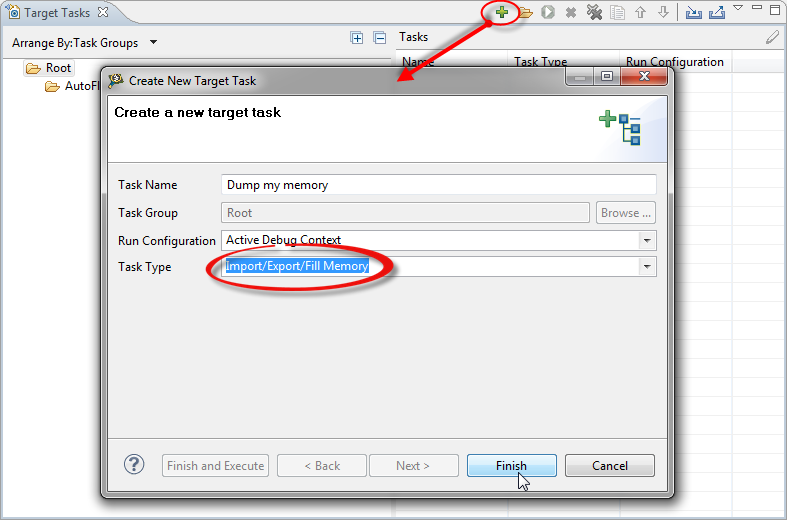
Create new target task
Next I need to configure what to do. Basically start address and size and format options:

Configuring Export Memory Action
I save the settings with Ctrl-S. Then either with a context menu or with the toolbar I can export the memory to a file:
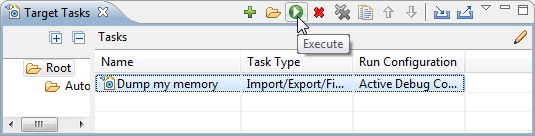
Execute selected target task to export memory
Importing works the same way, but configuring a Target Task to import a file instead to export.
Debugger Shell
If this is not flexible enough, I have the power of TCL scripts and the debugger shell.

Help on save in Debugger Shell view
With this, I can use something like this:
save -h 0x0..0x8000 c:\\tmp\\myDump.txt -o
I’m using the -h option to specify Hex Format, as I can re-import that format easily with the ‘restore’ command.
Summary
There are multiple ways how to dump the device memory to a file. This is very useful to inspect content offline, to compare dumps or as well to restore later the dumps on the device.
Happy dumping 🙂
 MCU on Eclipse
Hi Erich
I’m interested in using this approach to debug my USB hell. The code works on the FRDM board but not on my custom board, so I want to dump memory from the two boards and compare.
Unfortunately, when I try to dump the memory using the above technique, I get lots of these errors:
Reading 320 bytes @ address 0x40072000
WARNING: Failed to read memory @ address 0x40072000
Read 1 bytes @ address 0x40072000 (Data = 0x04)
Reading 159 bytes @ address 0x40072001
WARNING: Failed to read memory @ address 0x40072001
Reading 79 bytes @ address 0x40072001
WARNING: Failed to read memory @ address 0x40072001
Reading 39 bytes @ address 0x40072001
WARNING: Failed to read memory @ address 0x40072001
Reading 19 bytes @ address 0x40072001
WARNING: Failed to read memory @ address 0x40072001
Reading 9 bytes @ address 0x40072001
I’m trying to dump memory around the USB peripheral address range. I don’t believe the problem is MPU-related because I can view the memory there fine using the embsysregview plugin.
I’m using the frdm-K64 board with the OpenSDA USB link running the Segger JLink firmware. I’m using the debugger configuration supplied with the example code.
Have you seen anything like this before?
Many thanks for your excellent website – it’s an amazing resource for everyone working with these kinetis chips.
All the best
Jeff
LikeLike
Hi Jeff,
I assume you are using Kinetis Design Studio? I guess you have a memory configuration file in place which prevents reading from these memory location?
If you read the memory using GDB command line commands, gives it an error too?
I hope this helps,
Erich
PS: thanks .-)
LikeLike
Hey Erich
Yes, using the latest KDS. I don’t know about any memory configuration file; where does it live?
Command line gdb fails in the same way, but reading registers with embsysregview works OK…
This platform is gradually driving me insane!
LikeLike
Hi Erich,
I know this is a fairly old post, but I have a question regarding this topic. I have to debug a quite rare/hard to reproduce bug in our embedded system. The system is currently in the faulty state and i made a memory dump of the RAM regions using the GDB dump command.
In your post you mention the following: “Or I even can restore a memory dump back on a device to reproduce issues”. This is exactly what i have to do but I think a memory dump is useless if you have to put it back on a device without having the register contents stored. What did you do with the device’s registers?
Marco
LikeLike
I still care about old posts :-), thanks for your question! I have used that export/import of memory for RAM areas to track down issues. I have used that method as well compare ‘good’ and ‘bad’ states, and this includes memory mapped peripherals. But here I have to be careful in case reading from a peripheral/register might cause side effects. But restoring register/peripheral settings usually do not work, as they depend on specific access and order. But it helped me to find misconfigured registers with the method in this article.
I hope this helps?
LikeLike
Thank you Erich! Well, with registers I actually meant the core registers like stack pointer, program counter etc. I should have mentioned those. But it’s good to know memory mapped registers also work 🙂 Let me explain the setup once again.
The system runs on an ARM Cortex-M3 based MCU running FreeRTOS and LwIP. I made a memory dump of the RAM areas, but i’m concerned about the core registers when putting back the memory dump later. I think they should be set up to the state when the memory dump was taken so the FreeRTOS scheduler and tasks will continue correctly.
I hope this explains it a bit more 🙂
LikeLike
I see. The CPU core registers you cannot export that way. But they could be dumped to a file with a GDB command. I’m dumping memory as well using:
dump binary memory
(see https://mcuoneclipse.com/2014/12/26/code-coverage-for-embedded-target-with-eclipse-gcc-and-gcov/ for an example).
For running the FreeRTOS scheduler, the memory will not be enough, as things like the systick register has to be re-initialized too.
LikeLike
Pingback: Visualizing Data with Eclipse, gdb and gnuplot | MCU on Eclipse
Pingback: Dumping Variables and Arrays with GDB in Eclipse | MCU on Eclipse
Pingback: RTOS Trace: TraceX with Microsoft Azure RTOS (aka ThreadX) | MCU on Eclipse