Eclipse and CodeWarrior are great. But as with most great things, they get even better if I can customize it for my needs. As outlined in my earlier posts (Eclipse Full Screen Plugin, Hide and Show Eclipse Toolbar, Maximize Eclipse Views) there is already great flexibility.
Category Archives: Tips & Tricks
Eclipse Full Screen Mode Plugin
The great thing with blogging is: I receive great comments, questions and ideas. The great thing with Eclipse/CodeWarrior is that the extensions are almost unlimited :-). For my earlier post on hiding the toolbar I received a tip for another way which even is better: a plugin to switch Eclipse into full screen mode. Here is how to install it and how it looks…
Maximize Eclipse Views
As outlined in my earlier post about hiding the toolbar: it is important to me that I have a flexible way to use my screen real estate. There is another thing I need frequently: I’m using a small Eclipse window like this one:
Hide and Show Eclipse Toolbar
Screen real estate is important to me. Especially working on a small notebook screen I want to get the most out of it. And I know: all the cool (and fancy) UI items in Eclipse have a price.
So how to get more space for important things like my source files? Eclipse has feature to hide the toolbar completely. For this I simply use the context menu and select ‘Hide Toolbar’: Continue reading
CDE Hacking: Components with Multiple Files
Typically a Processor Expert component creates two files: a header file and a source file. That’s fine for normal drivers. But this does not work well for more complicated things like an RTOS or communication stacks: these are built from a whole set of source files. So how can I generate multiple files with a Processor Expert Component?
Breakpoints with Special Effects
As promised back in Percepio, I want to have it ported and working with the Freescale Cortex-M4/Kinetis in CodeWarrior. That’s what I’m working on now, deep into the night. While doing this, I had to generate a lot of trace data, and I used the script I presented in that earlier post: Setting a breakpoint in the trace buffer wrapper event and then export the data. But there has to be an even better way, and indeed there is one: Breakpoints with Special Effects!
Eclipse Include Browser
I’m chasing down a weird include problems in my project: Somehow it looks like the compiler is including the wrong file, causing strange compiler errors. I admit: the include order with all the #defines is pretty complicated, most of it I have inherited from an open source project. How to know who is including what, which files is included by whom? what is included directly, and what is included indirectly?
CDE Hacking: Processor and Compiler
Writing Processor Expert components is not always completely independent of the compiler and underlying microcontroller. In many cases I need to know the compiler for which the source code is generated. Or I need to know on which CPU architecture the code shall run. For this I need to know the compiler and the CPU family.
Debugging Global Variables
If I’m debugging my application in Eclipse or CodeWarrior, it shows in the Variables view the local and global variables of the current Thread and stack frame only:
This makes sense as this is usually where my focus is. And this is good from a performance point of view: The debugger does not need to read a lot of other variables from the target which I’m not interested in. But the question is: how to show the variables which are in other files if I really need to look at them?
CDE RTOS Hacking: Show it as an RTOS component
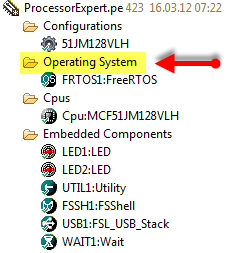
Technically, a normal user component can implement any RTOS. This is what I did with the Micrium MicroC/OS-II component. That way the component shows up in the ‘Embedded Components’ group. But how to make it showing up as RTOS component inside the ‘Operating System’ group as the FreeRTOS component? What I want is this: to show the RTOS component under the ‘Operating System’ group of my project: