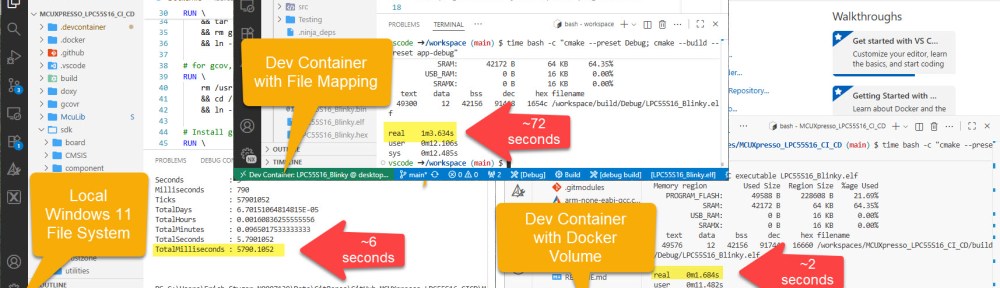
I recently upgraded from Win10 to Win11. Windows 10 was not great for building performance compared to Linux. And I feel that with Windows 11 things got worse too.
Dev Container in VS Code uses docker-based environments. This enables me using a full-featured development environment, with isolated dependencies. This is especially very useful for development in the embedded systems space. There I have to use many different SDKs, toolchains and libraries. Using Dev Containers is super easy. But file I/O operations with building etc/is not that great.
The solution is to use a Docker Volume with VS Code and Dev Container:
Outline
Dev Containers are great. I can clone a repository locally. Then, I can build with the local file system using locally installed tools. Alternatively, I can switch to a container version as needed. You can choose to reopen in container (see Optimizing Embedded Development with VS Code and DevContainer). The file system of the project is mapped between the host and the container. This is great from a usability perspective, but bad for file I/O operations. So building in the container is noticeable slow compared to build on the host.
But there is a way out: instead of ‘reopen in Docker Container’, I can use a Docker Volume:
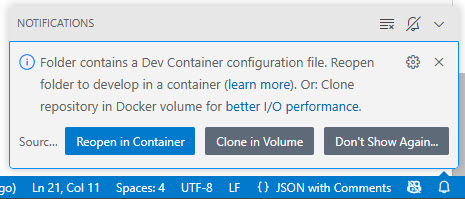
So instead ‘polluting’ my local file system, it uses an isolated, local docker volume. A volume does not bind with the local file system. This lack of binding improves file performance.
There is yet another advantage: I can directly clone a git repository into a local docker volume. No need to clone the repository first. This is great for pull requests. I can also try out a code base without interrupting anything on my local machine.
Prerequisites
You need:
- VS Code: https://code.visualstudio.com/
- Remote developer extensions: “ms-vscode-remote.vscode-remote-extensionpack“
- Docker Desktop with WSL2 on Windows
To get familiar with DevContainer development, please have a look at my other article here: Optimizing Embedded Development with VS Code and DevContainer
Cloning Repository into Container Volume
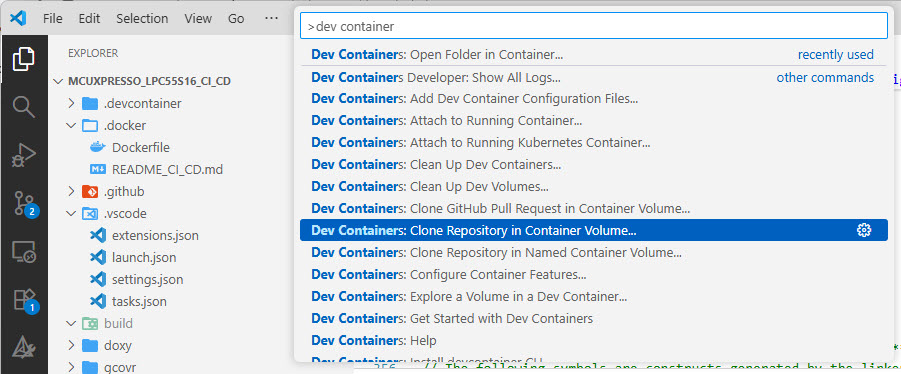
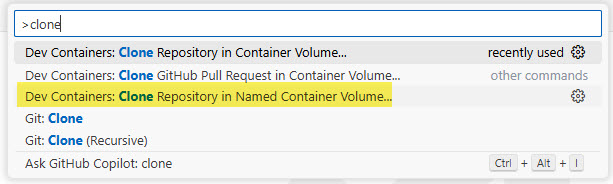
In VS Code, from your workspace or in a new window, use CTRL+SHIFT+P and select
Dev Container: Clone Repository in Container Volume:
Then, enter the URL to the repository, for example
https://github.com/ErichStyger/MCUXpresso_LPC55S16_CI_CD/tree/main

Note that this is really a git clone of the repository from the URL specified. The ‘reopen in container’ uses your local files and opens them in the container. The clone operation takes the file from the (remote) repository and puts it into the volume. If you make changes to the files, you have to push/pull as usual.
By default, it creates a volume for each clone. But you can use ‘named’ volumes, and clone multiple projects into it:
Git Sub-Modules
There is a catch: cloning a repository in a docker volume with VS Code does not clone any sub-modules :-(.
The workaround which worked for me is adding a postCreateCommand to the .devcontainer/devcontainer.json file:
"postCreateCommand": "git submodule update --init --recursive",
With this, any sub-modules of the repository get cloned.
Open in Dev Container with Docker Volume
The other way would be to use the ‘clone in Volume’ button below:
If you get a ‘git cloned failed’:
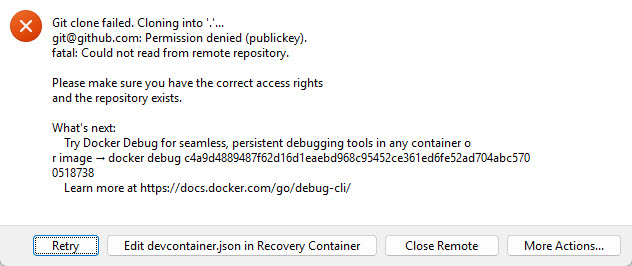
it means that git inside the Dev Container can’t authenticate my git provider. See “Sharing Git Credentials with your Container” for solutions.
Performance
I have measured a full build (build output folder deleted first, 10 measurements for an average time):
- Build locally on Windows 11:
Measure-Command{cmake --preset Debug; cmake --build --preset app-debug}
~6 seconds - Build with Dev Container:
time bash -c "cmake --preset Debug; cmake --build --preset app-debug"
~75 seconds - Build with Dev Container and Docker Volume:
time bash -c "cmake --preset Debug; cmake --build --preset app-debug"
~2 seconds (!!!)
💡 My thinking is that building inside the docker volume is much faster. This is because there is no impact from the Windows firewall or virus scanner?
Summary
Using a local build environment on Windows is great for build performance. But makes it hard to have an isolated environment. Using docker and VS Code Dev Container, I get a flexible environment and easy to use development flow. However, build performance gets worse due to file mapping to the host system.
The solution for me is to combine Dev Container with Docker Volumes. Files are not mapped to the host system unless I explicitly do this. The performance is really great, even with running Docker.
It works great if the repository is the VS Code project, as in this example. VS Code then automatically identifies the Dev Container settings. But I do have repositories with multiple projects, with a more complex structure. ‘ReOpen in Container’ works fine in such a case. Because I can do this on a ‘current folder’ level in VS Code. But ‘Clone into Volume’ works on the whole repository, and I have not managed to make that work. It failed during cloning. There is probably a way, but way too complex.
As for now I have to develop on Windows, I’m adding Dev Container with Docker Volumes to the mix. Just using Linux would be the golden way, as Windows file I/O performance is not great. With Dev Container technology, I can develop the same project on the host, or in Docker. With a Docker Volume it will be now much faster :-).
Happy developing 🙂
Links
- Repository on GitHub: https://github.com/ErichStyger/MCUXpresso_LPC55S16_CI_CD
- Optimizing Embedded Development with VS Code and DevContainer
- Remote Debugging with DevContainer and VS Code
- VS Code Dev Containers: https://code.visualstudio.com/docs/devcontainers/containers
- VS Code Advanced Containers: https://code.visualstudio.com/remote/advancedcontainers/improve-performance
 MCU on Eclipse
I’m wondering why? If you need windows for one or another tool why you don’t run that in a VM or docker container…
LikeLike
That might be possible. But has been a pain with needed USB drivers. uspipd does not work for everything, at least on my machine.
LikeLike