Eclipse is not the fastest and snappiest IDE of the world, but in my view the most versatile and open one. And as with any tool: using it the wrong way does not make it better. Sometimes I have students in my classes which complain that Eclipse is slow, even on a decent machine. Looking at their notebook screens and Eclipse workspace usually tells me right away what they are doing ‘wrong’: there are many, many projects open in the workspace, the most I have seen was more than 50 projects (yikes!!!)!
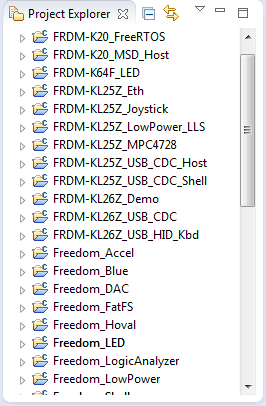
Many many projects open
The problem with (too) many project open is: it slows down Eclipse. Because the more projects open, the more RAM on the host is used. And the more files Eclipse is parsing and keeping ‘alive’ in the background. And if they are advanced projects like using Processor Expert, then all these tools behind need ressources too.
The amount of RAM/heap used by Eclipse can be shown in the lower toolbar (see “Show Heap Status in Eclipse“). Below is the amount of memory used for a workspace with 18 projects, all closed: 59 MByte.
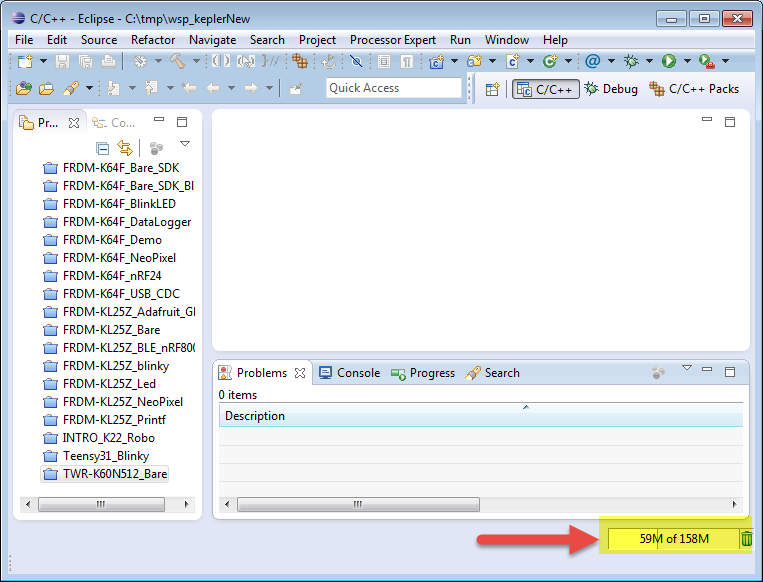
Heap Used in Eclipse with Projects Closed
Opening a rather complex Processor Expert project, and now 148 MBytes are used:
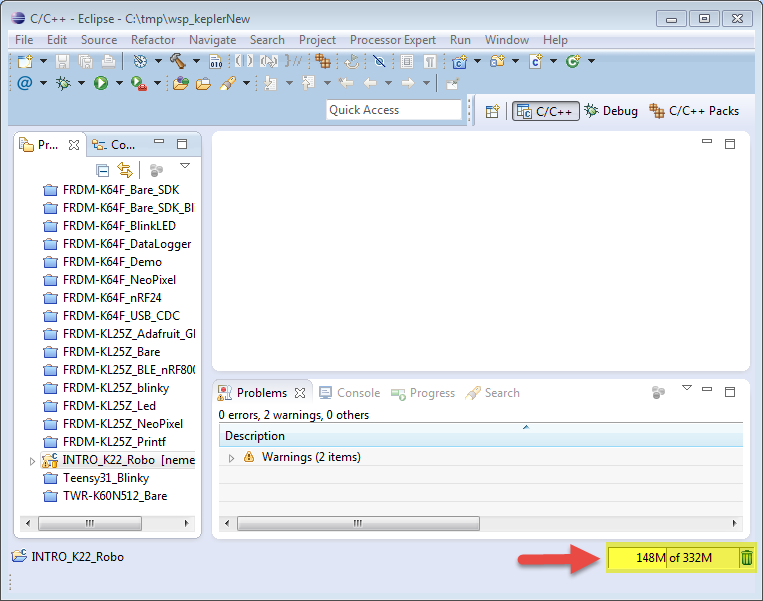
Heap Size with one project open
Now see what happens if I have all 18 projects open in the workspace: it has doubled again:

heap size with all projects open
Eclipse tries to optimize the memory as much as possible, but the more projects are open, the more memory will be used. For your system and for Eclipse it is the best if you only have the projects open you want to work on. I usually open and close projects depending on which ones I’m working on. Usually I have not more than 3 or 4 projects open the same time. But having 20, 50 or even 100 projects open is simply insane ;-). And if hitting the Eclipse heap limit (usually around 700 MByte) can cause weird problems like views not updating properly.
Closing Projects
To close projects, select the projects to close (you can select multiple ones) and use the context menu:

Closing Projects
Open Projects
The same way, the context menu can be used to open projects:
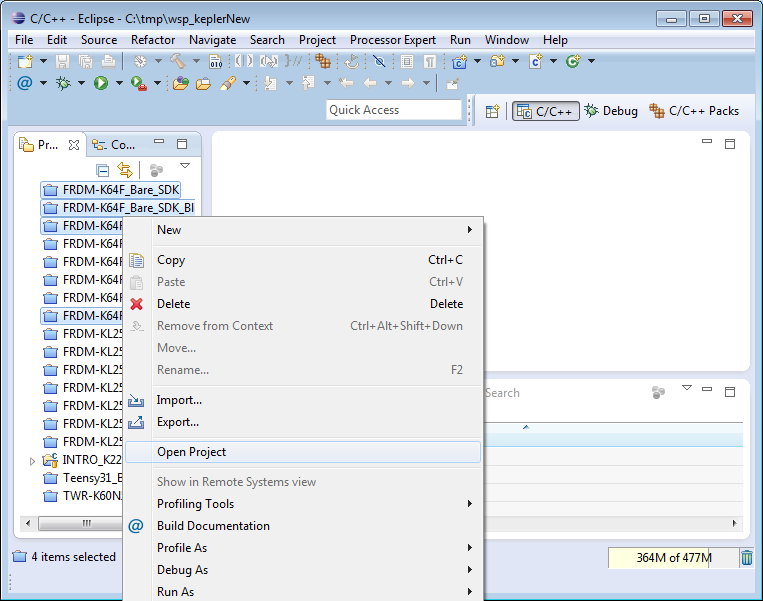
Open Projects
💡 Another way to open a project is to double-click on the project.
Summary
Of course not only the open projects, but every Eclipse view/window open adds up too. So to save memory and to improve the performance of Eclipse:
- Close any unnecessary window/view.
- Close any project your are not using/working on.
- Have only a few projects open at a time.
That way I can help Eclipse to use as few ressources and RAM as possible. It will not speed up Eclipse by factors, but it helps. And keeping an eye on the Eclipse heap memory usage is good too.
Happy Closing 🙂
 MCU on Eclipse
Great tip. Thanks Erich. I did not know this could be an issue.
On an average machine, can you guess how many open projects it might take to noticibly slow Eclipse? 5? 15? 30?
Thanks.
LikeLike
It all depends on the projects, how many files they have in it, and for example Processor Expert adds the RAM usage. I would say that if you are below <= 5, you should be fine. Usually below 10 too. Above 10 I would say it is already getting a problem.
LikeLike
Pingback: Quick Way to Open Closed Project in Eclipse | MCU on Eclipse
On Windows 7/8. Open Control panel. Find Windows Defender. Go to settings Exclude all folders where is your Spring/Eclipse and workspace
LikeLike
I did not think about this could improve performance a lot, except for machines which do a lot of builds.
Any estimates how much disabling the Windows Defender might speed up things?
LikeLike