In “Tutorial: Getting Started with MCUXpresso SDK – west“, I demonstrated the ‘west’ tool’s usage. It helps in acquiring an SDK repository. Instead using the command line tool, I can use the NXP VS Code extension to do the same.
Outline
Import Repository
💡 In this section I’m importing an SDK repository and use it afterwards. It is possible to import a repository ‘on demand’ with the ‘New Project Wizard’. See later in this blog article.
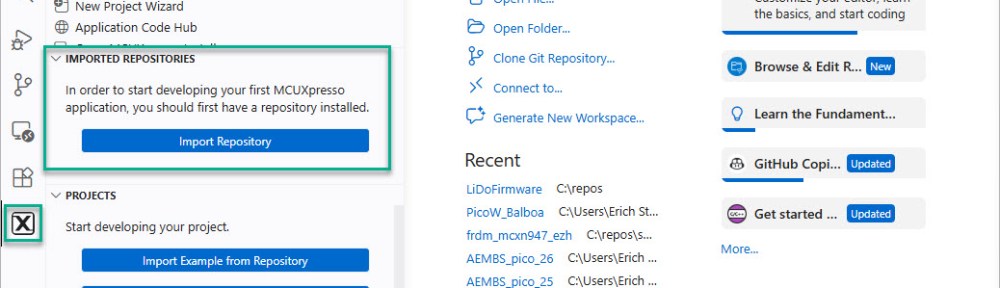
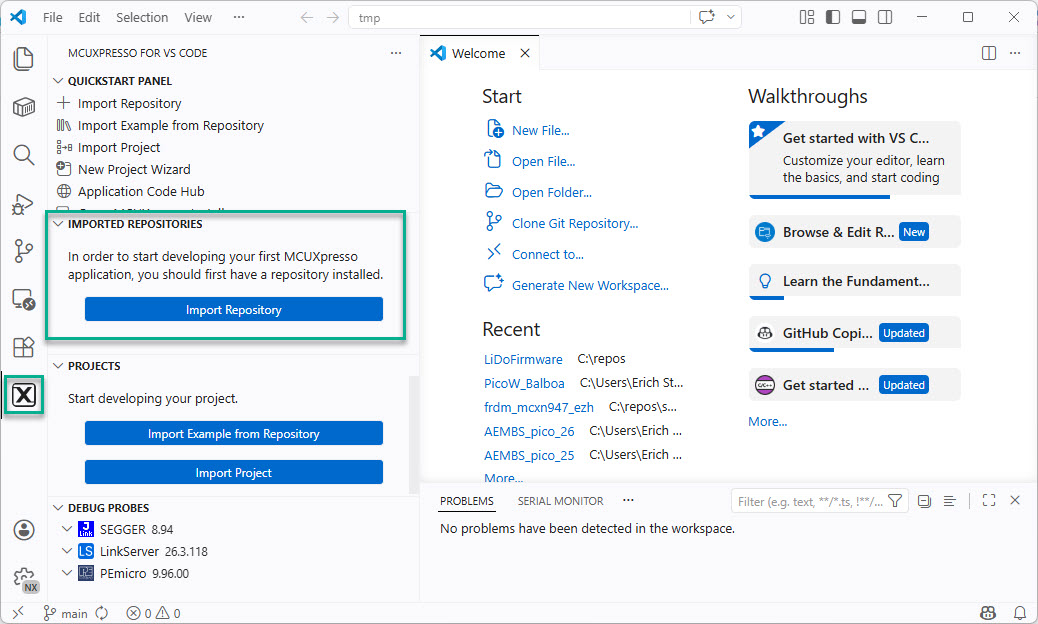
From the side bar, select the NXP extension and then press on ‘Import Repository’:
From there, I have four ways to import an SDK:
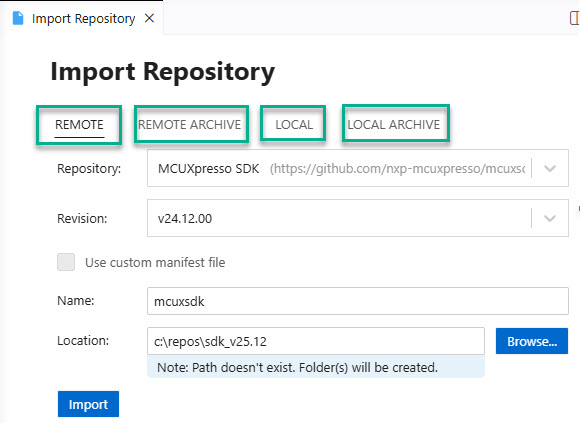
- Remote: clone a remote repository from the NXP Github.
- Local: Point to a local SDK folder, e.g. one cloned with west.
- Remote Archive: download an SDK as .zip archive from the NXP web site.
- Local Archive: same as ‘Remote Archive’, but using a local .zip file.
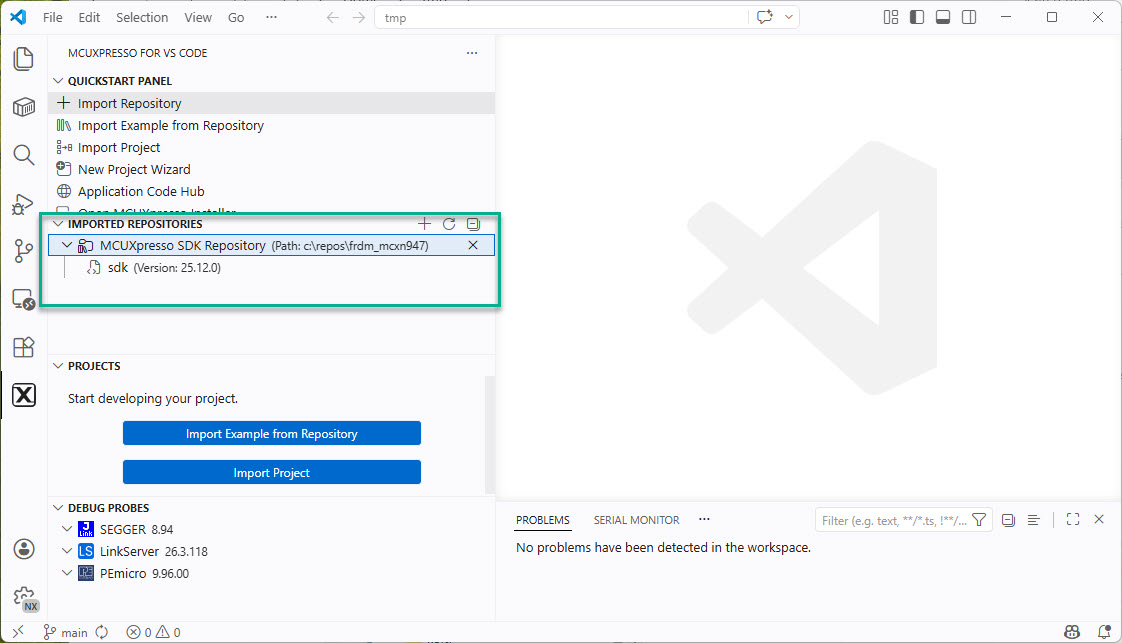
The imported repositories are then shown in the extension:
Import Example Project
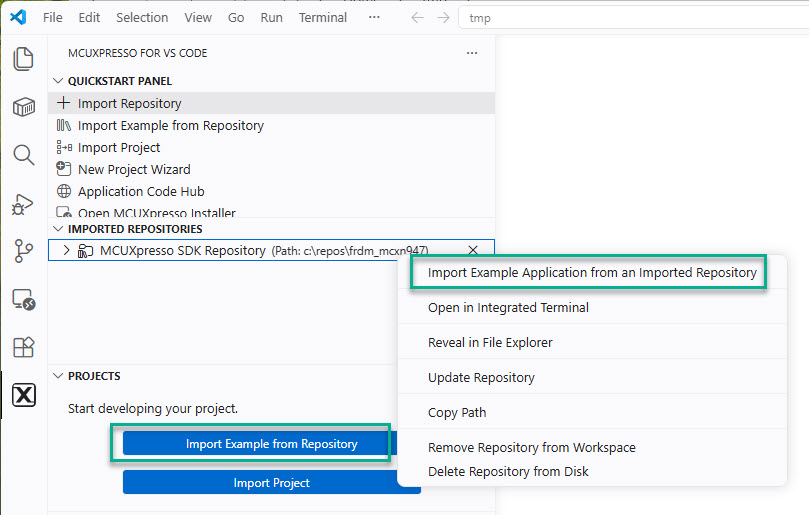
By default, the repositories include examples. Use the context menu on the repository or the ‘Import Example from Repository’ button.
Repository or Freestanding
In the dialog, one has to make an important decision:
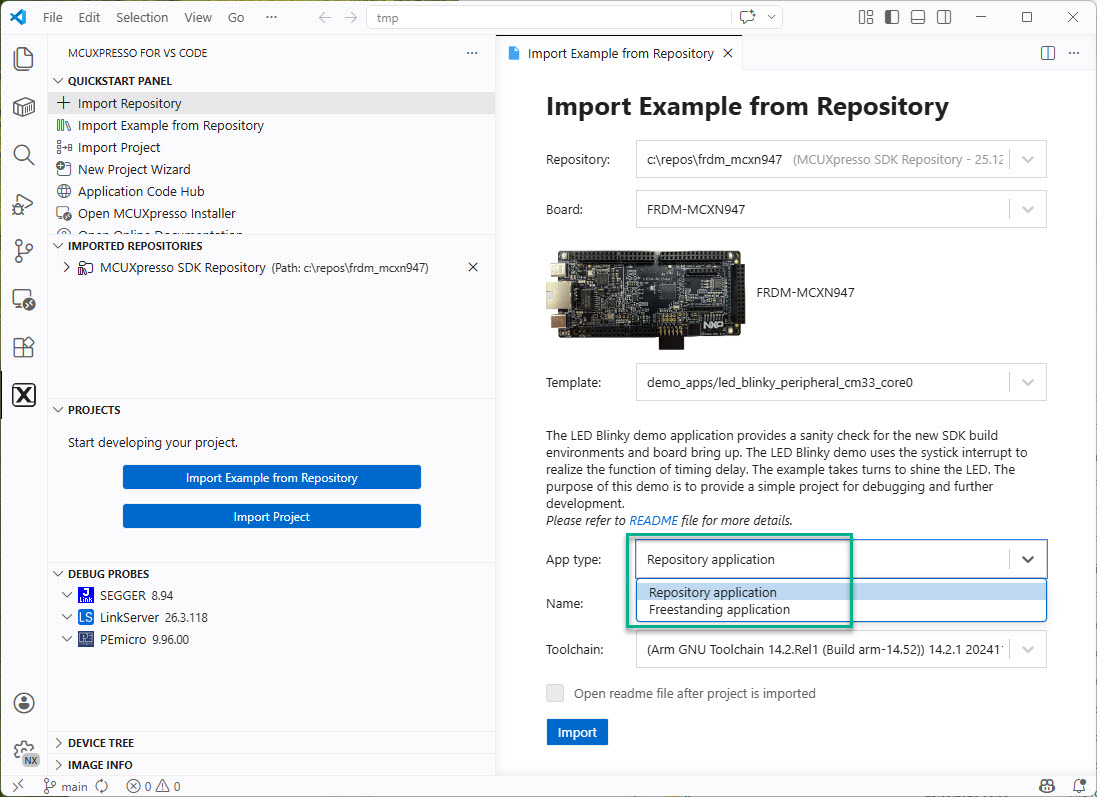
- Repository Application: the project is the example project inside the repository. So you can not have that example twice, as it is the same physical project. That type of example is good for exploring an example. But I would not use it to start a project with it.
- Freestanding Application: The project resides outside the SDK. Example and board specific files are are copied, and the project has a *link* to the SDK. That type of project is a choice if I want to add my code to such an example project. However, because it links to the SDK project, it is not ‘self-contained’ or ‘gitable’. And any change in the SDK would mean to affect any other project using that SDK too.
💡 Later I’ll show a way to create an ’empty’ project. This method is an even better way to start your application project.
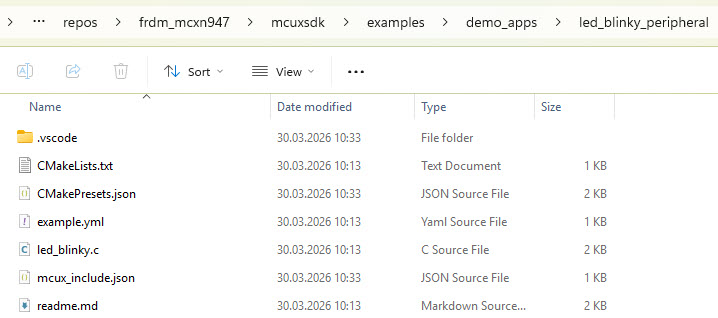
Below is how a ‘repository’ project looks on disk:
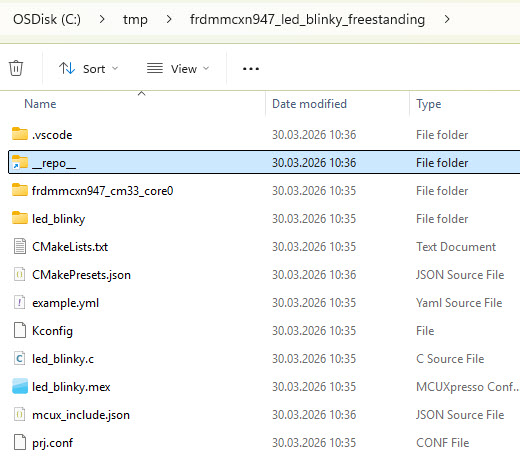
Below is how a ‘freestanding’ project looks on disk:
New Project Wizard
Beside of the ‘import repository’ functionality, one can use the ‘New Project Wizard’:
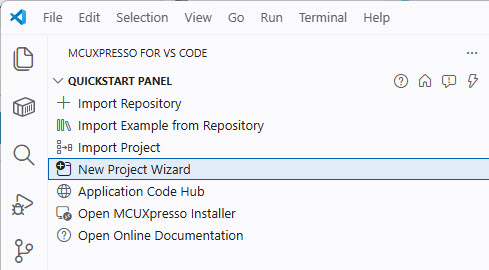
The advantage of this wizard is that I can use it to import/download a repository too. Plus the project is not an ‘example’ project with too much unnecessary stuff. It is basically an ’empty’ project.
In the wizard I have the choice to select an already imported repository. Or I can import a new repository specifically for this project:
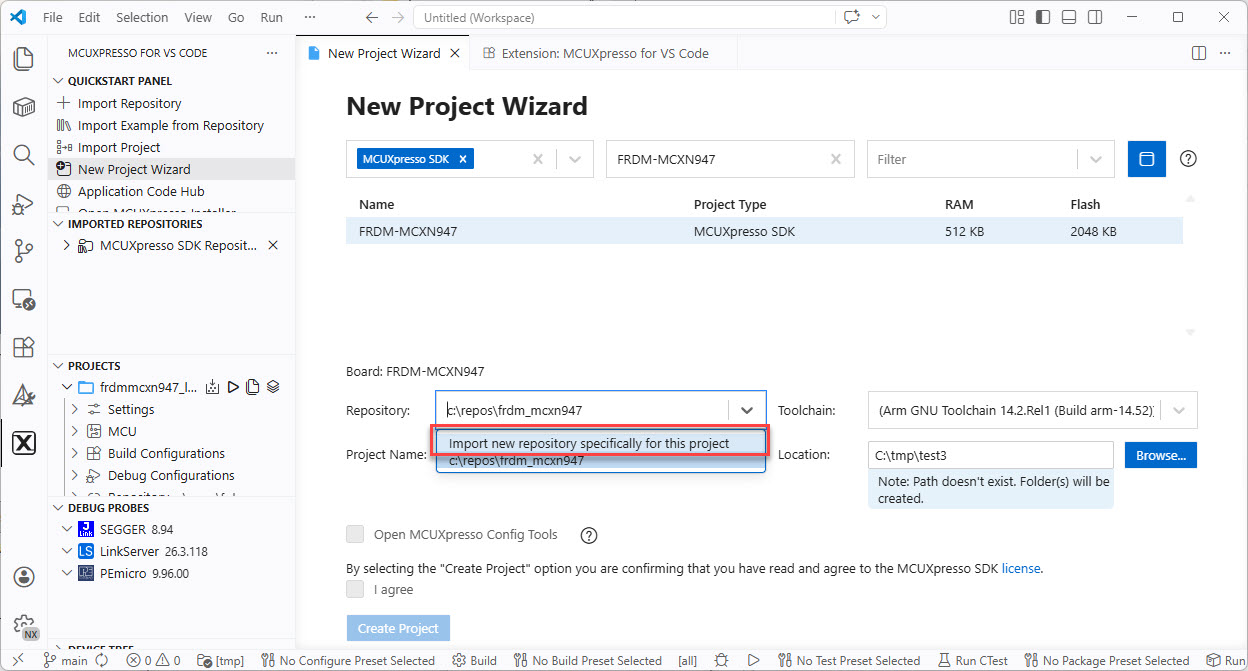
💡 If importing a repository that way, remember that it downloads around 2 GByte of files. This process will take a while.
That created project is not fully ’empty’ or ‘blank’, as still is basically a ‘blinky’ project:
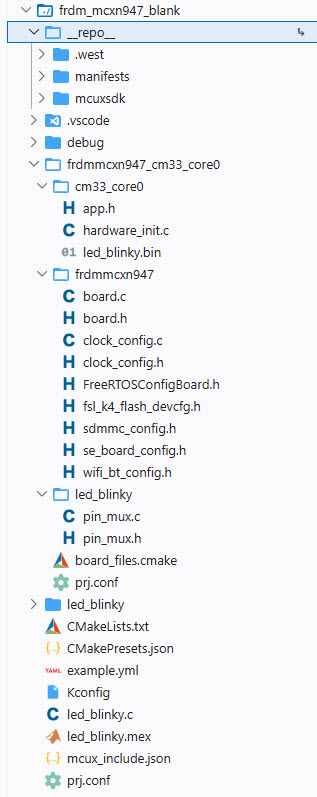
But that’s still a better place to start with than with using another example project. And it still links to a SDK repository folder.
Projects List
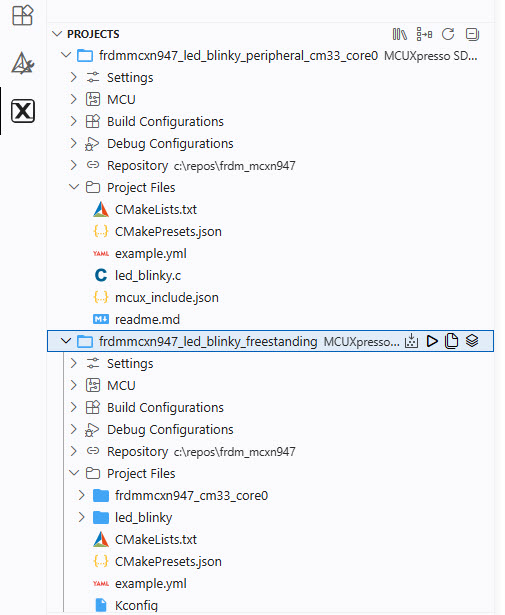
The projects are listed in the ‘Projects’ part of the extension as list:
Summary
If I don’t want to use ‘west’ to download a repository, then I can use the NXP VS Code extension. I use west as well for example project creation too. But I think VS Code does a better job here.
One underlying problem still exists: the SDK repositories are huge and need a lot of disk space. Additionally, the projects use linked folders. And this prevents to put my project on git. So this is a topic for one of my next articles.
How are you creating projects, or start with a new one? Please let me know in the comments section.
Happy developing 🙂
 MCU on Eclipse
Just for your background info … I’ve not created a “new” Kinetis project for some years; originally we purchased the KE18F tower and started with whatever the bare board was for that, got it working enough to design our own PCB … from SEM300 to EZLIFT300, GP500, RT93 and more, we’ve just cloned each project to new (“file import existing”); when hardware changes the first clone becomes the basis for the rest of that design once the I/O is updated. Which is why I wanted last week to “import existing” to VSCode and stopped work once it failed.
And with not seeing KE18F/etc in the examples/wizard now, looks like I could not do a new start either. Seems our less than 10 year old work is being left behind
LikeLike