
In my previous article I showed how to import, build and debug MCUXpresso SDK projects in VS Code. In my lectures and labs we are using a robot based on the NXP Kinetis K22FX512 ARM Cortex-M4F microcontroller, and there is only the v2.13.0 SDK available.

The software on the robot uses the latest NXP MCUXpresso SDK v2.3.1. The he Eclipse based MCUXpresso IDE 11.8.0 works fine with all the 2.x SDKs, up to the latest 2.13.0 one.
At the current time, the NXP VS Code extension only supports the latest 2.13.0 SDK and manifest file. Directly importing an SDK prior 2.13 is currently not possible.
Error: MCUXpresso SDK import failed: SDK SDK version 2.3.1 package for MK22FX512xxx12 device is not supported. Expected version >= 2.13.0.
That limitation very likely will be removed in the near future, but unfortunately I cannot wait for this as the lecture material has to be be prepared now.
On one hand, I don’t depend on the SDK, as using an approach with CMake based projects as outlined in Building a Triumvirate: From Eclipse CDT to CMake, CMD and Visual Studio Code works perfectly. But as there are nice features in the NXP extensions, I wanted to find a way to import and use older SDKs with the VS Code NXP extension.
In the following examples I’m using the MK22FX512.
Standalone Example Project from SDK Builder
Go to https://mcuxpresso.nxp.com/, go to the MCUXpresso SDK Builder, select your board/device. Then build the SDK:

Then select the GCC als toolchain:

Configure the components you want to include. Generate the SDK.
Instead of downloading the full SDK archive, select ‘Download Standalone Example Project‘:

Select the example and download it:
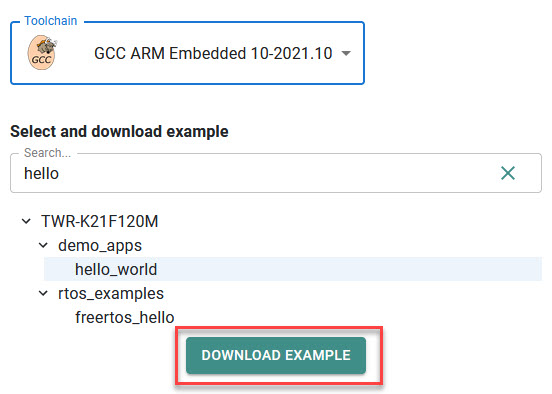
Import the project in VS Code:

Then use the Archive file and import it:

With this, the project is imported:

With this I can build the project in VS Code.
Import MCUXpresso IDE Projects
Another way is to directly import an existing eclipse based SDK project.
Note that for this approach the project has to be ‘fully built’ in the IDE first, with the output folders (e.g. Debug) present:

Additionally, the project should not have any linked files and folders (that might be supported in a next extension version). As a workaround: I remove the links prior import and add them later in VS Code again:

Use Import Project in VS Code:

Then import the project:

Note that I had to specify as a repository a ‘similar’ one for that device, as I cannot import the repository for the SDK prior 2.13.
The resulting imported project won’t compile, because the include paths are converted incorrectly (at least with my example). There are ../../ for the includes which should be ../ instead. That’s an easy fix, just edit the CMakeLists.txt: and remove the extra level:
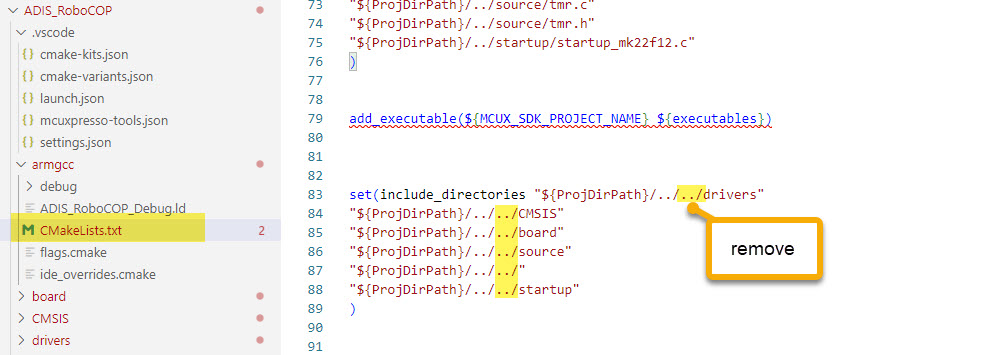
With this change, the project can be compiled.
Summary
It is possible to import ‘legacy’ and older SDK version. A new version of the NXP extension could be able to import older SDK projects, until then I have at least a way to get existing projects or older examples imported, with some manual steps.
I can build the projects for the K22FX512 with the presented approach. Debugging does not work yet, so this will be the subject of a next article.
Another solution would be to setup a normal CMake project instead with the existing sources: More work, but the most flexible.
Happy importing:-)
 MCU on Eclipse