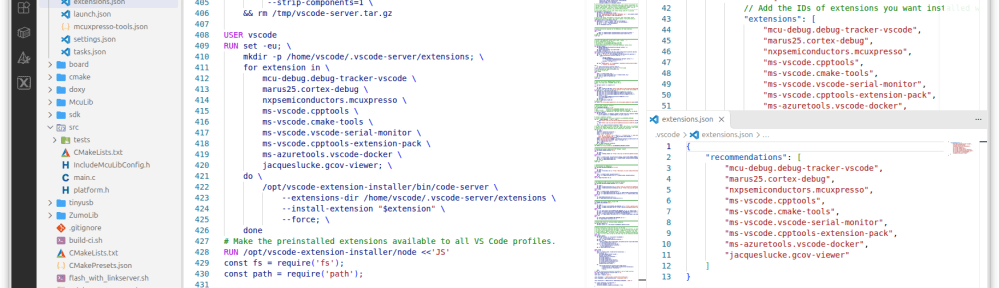
In my earlier article All‑in‑One Docker Image for NXP MCUXpresso, VS Code and CI/CD Pipeline, I introduced a container image for streamlined embedded development; in this update, I have extended that image so it can install VS Code extensions, which makes it much more practical for working in restricted or offline environments. In this post I walk through what has changed, how the extension installation works inside the container, and how you can benefit from these improvements in your own workflows.
Outline
I use containers for development, both locally and for CI/CD with GitLab. The goal is to have all the necessary tools in one container. This greatly simplifies the installation process and makes it repeatable.
The containers can be used locally on a development machine or with a CI/CD pipeline. Development can take place either in the container or outside it, using VS Code and the DevContainer concept. With a DevContainer, VS Code connects to the container and installs any required extensions from the extension store. If you are offline or do not have an internet connection, this obviously fails.
So why not install the extensions in the image? This is exactly the topic of this article. The features described here are available in version 3 of the container (Dockerfile on GitHub).
extensions.json
An easy way to do this—which most developers seem to be unaware of—is to use an extensions.json file inside the .vscode folder:
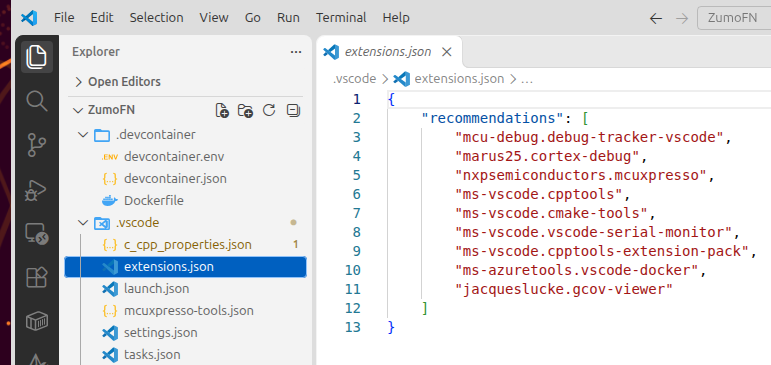
This does not install the extensions. Instead, VS Code asks the user to install any recommended extensions that are not already installed. This gives users an easy way to install the extensions needed for a project.
However, this still requires an internet connection to download extensions that are not already installed.
devcontainer.json
VS Code uses the devcontainer.json file inside the .devcontainer folder to configure the container when it is created. Here, I can use a list of extension IDs that I would like to use in the container:
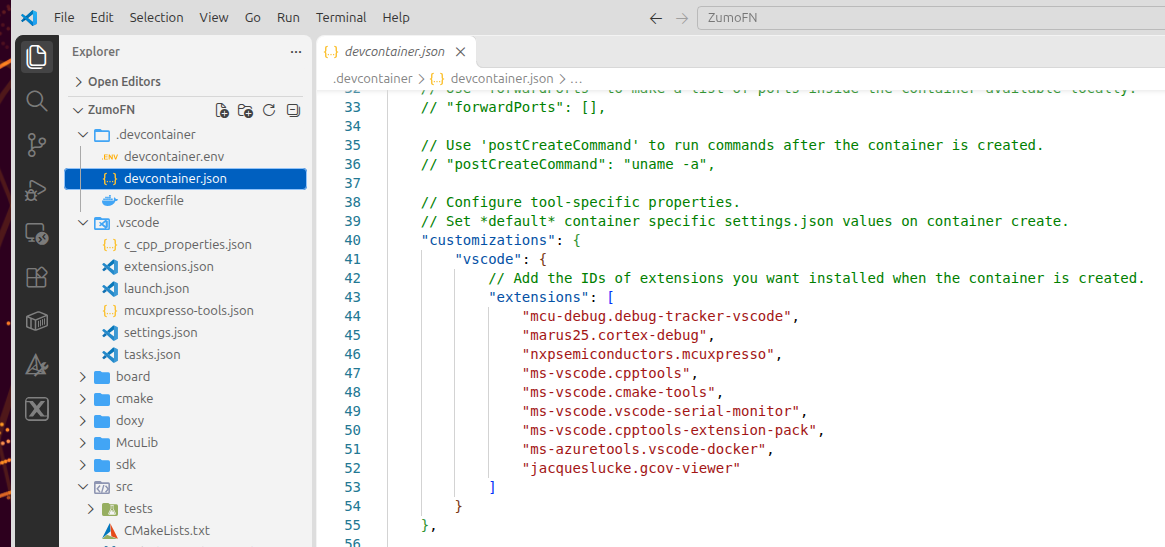
This takes effect when I create the container from the image. However, I still need an internet connection at that point to download and install the extensions in the container.
Installing the Extensions in the Image
Because the two solutions above still require an internet connection, the obvious solution is to install the extensions directly in the container image.
The script below temporarily installs a VS Code server in the image, installs the extensions, and then removes the server:
#####################################################################################################
# Install extensions as the user who will run VS Code.
# In order to make the extensions available to any VS Code profiles, we need to register them properly.
# To install the extensions into the image, a temporary VS Code server gets installed into the image.
# VS Code supports 'Apply Extension to all Profiles'. Internally, this uses the extension metadata flag
# 'isApplicationScoped', see https://code.visualstudio.com/docs/configure/profiles.
# For this, we run a small script to set that flag in the extension meta-data.
USER root
RUN apt-get update \
    && apt-get install -y --no-install-recommends \
         curl ca-certificates tar \
    && mkdir -p /opt/vscode-extension-installer \
    && curl -fsSL \
         https://update.code.visualstudio.com/latest/server-linux-x64/stable \
         -o /tmp/vscode-server.tar.gz \
    && tar -xzf /tmp/vscode-server.tar.gz \
         -C /opt/vscode-extension-installer \
         --strip-components=1 \
    && rm /tmp/vscode-server.tar.gz

USER vscode
RUN set -eu; \
    mkdir -p /home/vscode/.vscode-server/extensions; \
    for extension in \
        mcu-debug.debug-tracker-vscode \
        marus25.cortex-debug \
        nxpsemiconductors.mcuxpresso \
        ms-vscode.cpptools \
        ms-vscode.cmake-tools \
        ms-vscode.vscode-serial-monitor \
        ms-vscode.cpptools-extension-pack \
        ms-azuretools.vscode-docker \
        jacqueslucke.gcov-viewer; \
    do \
        /opt/vscode-extension-installer/bin/code-server \
            --extensions-dir /home/vscode/.vscode-server/extensions \
            --install-extension "$extension" \
            --force; \
    done
# Make the preinstalled extensions available to all VS Code profiles.
RUN /opt/vscode-extension-installer/node <<'JS'
const fs = require('fs');
const path = require('path');

const directory = '/home/vscode/.vscode-server/extensions';
const indexPath = path.join(directory, 'extensions.json');

const extensions = JSON.parse(fs.readFileSync(indexPath, 'utf8'));

for (const extension of extensions) {
    extension.metadata ??= {};
    extension.metadata.isApplicationScoped = true;
}

fs.writeFileSync(indexPath, JSON.stringify(extensions, null, 2));

// Keep the metadata in each installed extension consistent as well.
for (const entry of fs.readdirSync(directory, { withFileTypes: true })) {
    if (!entry.isDirectory()) continue;

    const manifestPath = path.join(directory, entry.name, 'package.json');
    if (!fs.existsSync(manifestPath)) continue;

    const manifest = JSON.parse(fs.readFileSync(manifestPath, 'utf8'));
    manifest.__metadata ??= {};
    manifest.__metadata.isApplicationScoped = true;

    fs.writeFileSync(manifestPath, JSON.stringify(manifest, null, 2));
}
JS

USER root
# The temporary server is only needed to install the extensions.
RUN rm -rf /opt/vscode-extension-installer
Experts might notice that this script does more than install the extensions in the image. It also runs an additional script to set the ‘isApplicationScoped’ flag for the extensions. The reason is that when someone opens the DevContainer with an extension profile, the installed extensions are otherwise ignored and downloaded from the internet again. With this additional script, the extensions are used regardless of which profile is selected.
Summary
With this approach, there is no need to download and install the VS Code extensions when using the container with VS Code. This greatly improves the user experience when the internet connection is slow or unavailable. This approach is also very helpful when using an isolated network for security or privacy reasons.
I appreciate offline tools because I travel by train frequently. They allow me to build with the container without an internet connection. All I need is to have the projects in Git on my local machine and the container image available on that machine. I can then use the container with all my projects locally and develop without an internet connection.
Happy extending 🙂

