Developing for an embedded target means using a certain version of GNU compiler, debugger and other tools. The challenge gets bigger if working with multiple different tool chains and environments.

Conda is package, dependency and environment management tool. While it is heavily used for Python and Data Science development, it is surprisingly working very well to set up and managing environments for embedded development. Conda is great for managing non-Python dependencies and setups.
Outline
To have a reliable and isolated environment, I need some kind of ‘package manager’ for the development tools. There are many different solutions to the problem, and each approach has its own pros and cons.
- vcpkg from Microsoft, uses CMake as scripting language
- xpack (see Visual Studio Code for C/C++ with ARM Cortex-M: Part 8 – xPack C/C++ Managed Build Tools)
- Docker, allows to run applications in container
- Conda (or Miniconda): from https://docs.conda.io/projects/conda/en/stable/
Conda is an open-source package management system and environment management system that runs on Windows, macOS, and Linux. Conda quickly installs, runs, and updates packages and their dependencies. Conda easily creates, saves, loads, and switches between environments on your local computer. It was created for Python programs but it can package and distribute software for any language.
I have found vcpkg not easy to use, and it would add yet another dependency on Microsoft. I have used xpack which is a good solution, but you wont find many material online. Conda is a tool for managing environments, especially for Python. And Docker is a good tool for packaging and deploying applications in containers. I’m using Docker for CI/CD (e.g. GitHub actions), while I have started using Conda for my development environment setup and environment switching.
With Conda I can:
- Create and use packages of development tools: cmake, GNU ARM tools, GNU libraries, …
- Create different virtual environments: NXP MCUXpresso, STMCube32, Python, Espressif IDF, RPi RP2040, …, each with its own set of tools and environment
- Managing and switching environments inside VS Code, down to each project
Compared to other packaging, I feel Conda (or Miniconda) is easier to use and learn, does faster switching and manages disk space well. It is free and open source with a permissible license.
Conda installation
I have Miniconda3 installed with the default settings from https://docs.conda.io/en/latest/miniconda.html

Then launch Conda with the special prompt: The prompt shows the environment I’m in:

Conda Environment and Package Management
You can find many Conda tutorials on the internet, see as well the Conda Cheat-Sheet: https://conda.io/projects/conda/en/latest/user-guide/cheatsheet.html
Here are a few things to get started with, see as well the Conda Getting Started:
To show the version number:
conda --version
To update Conda:
conda update conda
To create a new environment
conda create -n myenv
To list the available environments:
conda env list
Switch to an environment:
conda activate myenv
To delete an environment, deactivate it or leave it first:
conda deactivate
conda env remove --name myenv
Search for a package:
conda search cmake
Install a package with or without a version number requested:
conda install cmake
conda install cmake=3.26.4
Uninstall a package:
conda uninstall cmake
Update the environment using a YAML file:
conda env update -f requirements.yml
Creating Your Own Conda Packages
With Conda I can create packages of my build tools.
Conda Build
To be able to create packages, I have to install the conda-build. I recommend to create a dedicated ‘build’ environment for building packages:
conda create --name build
conda activate build
conda install conda-build
For keeping builds locally and not uploading them on a server:
conda config --set anaconda_upload no
Package Files
For a new package, create a new directory and place the following three files into it:
meta.yaml:describes the packagebuild.bat: bulding the package on Windowsbuild.sh: building the package on Linux
This builds a ‘recipe’ for the package. You can find my recipes on Github (work in progress), or for example here: https://github.com/memfault/conda-recipes/tree/master/gcc-arm-none-eabi
To build the package, cd into that folder with the meta.yaml and build it:
conda-build .
The package gets placed into
<user>\miniconda3\envs\build\conda-bld
The ‘build’ in the name is because we have it built with the environment ‘build’, so environments play nicely here.
To install the package from the current environment, I can use
conda install --use-local mypackage
Or to test it, create a new environment ‘test’ and install it from the ‘build’ environment space, for example:
conda install -c C:\Users\erich\miniconda3\envs\build\conda-bld mypackage
Note that I can put easily the whole environment with the packages on git if I want. Or I can just use the package file and install it:
conda install --no-deps .\mypackage-1.11.11-0.tar.bz2
Packages for the NXP VS Code Build Tools
NXP provides an installer for the MCUXpresso build tools. How to create packages so I can use them with Conda, for example in a CI/CD environment?
Checking the MCUXpresso installer logs, one can see that it goes to https://www.nxp.com/lgfiles/updates/mcuxpresso/components.json.
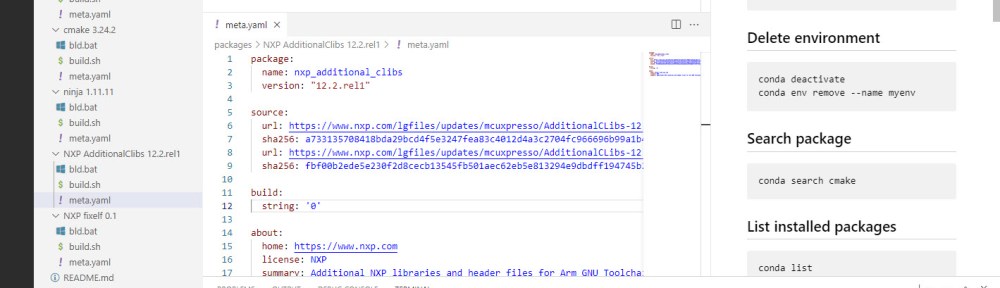
From here I see where it gets for example the NXP RedLib additional libraries:

That way I can create my packages from that information:

That way I get everything to create my packages :-).
For the SHA256, one can use https://emn178.github.io/online-tools/sha256_checksum.html
VS Code Conda Wingman
The Conda Wingman VS Code extension is optional, but comes in handy with Conda:

With the Conda Wingman I can activate an environment in VS Code from a YAML file:

That way I can store the YAML file in the project and switch to that environment from VS Code. Just nice extension.
Summary
For an embedded development with different vendors and tools I need a way to switch environments. Conda enables me to use virtual environments, without the complexity of other package manager. While Conda has its origin in the Python world, it is a good solution for embedded C/C++ environments, including VS Code. It makes switching environments easy, I can build my own packages and can use it in a CI/CD environment, for example with docker. But that’s something for yet another article.
Happy packaging 🙂
Links
- Github: https://github.com/ErichStyger/mcuoneclipse/tree/master/conda
- NXP extension for Visual Studio Code: https://www.nxp.com/design/software/development-software/mcuxpresso-software-and-tools-/mcuxpresso-for-visual-studio-code:MCUXPRESSO-VSC
- Conda Wingman: https://marketplace.visualstudio.com/items?itemName=DJSaunders1997.conda-wingman
- Conda developer environment: https://interrupt.memfault.com/blog/conda-developer-environments


well this is getting closer to what’s needed here. Particularly by project. I’m assuming it’ll manage different versions of the same tool set form e.g. NXP… That’s the problem for me: I’ve got projects in version A and 10 years from now when we’re in Version L of this tool chain, I need to be able to go back and use Version A on that original project. All the while doing new projects in Version L (or K if L can’t cut it yet) and pulling last years projects in Version J
LikeLike
Hi Randy,
yes, you can specify each version of the tool you want or need. You can for example create a YAML environment configuration file, having all the tools you need in there, with the version number specified, something like arm-none-eabi-gcc=12.2.rel1 or arm-none-eabi-gcc=10.0.3.
I really like the fact that with Conda you can build your own packages easily, and don’t have to rely on a package manager on the web or somewhere. The package is basically a zip file with some meta data, and the zip could be stored in a local git or similar system. I don’t trust all the cloud based package managers: they are great for non-critical stuff, but not for ‘real’ development imho.
LikeLike
oh yes, that’s the other thing there: package managers. I fully agree with you. They’re fine if you have a 6MO life cycle of your product. My particular products have 10-20 years of life cycle; it would be foolish of me to expect that whatever git repo that package depends on will even exist by the end of that so yes, everything *has* to go into my own repos to reproduce the build. Never rely on someone else long term. Ever.
LikeLike
Note there’s various different distributions of conda (as you used miniconda for example) – there’s also miniforge that uses conda-forge as its repository – more and potentially more updated packages, and also (what I used in the past) mambaforge, a C++ reimplementation of conda that’s faster, again with the forge packages.
Another thing: If you ever uninstall conda, it can break CMD or powershell because it doesn’t update the autogenerated configs (at least it did for me! cmd closed as soon as it opened because it exited with an error). The way I fixed that issue was to run
“`powershell
C:\Windows\System32\reg.exe DELETE “HKCU\Software\Microsoft\Command Processor” /v AutoRun /f
“`
in Powershell, as powershell only returns an error instead of crashing.
Note that this in turn might break other auto-runs you might need, but better than having a nonfunctional terminal 😉
LikeLike
Thanks Peter!
Yes, I looked at the different forks too, but have not tried mamba yet. Speed has not been an issue, because I’m not using it for Python (which itself is slow). But I realized that building packages might need a minute or more, so mamba could be a better choice here. But as creating the package is a one time thing, it did not concern me much.
About uninstalling: I have installed and uninstalled miniconda multiple times over the last two weeks, and did not see any issues. I only noticed that the powershell in VS code has some kind of weird behavior. So I switched to the cmd shell, and everything worked as expected. Only one thing is still puzzling me: according to the documentation I should be able to use ‘conda build’, but instead I had to call it directly with ‘conda-biuld’. Not a big deal, but I was wondering about it.
LikeLike
I played around a bit with conda just now and it looks promising. But it feels very slow compared to the docker approach I have also been playing with recently.
BTW, I found it annoying that conda starts automatically whenever I open a shell, but this seems to prevent that: conda config –set auto_activate_base false
I know you are still working on this guide, so I’m just going to wait a bit until you have some example environment.yml files for me to consume for a NXP gcc arm build environment. BTW, I’m pleased to see that you found the link to the redlib binaries 😉
I suggest you take a look at the docker approach (a.k.a. dev containers). It is tightly integrated into VS Code by microsoft, but it seems to be an open spec: https://containers.dev/ and you can create the container yourself from scratch (vs. using a pre-built one from microsoft, etc).
I.e. this Dockerfile inside a folder .devcontainer in your project root defines the build environment very nicely, just as if you are setting it up on a fresh linux install:
FROM ubuntu:22.04
LABEL version=”0.1″
LABEL description=”This is a custom Docker Image to build/run firmware unit tests.”
RUN apt-get update && export DEBIAN_FRONTEND=noninteractive \
&& apt-get install -y \
git \
build-essential \
cmake \
ninja-build \
&& rm -rf /var/lib/apt/lists/*
RUN useradd -ms /bin/bash lumilab
USER lumilab
#install gcc for arm
apt install gcc-arm-none-eabi
# but missing redlib.
Of course, the above dockerfile should be improved to pin the desired versions of tools… But the container that this creates can be used directly with VS Code or by itself.
The downsides I’ve found from this approach is that it is not the most lightweight solution. These docker containers use a few gigs of HDD space. (because I’m lazy and using Ubuntu as base, Alpine would be slimmer) Also, you need to have the ability to run docker, which some corporate IT may block?
LikeLike
@paul, I’m not all that familiar with docker but isn’t that working on the target of VS Code, not VS Code itself? So my understanding is that you’d have to have different docker instances for each configuration of VSCode (which would run inside a docker instance). Again, I’m not familiar with the ins and outs of of that so I’m trying to see what it works like here.
Basically I need to be able to have different configurations of VSCode running for each project I have so I’ve got a meta problem here in that I don’t see how a docker instance running from VSCode can encapsulate VScode itself… Maybe I”m missing something.
LikeLike
Hi Randy,
With VS Code you can use a ‘Dev Container’ concept, see https://code.visualstudio.com/docs/devcontainers/containers. Basically having a ‘local’ VS Code talking to an instance of VS Code in a container.
That seems to work well, but again to me comes with the bloat and slowness of docker images.
But that way you can clearly have an ‘isolated’ VS Code instance.
As for having a ‘special set of extensions’ in VS code, I’m using Profiles: https://code.visualstudio.com/docs/editor/profiles . This basically sets an environment of extensions for a given task.
In any case, I want to have the build tools and process isolated and defined. The IDE (VS Code) side would be used for the development, but not for the CI/CD phase: here a dedicated machine/infrastructure with Docker (for the build) can make a lot of sense too.
LikeLike
Pingback: ICYMI Python on Microcontrollers Newsletter: New Versions of CircuitPython and Pimoroni MicroPython and more! #CircuitPython #Python #micropython #ICYMI @Raspberry_Pi « Adafruit Industries – Makers, hackers, artists, designers and engineers!