After having imported the repository with the SDK, it is now time to create a first project.

We have previously imported the SDK repository with the examples. Here we are going to create a new project from the examples in the repository.
Import
From the extension, click on ‘Import Example from Repository‘:

Next, you can configure what you want to import:

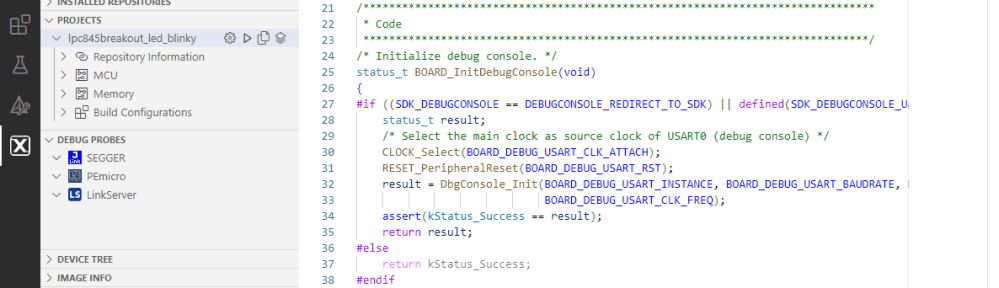
Press ‘Create’ and it creates a project. The project then shows up under ‘Projects’ with extra information:

All the source files are visible with the Explorer view, which is usually used in VS Code to inspect the files:

There are following folders inside the project:
- __repo__ conains files from the repository from where we copied the example, notably the device specific files, startup code and device drivers.
- .vscode is a standard VS Code folder which contains configuration .json files
- armgcc contains the CMake build files
Beside the source files in the top folder, there is a .mex file for the graphical configuration utility to set pin muxing and the like. The .xml file is used as a description of the project created.
There is currently no way to create a ‘new/empty’ project. An example is a good starting point, and I will cover to create a project from scratch in a later article.
With this, we have a project we can build and debug, which is a topic for yet another article.
Happy importing 🙂
 MCU on Eclipse
Hello, thank you for your useful posts.
I’m trying to import my own project and Vs is throwing the warning: The selected MCUXpresso IDE project contains linked files. currently they are not supported.
Is there/will there be a fix to this problem?
LikeLike
Yes, I did face that problem too. I solved that for some of my projects with removing the linked folder which I had, and added it back later on again.
LikeLike