In a previous article I have installed the MCUXpresso extension and used the MCUXpresso Installer to install the necessary development tools.
In this article I’m going to import the SDK.

Development with VS Code is built around using a version control system. If you have not used a version control system, then definitely you should look at it. If this is new to you, have a look at the documentation and tutorials on https://git-scm.com/.
Note: At the time of writing this article, only NXP MCUXpresso SDKs with a version 2.13 are supported to import. If using an earlier SDK, have a look at Building a Triumvirate: From Eclipse CDT to CMake, CMD and Visual Studio Code.
Import Repository
In a first step, I’m going to import a (git) repository. The NXP MCUXpresso comes as a git repository, and this is what I’m going to import.
From the extension, I select the ‘Import Repository’ item:

Repository Installation
There are three choices:
- Remote: clone one of the remote repositories
- Local Archive: use a zip file and create a repository from it
- Local: specify the location of an already cloned repository
If you start with VS Code, you can chose from the first two options. Which one you want to select depends on how much disk space you have available.
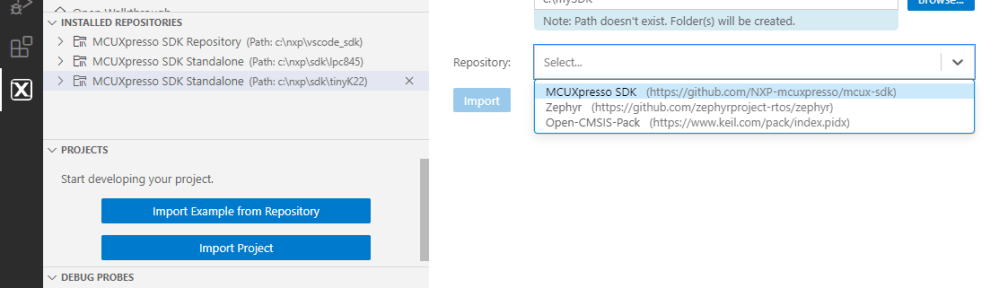
Import Remote Repository
If you don’t know yet, for which device you want to develop, and you have ~30 GB disk space available, then import the remove (full) SDK repository:

In the dialog above I have requested to include the examples which require around 4 GB of disk space.
Import Local (Zip) Archive
The other way is to build an SDK Zip file on https://mcuxpresso.nxp.com for GCC ARM Embedded:

This is my preferred way, because I can select exactly what I want and the zip/repository is only a few 100 MByte in size.

Import Local Repository
If you have cloned a repository already, the fastest way is to import it as a local repository: browse to the folder where the .git folder is located:

Repository List
The installed repository then shows up in the list:

The same view can be used to manage the repositories, to add and remove them.

With this, we have the repository with the SDK installed, and can use it to create a first example. This is subject of a next post.
Happy coding:-)
Links
- VS Code: Installation
- VS Code: Getting Started, literally
- VS Code: MCUXpresso Extension
- VS Code: MCUXpresso Installer
- VS Code: Import Example from MCUXpresso Repository
- NXP extension for Visual Studio Code: https://www.nxp.com/design/software/development-software/mcuxpresso-software-and-tools-/mcuxpresso-for-visual-studio-code:MCUXPRESSO-VSC
 MCU on Eclipse
Glad to see that we actually can download the SDK without logging in to NXP with a user account. I am looking for a way to do the same for the toolchain (which typically comes with the MCUXpresso IDE, including redlib) without having to login. This is for a CI build that I’m working on. Do you know if the toolchain is available somewhere without login? Apparently it must be, since you can install this VSCode extension without a login…
LikeLike
Do you really need the RedLib? For my CI/CD I’m using the normal GNU ARM Embedded toolchain download, as I’m not using the Redlib.
Other than that, you could store the tool chain on a local server and get it from there?
LikeLike
You pointed out that using a scm is a good idea. And you’re right !
Git is homogeneous but it should be noted that other very good scm exist. Like Mercurial : https://www.mercurial-scm.org/
Simpler to use but very powerful.
LikeLike
Using a version control system is standard these days, especially in development and engineering. And there are many different implementation out there, including mercurial, and they are a good thing. I tend to stick with the original git as the foundation and GitHub and GitLab on top of it.
LikeLike