
The #1 award in my list goes to Eclox+Doxygen+Graphviz+Mscgen. Yes, it is a single Eclipse plugin (Eclox) for Doxygen, and with two other powerful tools. It solves a typical engineering problem: “How to document my project? And how to keep it up-to-date?”.
Like many other engineers, I do not like to write documentation. Because it is painful. I want to write code and program. Writing documentation for it should be fun too. And it should solve the problem that the documentation does not match what has been implemented. I’m a big fan of the ‘single source’ concept: information has to be in a single place, and not copied and distributed among different places. And here my #1 helps me doing this.

In a traditional way the following flow is used:
- Create a design, specify and document the API
- Implement the software
- Write the user documentation
- Ship it
- Maintain and ship; and again, and again, and …
The problem starts with the fact, that rarely the implementation matches the initial design. It even gets worse after a few maintenance cycles: it is very hard to keep the documentation in sync with the actual implementation and project sources. And the user documentation will be easily out of sync too :-(.
It is already hard to write good documented code, and writing good source comments is an art on its own. Why not using the my precious source documentation in the sources and use it for the ‘written’ documentation? This is where I use Doxygen, GraphViz, Mscgen and the Eclipse Eclox plugin, all of them open source.
Doxygen is a compiler which generates documentation out of source files. Graphviz is a package to draw diagrams and graphs. Mscgen is similar to Graphviz, but simpler and optimized for message sequence diagrams. And Eclox is an Eclipse plugin which integrates everything into Eclipse.
Installation
Here are the links to download the needed tools:
- Doxygen: http://www.stack.nl/~dimitri/doxygen/ or www.doxygen.org
- Graphviz: http://www.graphviz.org
- Mscgen: http://www.mcternan.me.uk/mscgen/
NOTE: As of Feb 2018, the doxygen Eclox project has been moved to the following site: https://anb0s.github.io/eclox/. I recommend that you download the zip file from that site. For CodeWarrior for MCU I’m using the 0.8 version and that one works well. As CW for MCU 11.0 and earlier use an older Eclipse version, do *not* upgrade doxygen to a later version: only use 0.8 version.
In case you still need the 0.8.0 or earlier version: I have them available on SourceForge: https://sourceforge.net/projects/mcuoneclipse/files/Eclipse%20Plugins/Eclox/
Doxygen is required, Graphviz highly recommended, and Mscgen is optional.
In Eclipse, use the menu Help > Install New Software or the Market Place (https://marketplace.eclipse.org/content/eclox) and point to the directory where you have extracted the file.
If using CodeWarrior for MCU 10.x or 11.x (Eclipse 4.2 Juno based), then only use the 0.8 version:

Doxygen
With Doxygen my project sources *are* the documentation. Doxygen is using the comments in the code to generate the documentation. It is a compiler which compiles source (or text) files and extracts the embedded information. It supports many programming languages (C, C++, Java, …), and different output formats: HTML and PDF are very popular ones.
Doxygen is able to generate documentation from standard sources. But there are multiple ways of using special commenting styles to extend the information created. The Doxygen documentation lists different commenting styles.
With this, the following source is compiled by Doxygen:
/*! Masks for LEDs, this is an enum, and the values are power of two to make it
     possible to build masks. The bit number also indicates the port bit number.
      Make sure compiler treats enum's efficient (e.g. as unsigned char, as enum
      by ANSI standard is int). */
  typedef enum {
    LED_0 = (1<<0), /*< Bit0 of port for LED0 */
    LED_1 = (1<<1), /*< Bit1 of port for LED1 */
    LED_2 = (1<<2), /*< Bit2 of port for LED2 */
    LED_3 = (1<<3)  /*< Bit3 of port for LED3 */
} LED_Set;
It produces the following HTML output documentation:

Another example is to document functions with their parameters:
/**
 * \brief Switches on a set of LED.
 * \param[in] Leds The set of LED to be switched on.
 */
void LED_On(LED_Set Leds);

void LED_On(LED_Set Leds) {
  /*! \todo implement function */
}
The corresponding HTML documentation will look like this:

Note the \todo with will automatically added to a ‘To Do’ list in the documentation:

Graphviz
Graphviz is open source software to create graphs using the dot language. Dot code can be used with Doxygen. With the dot language I define nodes and edges, and the tool will place them automatically. For example I can define a graph with following dot code (example from the dot guide):
/**
\dot
digraph G {
main -> parse -> execute;
main -> init;
main -> cleanup;
execute -> make_string;
execute -> printf
init -> make_string;
main -> printf;
execute -> compare;
}
\enddot
*/
This then will create the following graph (source: dot guide):

The dot language makes it easy to create machine generated graphs too. That way dot is used in many other tools as visualization tool. And Doxygen is using of dot to create dependency graphs:

A nice feature is as well that the nodes have hyperlinks: click on a node an it jumps to the source file :-).
I’m using dot in my sources to enrich the documentation with graphs (a pictures may say more than 1000 words). Below is an example Doxygen/dot code:
/*! \brief Key scan routine which implements the state machine.
\dot
digraph example_api_graph {
node [shape=box];
DBNC_KEY_IDLE    [fillcolor=lightblue,style=filled,label="DBNC_KEY_IDLE" ];
DBNC_KEY_PRESSED [fillcolor=lightblue,style=filled,label="DBNC_KEY_PRESSED" ];
DBNC_KEY_RELEASE [fillcolor=lightblue,style=filled,label="DBNC_KEY_WAIT_RELEASE"];
DBNC_KEY_IDLE -> DBNC_KEY_PRESSED -> DBNC_KEY_RELEASE ;
DBNC_KEY_PRESSED -> DBNC_KEY_PRESSED ;
DBNC_KEY_IDLE -> DBNC_KEY_IDLE ;
}
\enddot
*/
This will generate the following output:
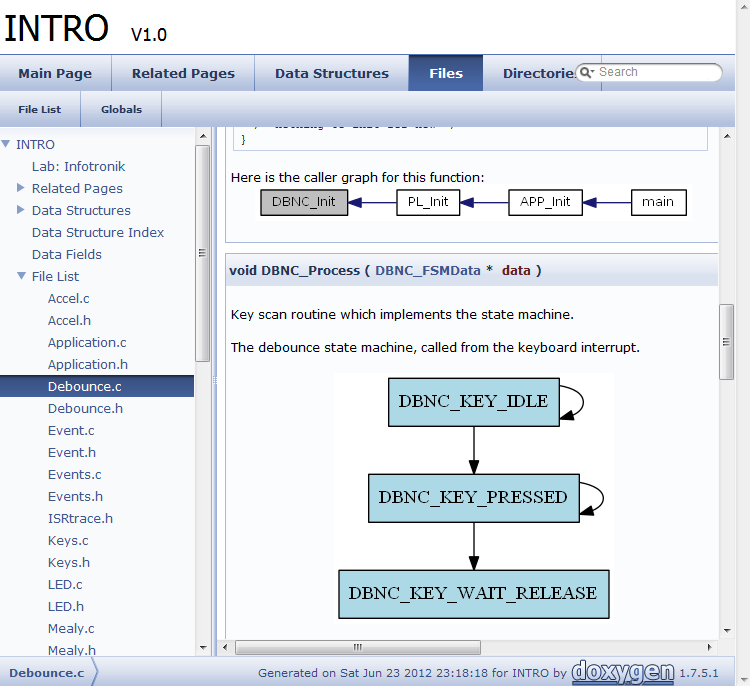
Mscgen
Mscgen is similar to Graphviz, but specialized for Message Sequence Charts (hence the Msc in its name). With Mscgen I can add following doxygen/msc code:
/**
\msc
arcgradient = 8;
a [label="Client"],b [label="Server"];
a-xb [label="get accel"];
a=>b [label="get accel"];
a<=b [label="ack"];
a<=b [label="accel data"];
\endmsc
*/
This will create following message sequence diagram into my documentation:

Mscgen is ideal for any communication flow diagrams and greatly simplify and enhance my documentation.
Eclox
All of above can be used without any IDE. But it is a lot of more fun within the Eclipse framework. And here is where Eclox comes into play: Eclox is a plugin which integrates Doxygen (and all above tools) into Eclipse and makes it really easy to use:
- Seamless build integration
- Editor coloring for Doxygen comments
- User interface for Doxygen configuration files
- Editor integration with automatic commenting
- Warning/Error parser
- Wizard to create configuration files
Eclox Plugin
Eclox automatically detects an existing Doxygen installation and reports it in the Preferences:

In case this fails, then this link gives some guidance how to set the settings in a manual way.
Syntax Coloring
Eclox adds a Doxygen workspace default editor to the system:

With this Doxygen comments are in blue color:

Doxygen Auto Comments
What is really cool: Eclox automatically adds comments in Doxgen format. For example I have this in my source:
int CalcPos(int currPos, int steps);Then I simply can start a Doxygen comment (e.g. with /**) and press ENTER:
/**
*
* @param currPos
* @param steps
* @return
*/

int CalcPos(int currPos, int steps);
It automatically creates the comment block for me with parameters and return type, so I only need to fill in the content :-).
New Doxygen Configuration File Wizard
Doxygen needs a textual configuration file. Eclox adds a wizard to create one using the menu File > New > Other > Doxyfile:

Doxyfile
The Doxygen configuration file (Doxyfile) is a simple text file which has comments in it to explain the settings:
# Doxyfile 1.7.2

# This file describes the settings to be used by the documentation system
# doxygen (www.doxygen.org) for a project.
#
# All text after a hash (#) is considered a comment and will be ignored.
# The format is:
#       TAG = value [value, ...]
# For lists items can also be appended using:
#       TAG += value [value, ...]
# Values that contain spaces should be placed between quotes (" ").

#---------------------------------------------------------------------------
# Project related configuration options
#---------------------------------------------------------------------------

# This tag specifies the encoding used for all characters in the config file
# that follow. The default is UTF-8 which is also the encoding used for all
# text before the first occurrence of this tag. Doxygen uses libiconv (or the
# iconv built into libc) for the transcoding. See
# http://www.gnu.org/software/libiconv for the list of possible encodings.

DOXYFILE_ENCODING = UTF-8

# The PROJECT_NAME tag is a single word (or a sequence of words surrounded
# by quotes) that should identify the project.

PROJECT_NAME = INTRO

# The PROJECT_NUMBER tag can be used to enter a project or revision number.
# This could be handy for archiving the generated documentation or
# if some version control system is used.

...
Doxyfile Editor
Doxygen needs a text configuration file (the Doxyfile). With Eclox there is an editor view for that file:

The ‘Basic’ tab of that editor view gives access to the most important settings: The Input directories (I list here all the source directories I want to process), the Output Formats (I use mostly HTML. For PDF I usually select RTF or LaTeX), Diagrams and Mode selection.
There is a bug in the Eclox plugin: it looses the language settings for the ‘Optimize results for:’ settings. But that’s not a big deal.
The ‘Advanced’ Tab gives access to all settings:

Compiling the documentation
Eclox adds a toolbar button:

The button automatically selects the Doxyfile of the current project. Otherwise it is possible to select a different Doxyfile.
Generating the documentation is like normally compiling source files: the Doxygen compiler reports what is going on to the Console View, and warnings/errors are reported in the Problems View.
Other Documentation
It is possible to document things outside the source files. There are many different commands, \mainpage the most important one: it defines the main entry point of the documentation. Using \page and \section is is possible to organize the documentation, and \ref is used to reference labels:

If using HTML, then the main entry point for the documentation is the index.html. Eclipse comes with a built in web browser which can be used to open that file. Or use any other HTML viewer:

Summary
The combination of Eclipse+Eclox+Doxygen+Graphviz simplifies my life: it makes documentation easy to generate. And it allows me to use a ‘single source’ approach: the sources are the documentation :-).
Happy Ecloxing 🙂
—————————————————————————————–
Ranking:
- Rank #1: Eclox
- Rank #2: AnyEdit Tools
- Rank #3: System and Desktop Search
- Rank #4: EHEP
- Rank #5: WickedShell
 MCU on Eclipse
Pingback: 5 Best Eclipse Plugins: #2 (AnyEdit Tools) | MCU on Eclipse
Pingback: 5 Best Eclipse Plugins: #3 (System and Desktop Search) | MCU on Eclipse
Pingback: 5 Best Eclipse Plugins: #1 (Eclox with Doxygen, Graphviz and … | Laughing
Thanks for explaining this. My work many times is taking a project that people are having problems with and solving those problems. This is a quick and easy way to get the high level overview of what is going on without reading every single C file.
LikeLike
Pingback: Editor Templates in Eclipse | MCU on Eclipse
Pingback: Low-Level Coding with PDD (Physical Device Driver) | MCU on Eclipse
Pingback: Compiling Documentation and Presentations: LaTeX | MCU on Eclipse
Is there a way to integrate the generated HTML documentation into Eclipse when I press F1? I have to code a library containing doxygen documentation and I want other developers to access that documentation as easyly as possible.
LikeLike
I think this article might help you doing this: http://www.vogella.com/articles/EclipseRCPHelpSystem/article.html
LikeLike
You should add a note how to configure eclox to generate pdf documents
LikeLike
I think this is already noted? You cannot directly generate PDF files (to my knowledge). I generate either RTF and then convert it to PDF, or use the LaTeX option to generate output for PDF. See as well https://mcuoneclipse.com/2013/10/07/compiling-documentation-and-presentations-latex/
LikeLike
Hi all,
After installed Doxygen, Graphviz, and Mscgen, I point Codewarrior 10.6 to the Eclox update side
download.gna.org/eclox/update/
and I get error below
Unable to read repository at download.gna.org/eclox/update.
Unable to read repository at download.gna.org/eclox/update.
download.gna.org/eclox/update is not a valid repository location.
any idea?
Thanks,
Biet
LikeLike
Hi Biet,
I just had to add Eclox to my new Eclipse Kepler installation, and that worked fine for me (download.gna.org/eclox/update/). Can you verify that you have internet access? Maybe the server was down for a short period. Can you retry it?
LikeLike
Hi Enrich,
Thanks for reply. I am just be able to install it on Codewarrior 10.3 but not on Codewarrior 10.6, getting the same problem that I have before. I am very sure that it is CW 10.6 problem.
LikeLike
Hi Biet,
I just re-tried it with my MCU10.6, and I can install and use Eclox without any problems?
I think there must be something wrong with your machine or installation.
Erich
LikeLike
Can you download one of the packages present on home.gna.org/eclox/#packages and then update Eclipse from the package?
That way no network access is needed.
I hope this helps,
Erich
LikeLike
Another thought I have: do you have a strange network configuration (configured a proxy in MCU10.6)? Somehow it is not able to access the internet?
Erich
LikeLike
Excellent post. I was checking constantly this weblog and I’m impressed!
Extremely useful information specially the final phase 🙂 I handle such info
a lot. I was seeking this certain inf for a very long time.
Thank you and good luck.
LikeLike
Holy shit 🙂
I never came around to learn more about doxygen, but it always was on my todo list. Your explanation here has helped me a great deal and I am really glad I found it.
I am installing all the necessary tools and the plugin right now and will use them to better document my master thesis. The professors will thank you for leading me to Eclox 🙂
LikeLike
Yes, and I always pass a ‘thank you’ to my students if they document with doxygen. Actually using doxygen is mandatory in my embedded systems programming course I teach 🙂
LikeLike
Dear all,
I have installed all plugins, but after runnig I have got this error :
error: problems opening map file C:/Users/Nadia/workspace/C++/html/structunitex_1_1virtualfile_1_1_v_f_s___i_n_o_d_e____coll__graph.map for inclusion in the docs!
If you installed Graphviz/dot after a previous failing run,
try deleting the output directory and rerun doxygen.
Please I need your help,
Thinks
LikeLike
Which version of doxygen are you using?
LikeLike
This article is really about Eclox with the proper additional plugins necessary for it to work fully – or almost fully, so I was a bit disappointed.
It would be great if it generated PDF documentation by clicking the @. It doesn’t. You first need to install LATEX (full seems to be required) and maybe 10GB to 20GB later you can generate it outside of Eclox. But isn’t that the sort of thing that an IDE is supposed to do for you? With a bit of polishing up and optimizing defaults for newbies it has potential to be a nice development tool like javadoc.
LikeLike
Doxygen is really primarily about generating HTML (which works great). PDF is either over .rtf of LaTeX. But LaTeX is really something for advanced users. So you might be better to take the .rtf and then convert the file into a pdf in a separate step.
LikeLike
Pingback: Constructing a Classroom IDE with Eclipse for ARM | MCU on Eclipse
Hi there! Very good post! Please keep us updated!
LikeLike
Pingback: Automatic Documentation Generation: Doxygen with Processor Expert | MCU on Eclipse
I’d like to use eclox for my Java code (Android Apps) but every time when i try to a doxyfile i get the error Doxygen Error
An error occured while running doxyge.eclox.core.doxygen.RunException:
LikeLike
not sure what is causing this. What version of Eclipse are you using? I used Eclox with Juno and Kepler.
LikeLike
I also use Juno. At the moment I created the Doxyfile with Doxywizard and copied the Doxywizard into the project. In this way it works. But for a new project i need to create the doxyfile with doxywizard again.
LikeLike
Ok, I see. Yes, you need to create that .doxyfile somehow first. What I usually do is a copy it from a previous project, and then change it. That way I do not need to run the doxywizard again.
LikeLike
Hi Erich,
After installed Doxygen, Graphviz, Mscgen and Eclox update
When I compile the documentation
I have this warning message:
Warning: the dot tool could not be found at C:\ProgramFiles\Graphviz2.38\bin
The dot.exe is installed in C:\ProgramFiles\Graphviz2.38\bin
What can I do ?
Thanks
Raul Cortes
LikeLike
I miss the quotes in the path “C:\ProgramFiles\Graphviz2.38\bin” now is working great
Thanks
Raul Cortes
LikeLike
Hi Raul,
Yes, if your path has spaces, you need to put it into double quotes. Glad to hear that you have solved it!
Erich
LikeLike
Great article that is really relevant and helpfull for my daily work !
Thanks !
LikeLike
Im new to this, doxygen is running well but i don’t know where to add the graphviz path, any help to know where should i add it?
LikeLike
Hi Carlos,
it should have been automatically added to the Windows PATH environment variable by the Graphviz installer. Can you check if it is present in the PATH of your windows? If not, you need to add it manually there.
I hope this helps.
LikeLike
Hmmm – a puzzle. I’ve just installed these components. In some places the cool Eclox auto comment feature you describe works. On other places it does not work. Some experiments suggest it does not work inside an #if #endif block. Any knowledge or work arounds for this?
LikeLike
Hi Charles,
yes, that auto-comment only seems to work in some places, and not for every function. I do not have a workaround for this. I think the implementation of the auto-comment only covers the most common cases, and as the Eclox plugin is now unmaintained for several years, I doubt that it will be fixed. It is a shame that nobody has been able to pick up that plugin work :-(.
LikeLike
These tools work OK on some small projects. As I try to run Doxygen on a medium-sized project I get “*** Build aborted! An internal error occurred during: “Doxygen Build [/HBM1_GPRS2/Documentation/doxygen/pex.doxyfile]”. and a dialog box says “An internal error occurred during: “Doxygen Build [/HBM1_GPRS2/Documentation/doxygen/pex.doxyfile]”.
endRule without matching beginRule: L/HBM1_GPRS2/Documentation/doxygen/pex.doxyfile”
Google suggests these originate within Eclipse rather than being specific to Doxygen. Is there any prospect of resolving this? I am using Kepler. Doxygen has been reporting many warnings such as the following – I don’t know if they are related:
“C:/Freescale/EWorkspace2/HBM1_GPRS2/Generated_Code/WDog1.c:105: warning: Unsupported xml/html tag found”
LikeLike
Maybe it is about heap size (see https://mcuoneclipse.com/2015/07/31/improve-eclipse-performance-with-increased-heap-size/) or a windows limitation on the command line length? Can you check in the console if the command line length is over 8192 characters where it fails?
LikeLike
The heap size bar does not reach the maximum. I increased the maximum heap size anyway, but that did not fix the problem. How do I view the command? My console seems to be outputting status messages only, and not commands. Perhaps I need not resolve this, as substantial amounts (all?) of the documentation seems to be generated.
LikeLike
yes, indeed the console only writes the status messages. I thought it writes the command lines too. Not sure if this helps, but I had in the past some problems with different versions of doxygen (compiler), but not sure if this is the case here.
LikeLike
Pingback: Using Doxygen Within Eclipse to Document Projects | bitknitting
Hi Erich,
It looks like Eclox is now being maintained on github by Andre Bossert. The location is https://github.com/anb0s/eclox. I haven’t tried it yet.
Mike
LikeLike
Hi Mike,
interesting, thanks for that information and link. I hope that with this it will work for the upcoming Eclipse releases.
Erich
LikeLike
I have c and java sourcode without doxygen comments ,Is it ECLOX can add doxygen comment automatically
LikeLike
No, Eclox won’t change your sources. Eclox is a front end for doxygen in Eclipse. But doxygen can create documentation from your sources even if it does not have special doxygen comments in it. The doxygen comments help the tool, but it works to a certain degree as well without it.
LikeLike
Hi all,
Thanks Erich Styger for the reply…
I have large Source Code ( c and java ) adding doxygen comments manually will be time consuming, Looking for a tool which can add doxygen comments in my source code and later i can fill the description in it (@brief’s before function , macro , structures etc…),
Is there any such tools which can add doxygen comment in the source code.
Thanks
LikeLike
The Eclox plugin has a functionality which adds the @brief etc. But you have to put the ‘enter’ key first, so it is interactive. I’m not aware of a tool which does what you want.
LikeLike
Pingback: MCUXpresso IDE: Adding the Eclipse Marketplace Client | MCU on Eclipse
Hi! I’m trying to use eclox plugin in CW 10.4. I install eclox 0.8, but when I try to create doxyfile It fails saying “An error occured while running doxygen.eclox.core.doxygen.RunException:”
If I create doxyfile with doxywizard and add to my project and execute, It fails again saying “error: configuration file … not found!”
I update eclox to 0.10 but the result is the same.
LikeLike
CW 10.4 is very old. Have you tried it in CW 10.7? I would need to check, but as your CodeWarrior version is very old, you might have better luck if you would try an older Eclox version? Or Switch to CW for MCU 10.7?
LikeLike
Thank you very much for such an informative blog article !
LikeLike
Pingback: Spilling the Beans: C/C++ Header Files | MCU on Eclipse