This is another article in my series about Visual Studio Code. After having it installed (see VS Code: IDE Installation), this one is about starting the IDE
I can start the IDE from the shortcut (if created during the installation) or by typing code in console/command prompt shell (e.g. Windows PowerShell). To be able to use the code command requires VS Code to be present in the PATH.

The first time it will show a ‘welcome’ screen or page:

That one can be turned off. The welcome page can be accessed any time later with the menu Help > Welcome.

You can have multiple ‘Windows‘ of VS Code: you get that for example if you start VS Code multiple times. This is similar to the Window feature in Eclipse. Multiple windows are very useful if working with multiple monitors, or if one wants to work with parallel workflows.
One can create and close a Window using a menu:

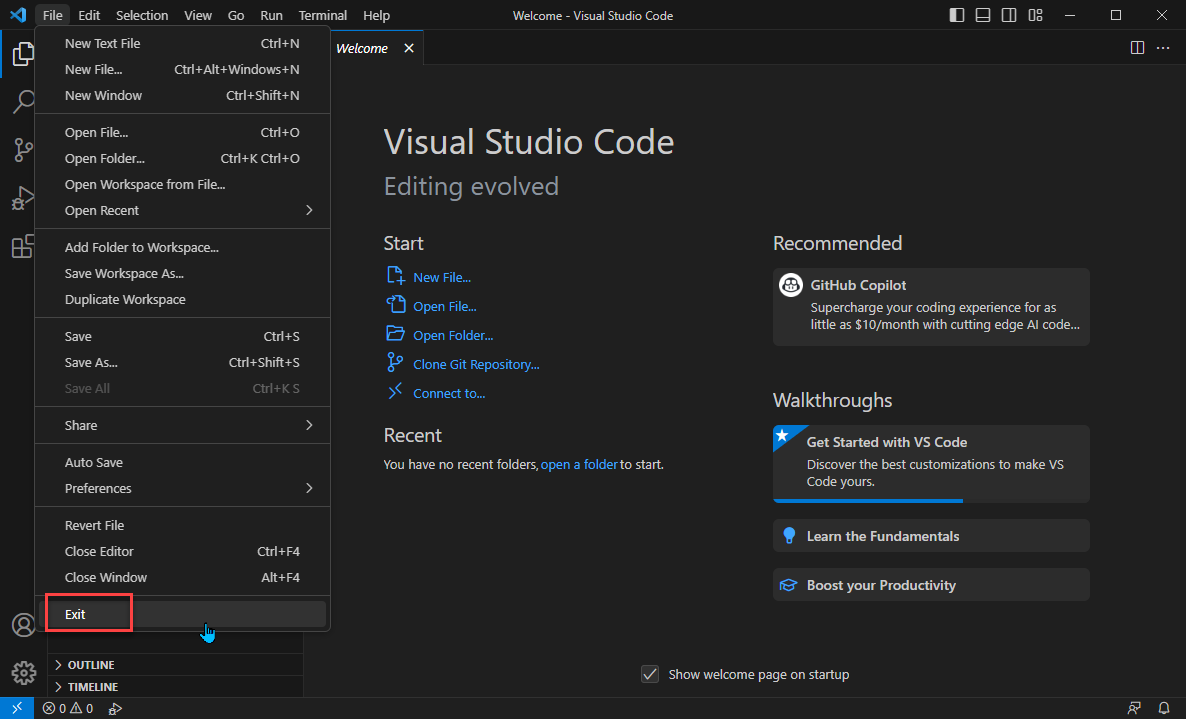
And to exit VS Code and to close all windows, use Exit:
Last but not least, here is a ‘pro’ trick: There is no ‘reload’ or restart menu item. Reloading or restarting might be necessary after doing an update or loading an extension. But you can restart or reload a window the following way:
Press CTRL+SHFT+P to open the command palette, (or menu View > Command Palette), and then enter following command:
Reload Window

As noted in the comments: Instead duplicating windows, one can duplicate the workspace view, using the menu File > Duplicate Workspace:

If you have installed VS Code allowing to add explorer extensions, then you have another way to start VS Code on a folder to be used:

The next thing you probably want to do is changing the color theme, see VS Code: Color Themes.
Happy starting 🙂
Links
- VS Code: IDE Installation
- VS Code: Uninstall completely
- Visual Studio Code Documentation: https://code.visualstudio.com/docs
- NXP: The New Era of MCUXpresso Starts Today with VS Code and Open-CMSIS-Packs
- NXP extension for Visual Studio Code: https://www.nxp.com/design/software/development-software/mcuxpresso-software-and-tools-/mcuxpresso-for-visual-studio-code:MCUXPRESSO-VSC
 MCU on Eclipse
Hi,
instead of new window for working on multiple monitors on the same project/folder, i would suggest “Duplicate Workspace” under File or Command.
Now you can also start a debug session in one window and another one in the other window in the same project directory.
small typo: “Relead Window” –> “Reload Window”
BR
Alex
LikeLike
Hi Alex,
thanks, I missed to add possibility, good catch as well on the typo!
Erich
LikeLike