This is the beginning of an article series about Visual Studio Code. The first step is to download and install it.

Outline
I’m migrating my class and labs infrastructure to VS Code, see Consolidating with VS Code. In an article series I describe my approach and experience. Especially if you are familiar with Eclipse or any other IDE for embedded cross development, this series should help you to get up and running with VS Code. I’m using Windows as a host, but things apply in similar ways to Linux and Mac host machines.
Installation
Got to https://code.visualstudio.com/ and download the installer for your host machine.

If you need more control over the installation process, go to https://code.visualstudio.com/download

The default is installing it with the User Installer variant on Windows: all the files and setup is is for that user, and does not require special elevation, and VS Code can be updated easily.
With the System Installer the IDE gets installed into the system programs, and will be available for all users.
If using the .zip file, everything is in one folder and does not require a setup, but updates need to be manually, and you might need to update your path settings. On the plus side, one get an ‘isolated’ installation.
Run the setup (User Installer), which is recommended in most cases:

You can go with the default settings. Here is what I usually have configured:

Adding VS Code to the path allows me to start it from a command line shell, which is useful for automation.
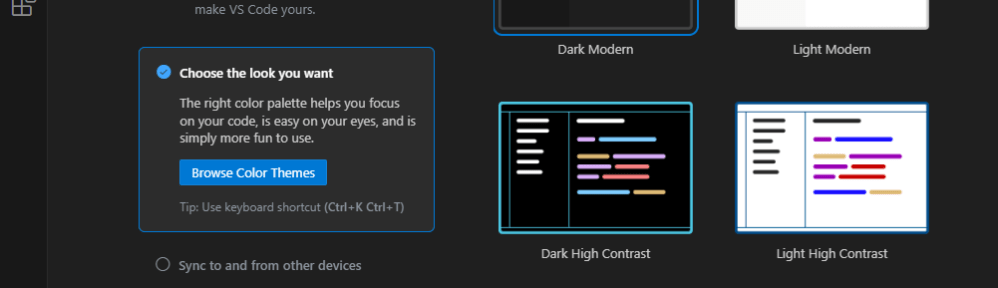
Continue with the setup. At the end, it asks to launch the IDE, and you should see something like this:
Congratulations, you have successfully installed Visual Studio Code!
In the next articles I’ll give an overview using the IDE, and how you can get back to a clean state again. See my next article: VS Code: Uninstall completely.
Happy coding 🙂
Links
- NXP extension for Visual Studio Code: https://www.nxp.com/design/software/development-software/mcuxpresso-software-and-tools-/mcuxpresso-for-visual-studio-code:MCUXPRESSO-VSC
- Microsoft Visual Studio Code: https://code.visualstudio.com/
- My previous tutorial on VS Code: https://mcuoneclipse.com/2021/05/01/visual-studio-code-for-c-c-with-arm-cortex-m-part-1/
 MCU on Eclipse
Given your long-standing experience with Eclipse, I’d be curious to know: what catalyzed the switch to using VS Code. (I’m sure there are many who follow your blog who are asking the same question!)
LikeLike
I’m making the journey to switch my class material from different Eclipse distributions and setup to VS Code. I’m not planning any of the running or maintained production code to VS Code. I wanted to provide more of the reasoning as I go and write the articles. But Eclipse as technology has stalled for some years, and I attribute this to all the different vendors who take advantage of it, but not contributing innovation back? I have labs and projects running with multiple MCU/CPUs and vendors, each providing its own tooling and environment, sometimes conflicting. While it should be technically possible to combine these into a single Eclipse environment, alone the licensing conditions create a roadblock. Eclipse excels with cross-platform support, especially with debugging support, while VS Code is still in the very early stage of understanding the embedded world.
What has catalyzed my plan to convert is that finally silicon vendors like Espressif, Nordic, STM or NXP (see https://www.nxp.com/design/software/development-software/mcuxpresso-software-and-tools-/mcuxpresso-for-visual-studio-code:MCUXPRESSO-VSC) providing extensions to make seem possible to have a combined Editor/IDE again.
The other aspect is better command line and especially CMake support in VS Code, which is essential for many types of development. There are of course a lot of cons around VS Code too, as for everything. But I thought I’ll give it a try and see how it works out, on a larger scale.
I hope this helps? During my following articles I want to outline some of the differences, pros and cons too.
LikeLike
Erich:
As always, your response is clearly thought out and articulated.
I recently dipped my toe into VS Code, primarily to try its editor and LLM-assisted code generation. To be honest, it hasn’t been enough to pull me away from Sublime Text and ChatGPT4. But then again, I need to try VC Code on some more projects before passing judgement.
LikeLike
Hi Robert,
VS Code is just an editor in its core, not even an IDE. Sublime Text is a fantastic editor and piece of software. I have not used it much, but I always have been impressed what it is able to do. But similar to you on the VS Code side, I have not used it enough to have a good judgement. But I believe at the end you might like Sublime better, because imho it does one thing right, while VS Code tends to get into the world of trying to too many things.
LikeLike
Hi Erich…once again great tutorial. I’m also interested in CMake but I wasn’t aware that VScode was so keen on CMake; this series of post may change my perspective. Are you aware of the cmake4eclipse plugin ? It’s worth trying for us Eclipse long-standers..
LikeLike
Hi Sergio,
yes, I tried cmake4eclipse in the past, with mixed results. I’ll check out the latest version, thanks for this!
LikeLike