
One question I have received many times:
“Where can I find the Eagle footprint for Kinetis device XYZ?”
(replace Eagle with Altium or any other CAD/PCB Layout/Schematics program). So far I had to point either to Google, or to the symbols I have used in my design. Finally, Freescale has now a site where footprints can be downloaded :-):
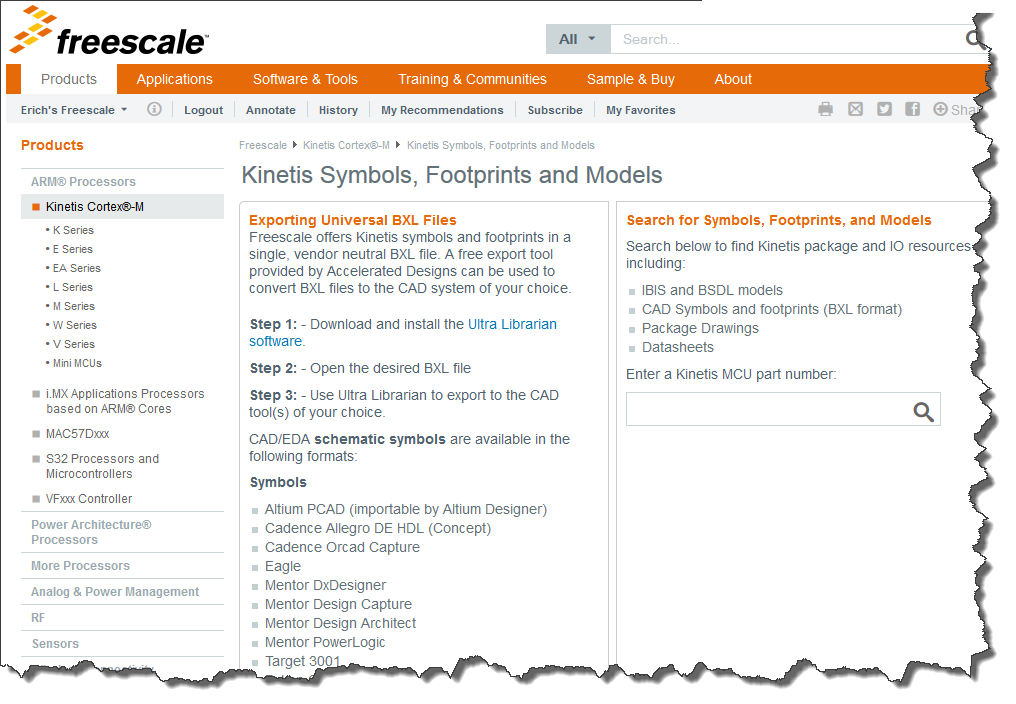
Kinetis Footprints
The site is here: http://www.freescale.com/kinetis/CAD. I need to download an Ultra Librarian tool and install it:
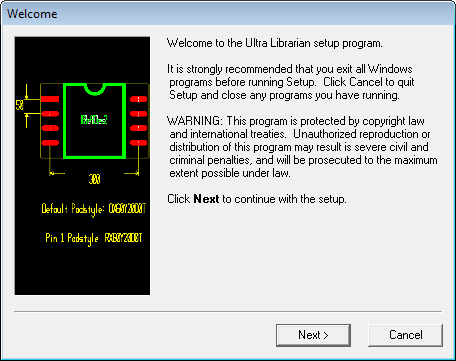
Ultra Librarian Setup
On http://www.freescale.com/kinetis/CAD I search for my device:
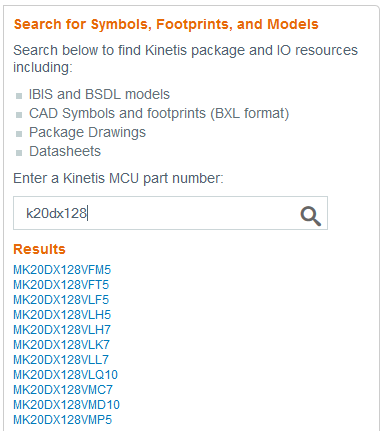
Search for Device
I can directly enter my device like this: http://www.freescale.com/kinetis/CAD#MK64
Or like this: http://www.freescale.com/kinetis/CAD#MK64FN1M0VLL12
I select the device and download the BXL file:
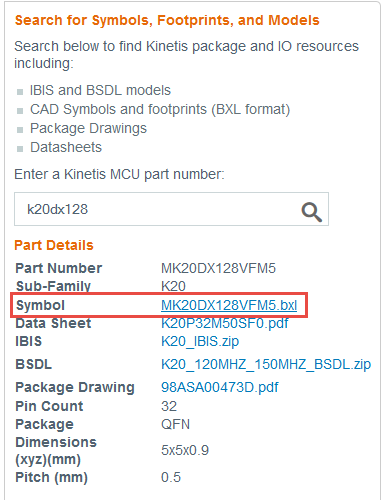
Download BXL File
In the Ultra Librarian tool, I load that *.bxl file, select my CAD tool of choice (Eagle 🙂 ) and export it:

Ultra Librarian to Convert File
After exporting, a report is shown with the information where the files are stored (the duplicated folders are strange?) and instructions how to import it into Eagle:
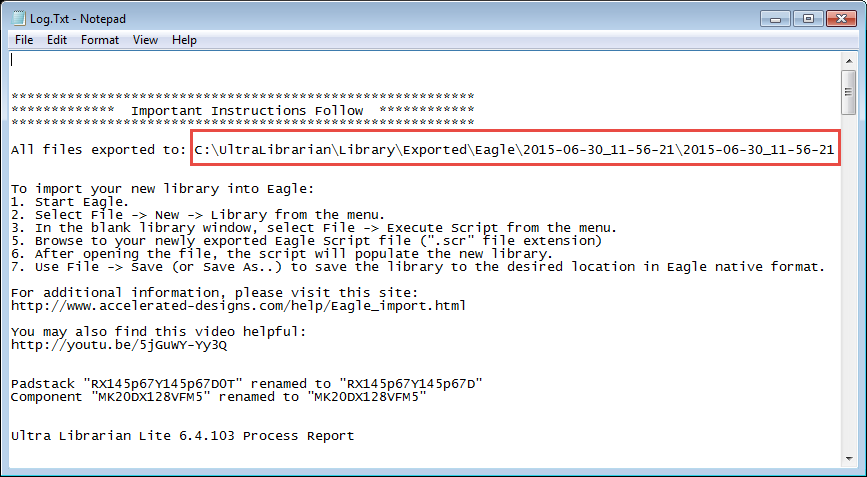
Ultra Librarian Export Log
Following these steps, I have now the footprint in Eagle 🙂 :
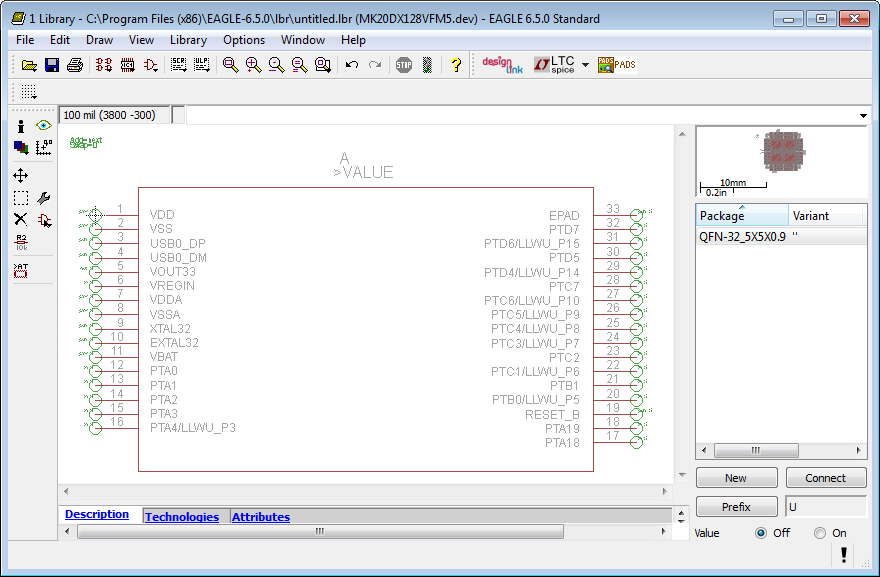
Footprint in Eagle
Summary
Finally, I can get footprints from Freescale for the Kinetis Devices. It requires downloading multiple files and a converter. But this is fine, as it offers flexible conversion to many different CAD and PCB Layout tools, including the popular Eagle and Altium. Happy Footprinting 🙂
 MCU on Eclipse
This is awesome, I always design the footprints from the data-sheet from scratch every time. This could save me like an hour of unnecessary footprint design work. Thanks for sharing. I use Proteus suite but, am looking at Eagle lately, for compatibility reasons and sharing design files.
LikeLike
That’s fine, and for sure I will avoid some always possible error 😉
Thanks Erich
LikeLike
Nice link thanks. Tried looking for K26 footprints – not there yet 😦
LikeLike
It’s great that you are exploring the K26 device! I want to let you know that we’ve identified this gap and are working to ensure the tool supports this part number, as well as a number of others. Thanks again for working with Kinetis! – justin
LikeLike
Be very careful using the landing patterns, as the one i downloaded for the MK20DN64VLF5 has the wrong footprint (there is a central ground pad in the center of the pad, which is not required for the MK20DN64VLF5 )
I have notified Freescale about the problem (which i hope they will fix asap), but it seems Freescale has not put much care and or effort into a resource that should have been provided when the Kintetis range was released.
LikeLike
thanks for the heads-up about this!
LikeLike
Call me old fashioned, but I prefer my schematic symbols to look different from my PCB footprints! 99% of vendors disagree, and prefer to ship unreadable symbols.
I live in London, and often use the underground rail system – The Tube, as we call it. It has a beautifully simple topological map that describes the CONNECTIVITY of stations. Reading a topographical map of the London Underground, on the other hand, makes your eyes bleed.
Schematics and symbols should look like the Tube map. Pins should be grouped by function – all the supply pins grouped at the top, the ground pins grouped at the bottom, pins grouped by port, the USB pins together, etc etc.
TL;DR: elitism, trolling ; )
LikeLike
Hi Jeff,
I think this is not old fashioned, but good engineering style and habit to have the symbols as you describe it (grouped by function, etc). I think the reason why this is *not* the case from all the vendors is that they simply transform their package information and data into generated symbols, skipping that ‘human’ step to make the symbols better and more readable.
LikeLike
Great tutorial Erich. Thanks a lot.
LikeLike
Hi Erich, Ultra Librarian V8.1 FREE, not have options export to Eagle ?,
LikeLike
Hi Carlos,
I had the free version as shown in this article, and it had an option to export to EAGLE for me (see screenshots)?
LikeLike