
The choice of IDE is sometimes given by the available tools at hand. And sometimes it is a preference of the look and feel. Or maybe just what one is used to use. And sometimes small changes can make a big difference too.
For example, when I’m starring at my code for hours, a nice font can make all the difference. A cool and nice feature of fonts are ‘Ligatures‘. Maybe you can you can spot them in the following screenshot?

A ‘ligature‘ is basically the combination of two characters into one single glyph. As for the text or source code, a ‘!=’ is still what is present in the text file, but in the editor it is displayed as ‘one’:

Comging ‘->’ into an arrow glyph is only a rendering thing: the source code still has the original content, it is just presented in different way.
Now this seems like a minor thing, but for me it makes reading source code more comfortable and readable.
Next, I’ll show how to enable ligatures in Eclipse and Visual Studio Code.
Eclipse
In Eclipse, choose a a font which supports ligatures. The setting is found in the Preferences, under General > Appearance > Colors and Fonts > Basic > Text Font and then press the Edit button:

You have to select a font which does support ligatures, for example ‘Cascadia Code’. Close the dialog and you can enjoy ligatures:

Visual Studio Code
In Visual Studio Code, open the settings (e.g. menu File > Preferences > Settings), then filter for ‘font’ and add ‘Cascadia Code‘ to the list of fonts:
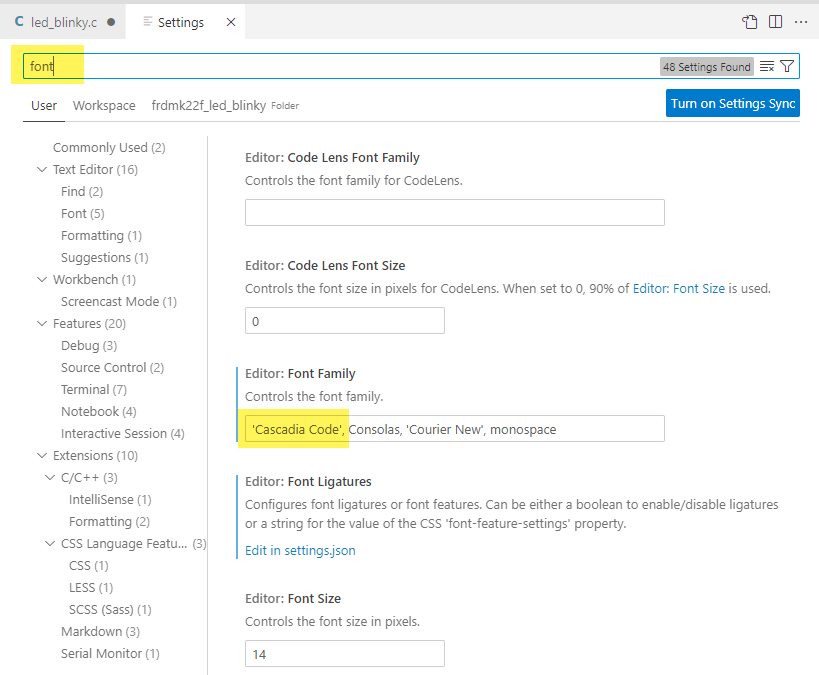
Unlike Eclipse, ligature support has to be turned on manually in the settings.json: click on the link:

In the settings, change the setting to true:
"editor.fontLigatures": true,

Restart now the IDE, and you can enjoy ligatures in Visual Studio Code:

Summary
Using a font with ligatures does not sound like a big deal. To me, it makes coding much nicer, and I don’t ever want to go back to the pre-ligature area. I suggest you give it a try and decide for yourself, and let me know what you think?
Happy Coding 🙂
Links
- Ligature: https://en.wikipedia.org/wiki/Ligature_(writing)
- Cascadia Code Font on GitHub: https://github.com/microsoft/cascadia-code
 MCU on Eclipse
thanks for your sharing this great view mode 🙂 have nice day 🙂
LikeLike
Yes, it makes a difference, every day 🙂
LikeLike
thank you for the information
LikeLike
You are welcome 🙂
LikeLike
Hi Erich,
I’ve just tried it. I have a mixed experience. On a tool based on an old Eclipse version, this does not work. On another one using a more recent Eclipse version, it works perfectly. Anyway, thanks for the tip 🙂
LikeLike
Hi Nicolas,
yes, your Eclipse version should not be very old. I have not verified it, but it should work from 2021 on, and I have seen reports that more recent better support has been added.
LikeLike
Pingback: ICYMI Python on Microcontrollers Newsletter: Raspberry Pi Going Strong, Projects and much more! #CircuitPython #Python #micropython #ICYMI @Raspberry_Pi « Adafruit Industries – Makers, hackers, artists, designers and engineers!