
I’m chasing down a weird include problems in my project: Somehow it looks like the compiler is including the wrong file, causing strange compiler errors. I admit: the include order with all the #defines is pretty complicated, most of it I have inherited from an open source project. How to know who is including what, which files is included by whom? what is included directly, and what is included indirectly?
One way would be to use Doxygen: the include graphs would help me. But there must be a more direct way?
The good thing with an open source framework like Eclipse is that if I have a problem, then many other Eclipse users had it probably too. And then the chances are pretty good that someone has volunteered to solve that problem. And indeed, that solution exists :-): The Include Browser view.
Opening the View
The Include Browser view is available as a view (menu Show > View):

Include Browser in Show View
This opens the following view:
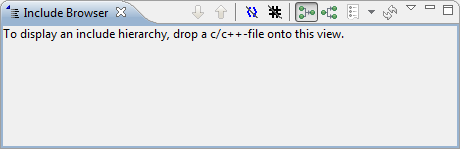
Include Browser Initial View
Drag&Drop
Ah! I can simply drag&drop into that view.
Note: Drag&Drop does NOT work in this case from the Processor Expert ‘Project Panel’ view :-(. Drag&Drop from the CodeWarrior Projects view works as expected.
I simply drag queue.c into the view, then I see what is included:
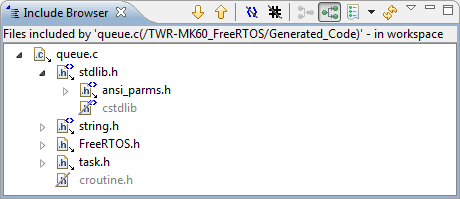
Include Browser with Files: what is included from queue.c?
So now I see what is included directly and indirectly by my files. Even more, I see what is included as system include (marked with <>), and inactive includes are grayed out. There are two toolbar items to turn these on or off.
I can double click on a file and it will open me the exact position of the include: really cool!
Includes of Header Files
Of course I can drag&drop a header file too. Now I see what is included by Cpu.h:

What is included by Cpu.h?
Show Includers
But not only this: there is a toolbar to switch to the ‘Show Includers’ mode:
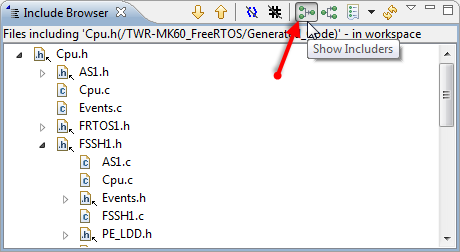
Show Includers
As above, I can navigate though my whole include trees, really cool!
Summary
That Include Browser view is one of the hidden treasures in Eclipse: Like many great features, you only get to it once you need it. But for nearly any problem, there is probably a function in Eclipse for it. I hope this post makes one if it a bit more accessible and visible. And many thanks to the implementors of the Include Browser view! 🙂
Happy Including 🙂
 MCU on Eclipse